2 0 0 9
P a g e | 17
Using Minoru with popular messaging applications
Windows Live Messenger
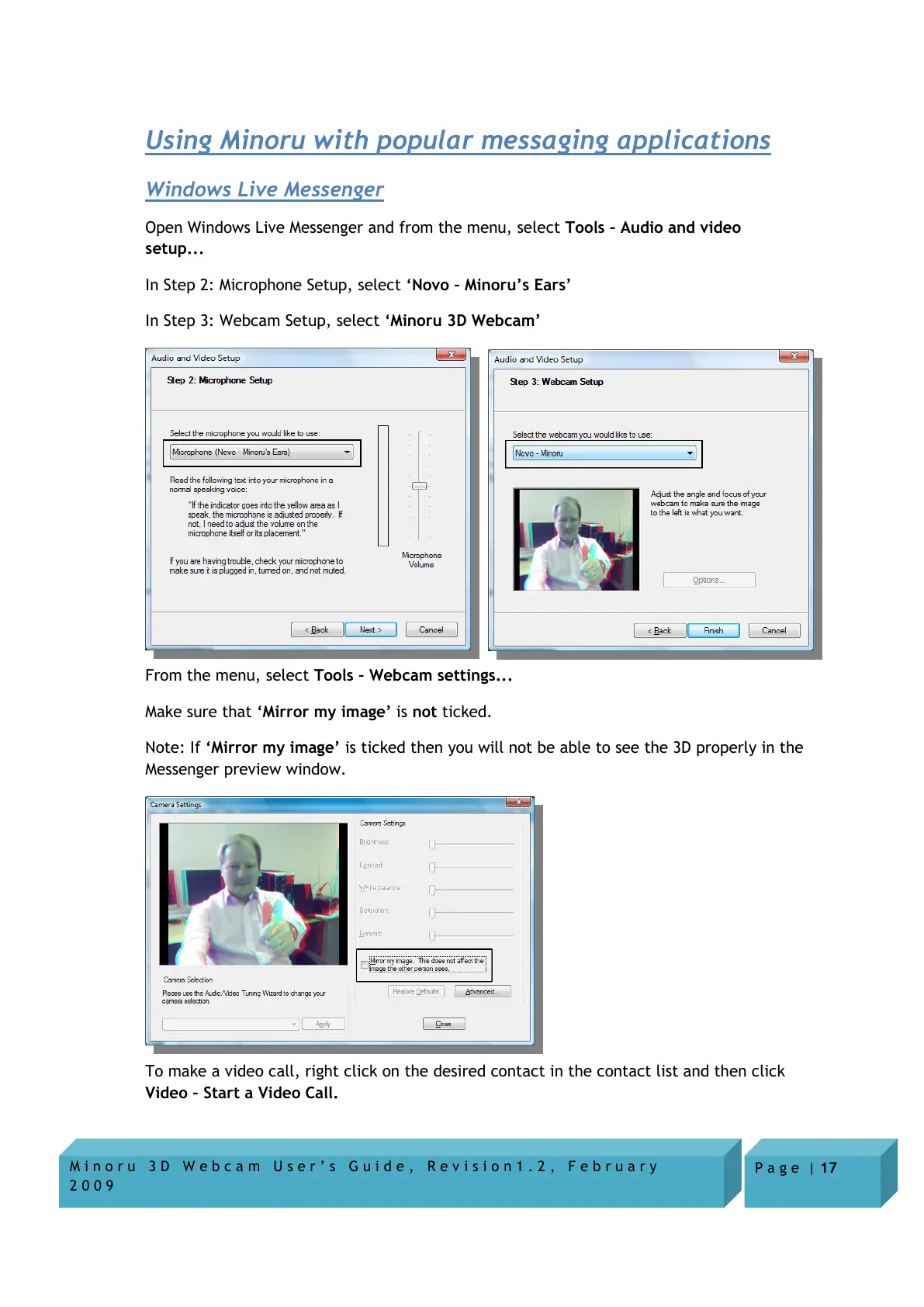
Open Windows Live Messenger and from the menu, select Tools – Audio and video
setup...
In Step 2: Microphone Setup, select ‘Novo – Minoru’s Ears’
In Step 3: Webcam Setup, select ‘Minoru 3D Webcam’
From the menu, select Tools – Webcam settings...
Make sure that ‘Mirror my image’ is not ticked.
Note: If ‘Mirror my image’ is ticked then you will not be able to see the 3D properly in the
Messenger preview window.
To make a video call, right click on the desired contact in the contact list and then click
Video – Start a Video Call.


 To Next Page