2 0 0 9
P a g e | 16
How to take and email a snapshot
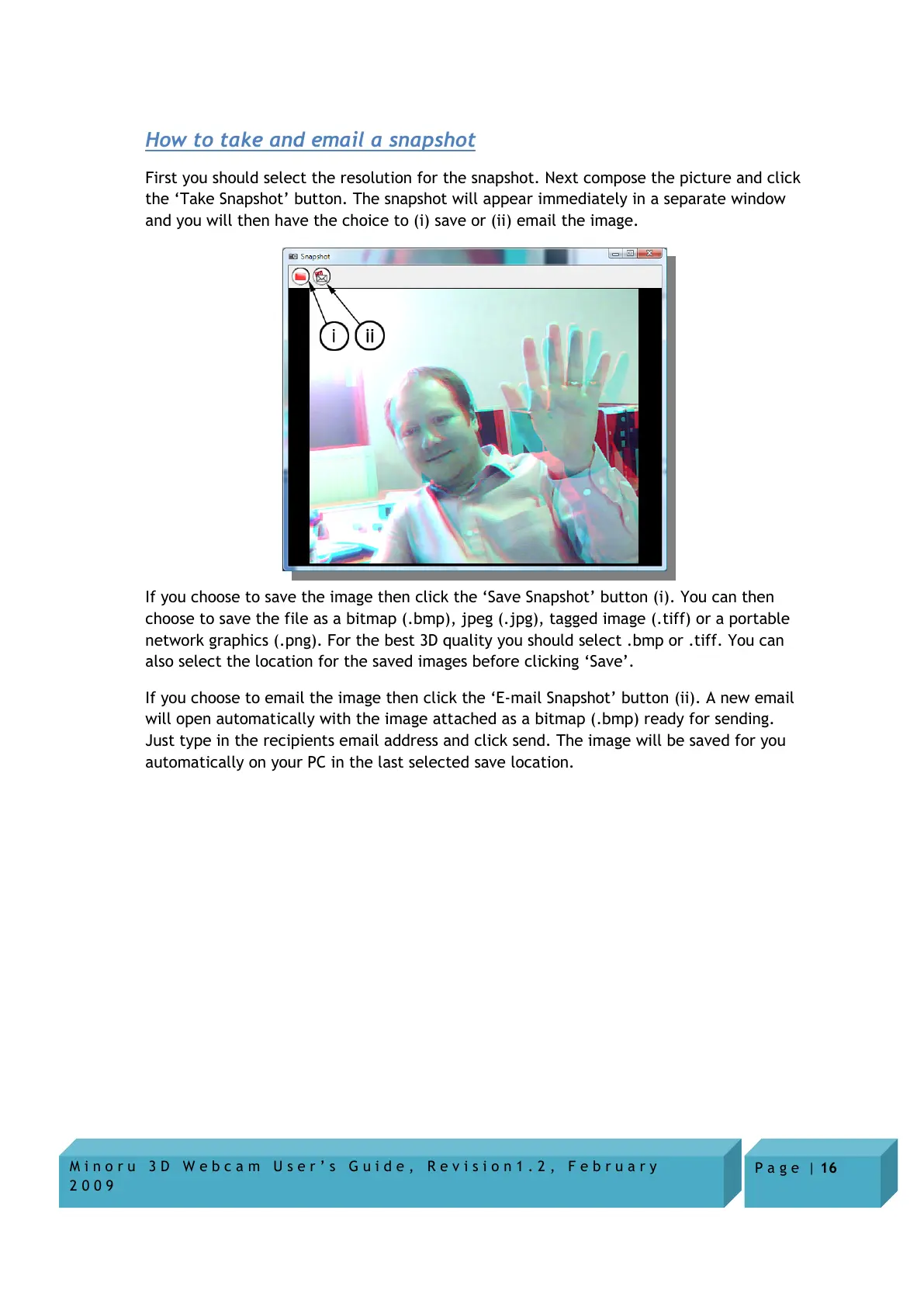
First you should select the resolution for the snapshot. Next compose the picture and click
the ‘Take Snapshot’ button. The snapshot will appear immediately in a separate window
and you will then have the choice to (i) save or (ii) email the image.
If you choose to save the image then click the ‘Save Snapshot’ button (i). You can then
choose to save the file as a bitmap (.bmp), jpeg (.jpg), tagged image (.tiff) or a portable
network graphics (.png). For the best 3D quality you should select .bmp or .tiff. You can
also select the location for the saved images before clicking ‘Save’.
If you choose to email the image then click the ‘E-mail Snapshot’ button (ii). A new email
will open automatically with the image attached as a bitmap (.bmp) ready for sending.
Just type in the recipients email address and click send. The image will be saved for you
automatically on your PC in the last selected save location.


 To Next Page