6.5 Test Set
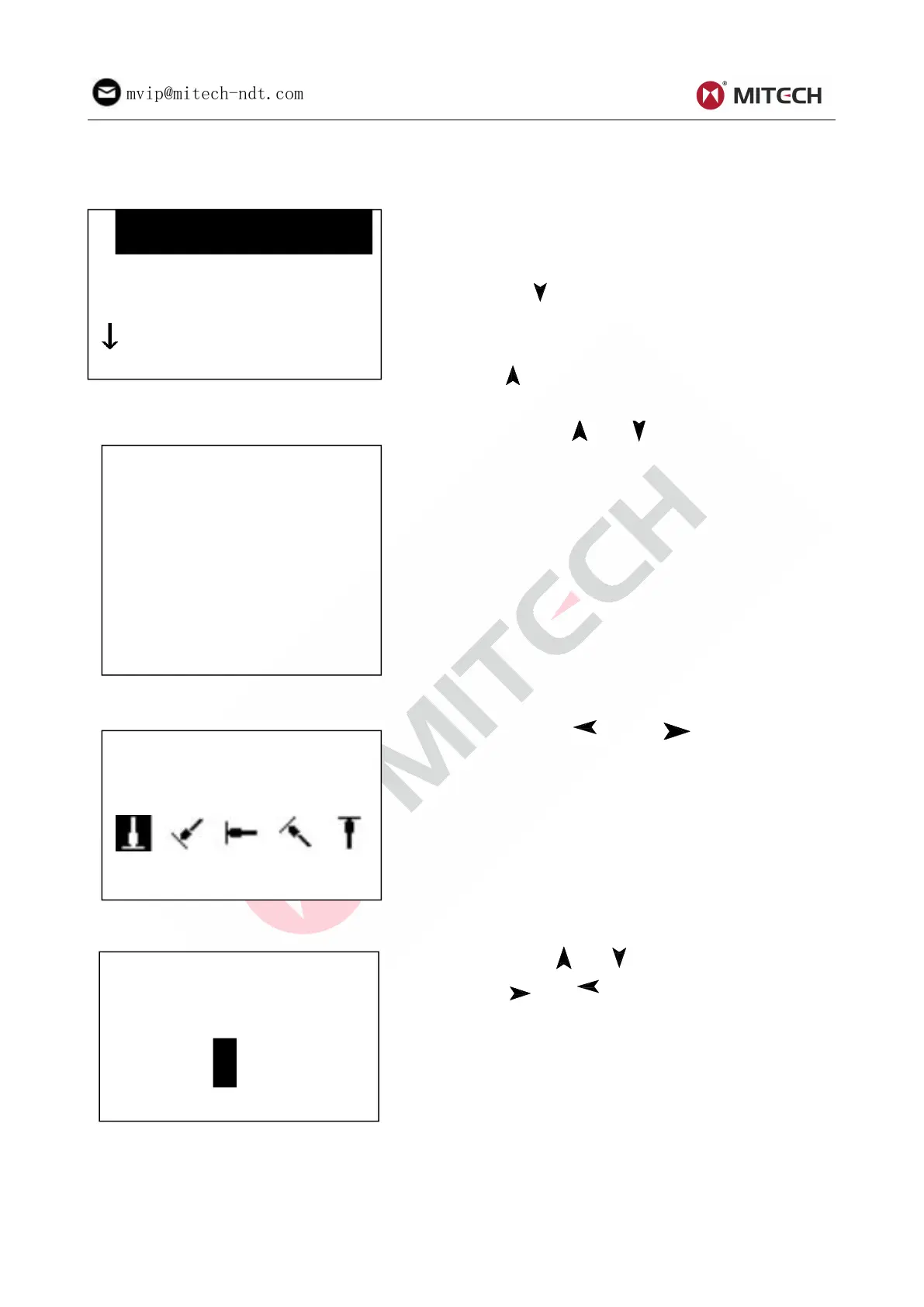
At the main display interface, press key【MENU】 to enter the main menu.
Press key 【ENTER】 to enter Test Set Menu.
The symbol ↓ at the left side of underside menu
indicates that the menu has not ended. Press
key 【 】 could continuously glance downward.
The symbol ↑ at the left side of the upside menu
indicates that the menu has not ended. Press
【 】could continuously glance upward.
Press key【 】or【 】to move the cursor to the
line you want to set, and press key【ENTER】to
Note:1. When 【Hard/бb】is switched to бb,
the hardness scale could not be selected.
The cursor will skip over【Hardness Scale】
while moves the cursor.
2. Only D type of impact device has the
function of бb measure. So the cursor could
not move to 【 Hard/бb 】 while use other
impact device.
6.5.1 Impact Direction Setting
Press key【 】 or 【 】to move the cursor
to the impact direction that you will preset.
Press key【ENTER】to confirm it.
Press key【ESC】to cancel it.
6.5.2 Average Times Setting
Press 【 】【 】 to move the cursor. Press
【 】【 】 to change the number. Press
key【ENTER】to confirm it. Press key【ESC】to
cancel it.
6.5.3 Material Setting
When 【Hard/бb】is preset to hardness, it will display the following material: Steel and Cast Steel、Cold
Work Tool Steel、Stainless Steel、Gray Cast Iron、Nodular Cast Iron、Cast Aluminum Alloys、Copper-Zinc
Alloys、Copper-Aluminum Alloys、Wrought Copper and Wrought Steel.



 To Next Page