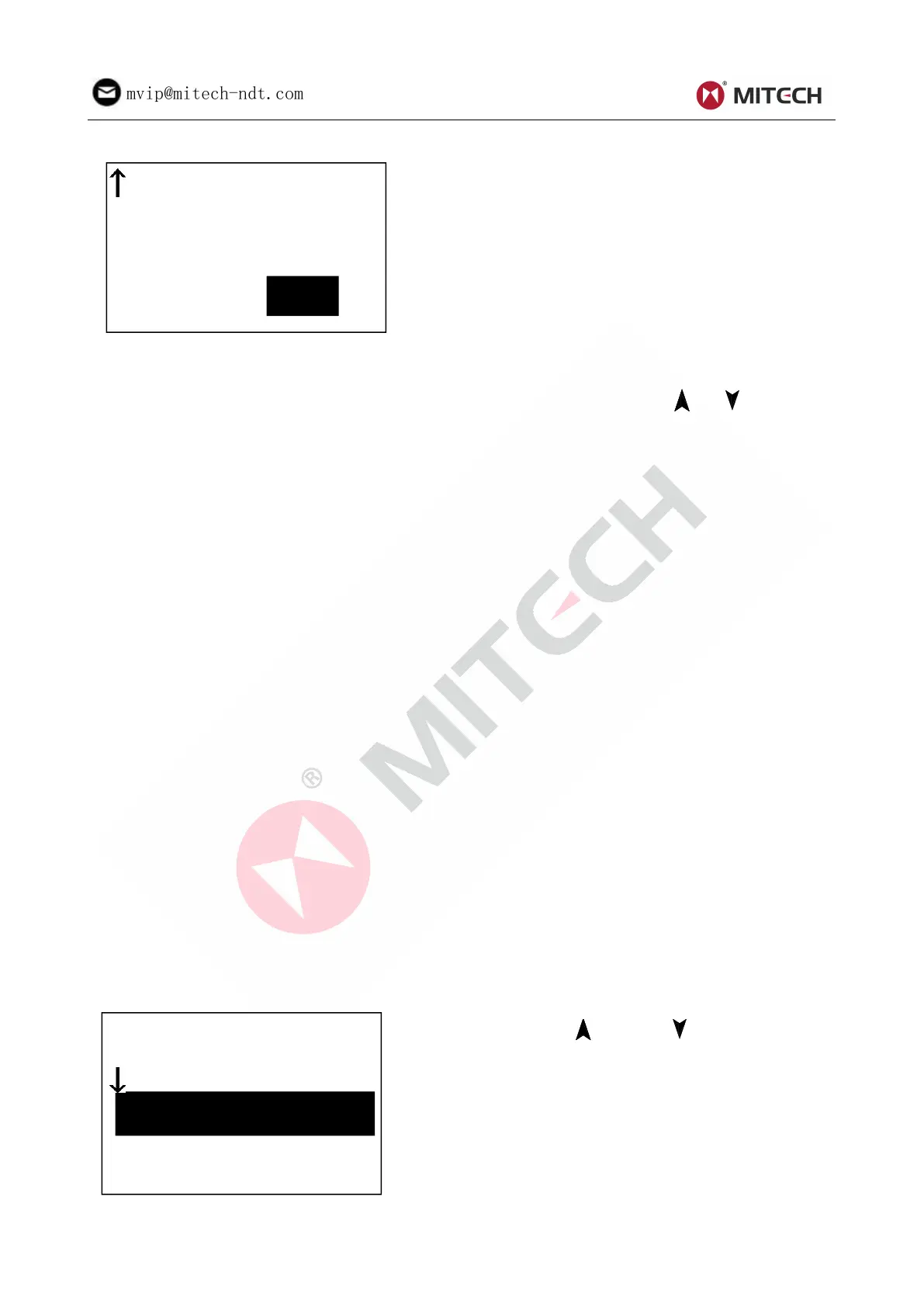
Press key【ENTER】to switch between Hard and бb .
Note: Only D and DC type of impact device
has the function of бb measure. So hard
is the only selection if the impact device is
not D or DC type.
6.6 Print Function
At the main display interface, press 【MENU】 to enter the main menu. Press 【 】【 】to move the
cursor to print menu and press 【ENTER】to enter the print menu.
Note:
Printing function is unavailable while charging.
Printing can be stopped by pressing the 【ESC】key.
Do not open the cover of the paper compartment during printing. Otherwise the instrument
may not print normally.
Over high ambient humidity (above 85% of relative humidity) or over low ambient humidity
(below 20% of relative humidity) may reduce the print quality.
Printing with paper that has been stored for over long period of time or of poor quality may
reduce the print quality or even damage the printer.
6.6.1 Print Current
Print out the data report just finished testing. If the instrument hasn’t been switched off, and hasn’t
changed any testing condition during continuous printing process, it will only print out single measured
value and average value when printing again.
6.6.2 Print Memory
Print out the selected group of measured value stored inside the instrument.
6.6.3 Print All Memory
Print out all the measured value stored inside the instrument.
6.6.4 Paper Feeding
When the printer is powered on and ready for printing, press 【FEED】 key then the instrument will start
manual paper feeding. Press and keep holding the 【FEED】 key to start paper feeding, while releasing
the key to stop paper feeding.
Note: Manual paper feeding is unavailable while charging.
6.7. Memory Manager
At the main display interface, press key【MENU】 enter the main menu.
Press key【 】or key【 】to move the cursor
to【Memory Manager】.Press key【ENTER】into
If there is no data in the memory, displays: <No
Data!>. Then return.



 To Next Page