© Copyright 2023, Mitel Networks Corporation. All Rights Reserved. 58016876 REV00
The trademarks, service marks, logos and graphics (collectively "Trademarks") appearing on Mitel's Internet sites or in its publications are registered and unregistered trademarks of Mitel Networks Corporation (MNC) or its subsidiaries (collectively "Mitel") or others.
Use of the Trademarks is prohibited without the express consent from Mitel. Please contact our legal department at legal@mitel.com for additional information. For a list of the worldwide Mitel Networks Corporation registered trademarks, please refer to the website:
http://www.mitel.com/trademarks.
Mitel’s Power Over Ethernet (PoE) Powered Device (PD) products are covered by one or more of the U.S. patents (and any foreign patent counterparts thereto) identified at Mitel’s website: www.mitel.com/patents. For more information on the PD patents that are licensed,
please refer to www.cmspatents.com.
QUICK REFERENCE GUIDE
Mitel 6915 SIP Phone - Quick Reference Guide
User Interface (UI) overview
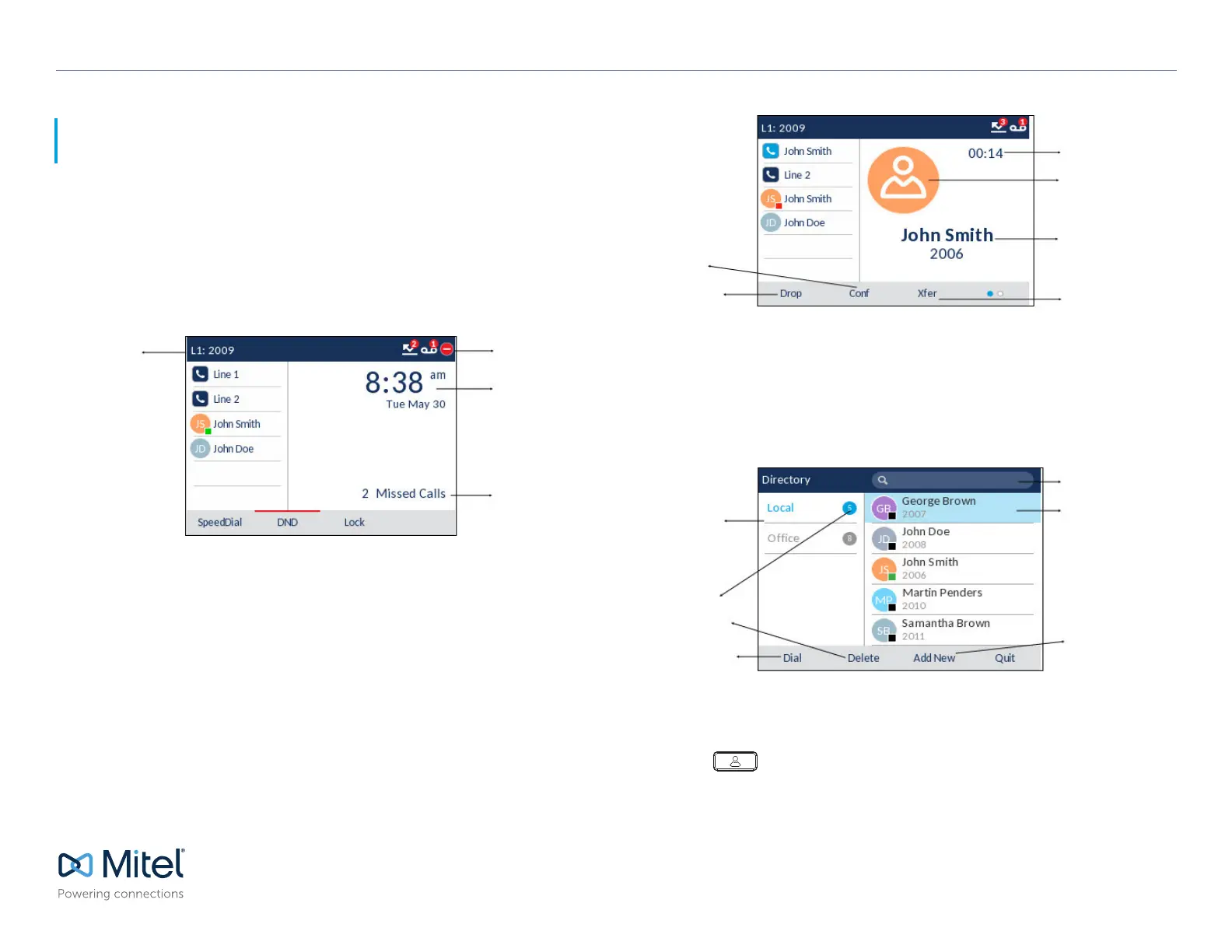
Home screen
The Home (default) screen is displayed when the phone is in the idle state. The Home
screen displays the current line, status indicators, status messages, the date and time,
and a list of configurable top and bottom softkeys.
Call screen
When on an active call, caller’s avatar, name, number, and the call-duration timer are
displayed. The context-sensitive softkeys are updated with applicable call-handling
features.
Note: For details on all the available features and options, refer to the Mitel 6915 SIP Phone User
Guide.
Status Indicators
Date and Time
Status Messages
Line and
name/number
Applications
Directory
The Directory application stores personal phone book and directory. The Mitel 6915 SIP
phone supports a localized personal directory as well as enhanced functionality allowing
for interoperability with LDAP (corporate) directories.
.
Making a call using the Directory
1. Press the key to access the Directory.
2. Navigate to the respective contacts folder and scroll through the contacts by using the
navigation keys
Call Timer
Avatar
Caller ID
Transfer Softkey
Conference
Softkey
Call Drop
Softkey
Search Field
Contact Details
(Name and Number)
Add New Contact
Softkey
Directory
Folders
Number of
Contacts in
Folder
Delete Contact
Softkey
Dial Softkey



 To Next Page