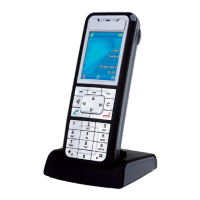
Creating A Multi-Party Conference Call:
While on an active call press the ADD USER softkey. The active call is placed on hold.
1. Enter the extension or 9 + the outside number you wish to add to the call. Wait for answer,
consult and then press the JOIN CALLS soft key to create the three-way conference call.
Note: Pressing the TRADE CALLS softkey swaps the active call with the other party currently
on hold. Pressing the SPLIT softkey splits the conference call by placing all callers on hold except
the initial caller.
2. Repeat steps 1 & 2 to add additional parties to the conference.
To Pair a Bluetooth Device:
➢ Sync your mobile phone’s contact list with your Mitel MiVoice 6940 IP phone.
➢ Answer a mobile phone call using your Mitel MiVoice 6940 IP phone.
➢ Move mobile call audio between the Mitel MiVoice 6940 IP phone and your mobile phone.
1. Press the Settings key .
2. Navigate to the Bluetooth key .
3. Ensure Bluetooth functionality is enabled. If it is not enabled, press the Turn On softkey to
enable Bluetooth functionality
4. Turn your cell phone/headset to pairing mode now!
5. If required, press the down navigation key to view the list of Available Devices.
6. Press the right navigation key to move to the Bluetooth device selection column.
7. Using the up and down navigation keys, highlight the Bluetooth device you want to pair and
press the Pair softkey.
8. The phone attempts to pair the Bluetooth device and if successful, automatically attempts to
connect to the Bluetooth device.
9. Press OK to acknowledge the successful connection
When a mobile phone is successfully connected, a Mobile connected icon appears in the status bar on the
Home screen.



 To Next Page