<Setting
Wi-Fi
...Bugs****
Elf•vg5
PIN
,
M
■
Bugs '3'0
Tap "Bugs Go" App
Click
'GO"
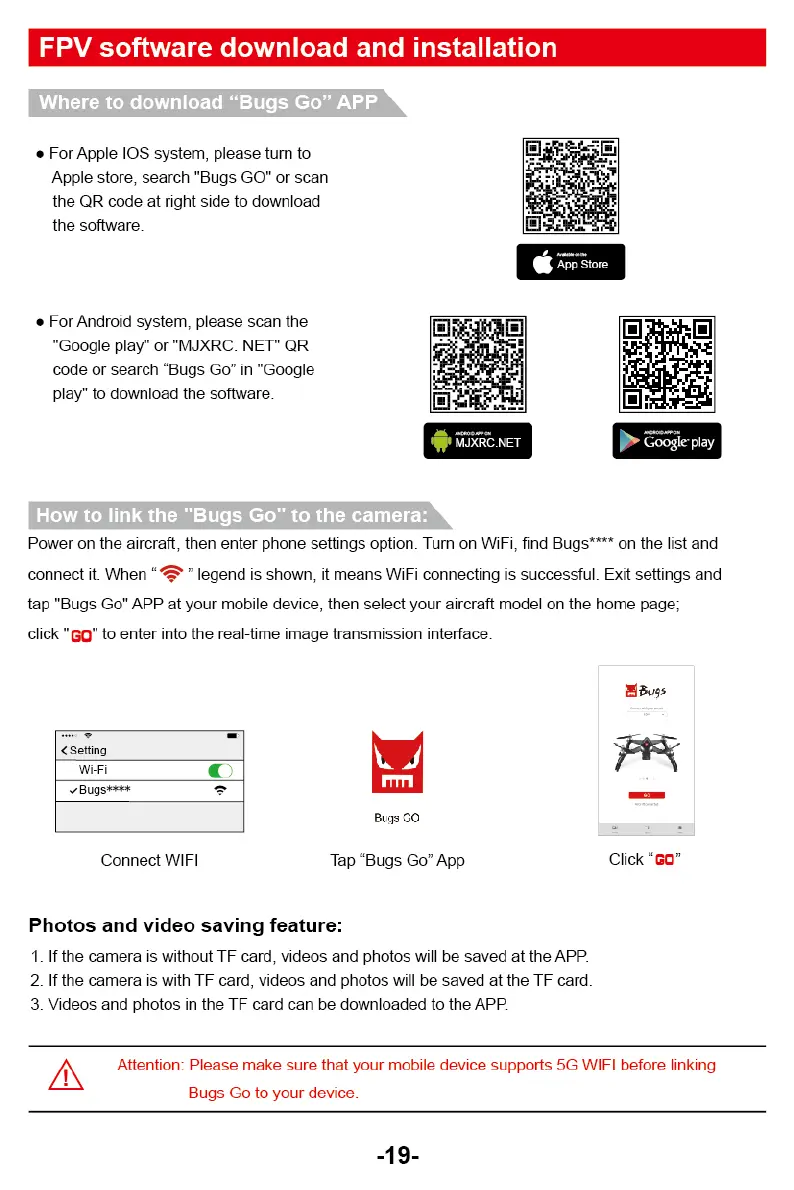
FPV software download and installation
Where to download "Bugs Go" APP
•
For Apple IOS system, please turn to
Apple store, search "Bugs GO" or scan
the OR code at right side to download
the software.
App Store
•
For Android system, please scan the
"Goggle play" or "MJXRC. NET
OR
code or search Bugs Go" in "Goggle
play" to download the software.
MJXRC.NET
Ellile play
How to link the "Bugs Go" to the camera:
Power on the aircraft, then enter phone settings option. Turn on WiFi, find Bugs
.
*** on the list and
connect it. When
legend is shown, it means WiFi connecting is successful. Exit settings and
tap "Bugs Go" APP at your mobile device, then select your aircraft model on the home page;
click "
Go"
to enter into the real-time image transmission interface.
Connect WIFI
Photos and video saving
feature:
If the camera is without TF card, videos and photos will be saved at the APR
2.
if the camera is with TF card, videos and photos will be saved at the TF card.
3.
Videos and photos in the TF card can be downloaded to the APP
A
Attention: Please make sure that your mobile device supports 5G WIFI before linking
Bugs Go to your device.
-19-


 To Next Page