22
● After acquisition of the models, system will automatically start flat focus compensation function
● Can move to the field and observe the model assessment results by clicking the left mouse button.
Normally most field images are sharp after starting general model.
If majority of the images are not sharp, please repeat (1) to (5) steps to re-establish the model;
c. Image Acquisition
● If a model has already been established, the defined modeling area will be taken as default
scanning area; Can also use the right mouse button to customize slide scanning area.
● Select “scanning method” on right side of the map frame (Standard, High Precision, EDF and
Z - Stacking).
● Click “Scan slide” button, start scanning and image acquisition.
3.4 For Mobile Device (*Optional)
MoticEasyScan One can be remotely controlled by installing wireless router on mainframe of scanner
computer and connect the mobile device to the router. By doing this, it can realize scanner controlling,
stop and check scanning status and review scanned digital slide.
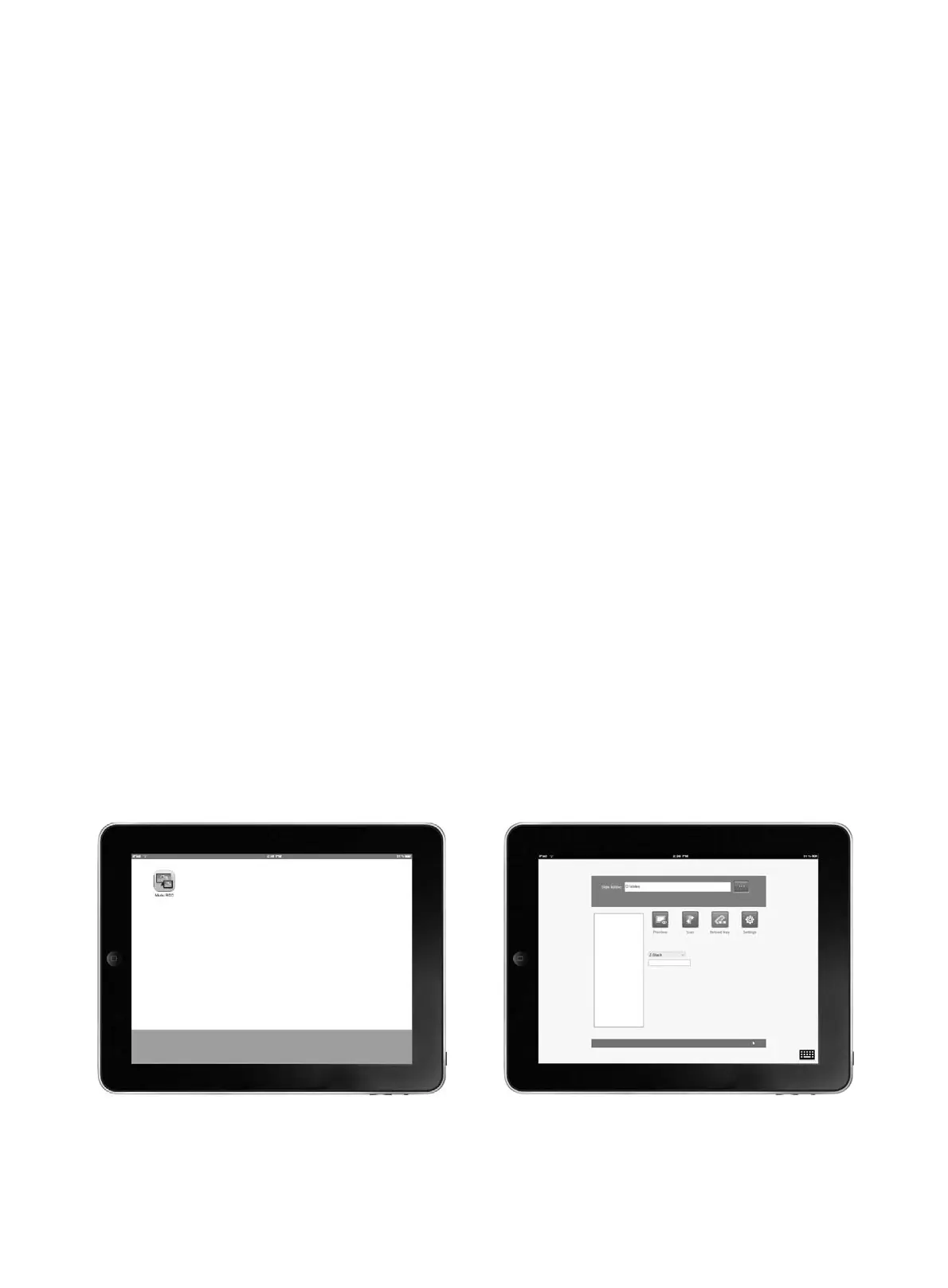
Take an iPad as an example, please refer to below figure:
a. Operation procedure
● Download Motic RDC APP from AppStore (Fig. 11a)
● iPad is connected to mainframe of scanner by using the same WIFI environment
● Open Motic RDC APP to connect and control scanner (Fig. 11b)
(Fig. 11a) (Fig. 11b)


 To Next Page