EasyManua.ls Logo

Motorola DS9208 - User Manual

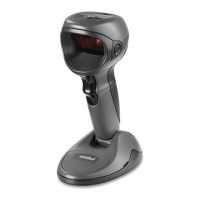
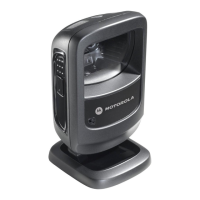
Motorola DS9208
2 pages
Print Icon
To Next Page IconTo Next Page
Loading...
http://www.motorola.com/ds9208
DS9208
2
1
3
4
DS6708 Poster
BLACK
PANTONE 285
Perforation
DS6708 Poster
POST IN WORK AREAPOST IN WORK AREA
Quick Start Guide
WALL MOUNTING TABLE TOP MOUNTING
See Product Reference Guide
for detailed information
HOST INTERFACES
NOTE: Cables may vary depending on configuration
TROUBLESHOOTING
No power to scanner
Check system power;
ensure power supply,
if required, is connected
Incorrect interface cable used
Ensure that correct
interface cable is used
Ensure all cable connections
are secure
Scan appropriate host parameter bar codes Ensure all cable connections are secure
Interface/power cables are loose
Scanner not working
Bar code unreadable
EnsEnsure bar code is not defaced;
try scanning test bar code of same
bar code typeure bar code is not defaced;
try scanning test bar code of same
bar code type
Distance between scanner
and bar code incorrect
Move scanner closer to
or further from bar code
Scanner not programmed
for bar code type
Ensure scanner is programmed
to read type of bar code being
scanned
Scanner not decoding bar code
Scanner not programmed for correct host interface Interface cable is loose
Scanner decoding bar code, but data not transmitting to host
Scanner not programmed for correct host interface
Scan appropriate host parameter bar codes
Scanned data incorrectly displayed on host
DS9208 PROGRAMMING BAR CODES
1 LED Indicators
2 Scan Window
3 Scan Trigger
4 Beeper
SET DEFAULTS
HID KEYBOARD EMULATION
IBM HAND-HELD USB
<DATA><SUFFIX 1>
ICL RS-232
NIXDORF RS-232 MODE A
NIXDORF RS-232 MODE B
FUJITSU RS-232
OPOS/JPOS
Keyboard Wedge
IBM PC/AT and IBM PC COMPATIBLE
STANDARD RS-232
RS-232 Host Types
Enter Key (Carriage Return/Line Feed)
Set Defaults
USB Host Types
Keyboard Wedge Host Types
Scan ONE of the following country types
NORTH AMERICAN
FRENCH
FRENCH CANADIAN
SWEDISH
JAPANESE
ITALIAN
SPANISH
UK ENGLISH
GERMAN
SNAPI WITH IMAGING
SNAPI WITHOUT IMAGING
Power supply optional
PORT 5B
PORT 9B
IBM 46XX Host Types
PORT 17
RS-232
IBM 46XX
USB
CORD ATTACHMENT
Inserting Scanner
Removing Scanner

Other manuals for Motorola DS9208

Questions and Answers

  • D
    Dr. Bryan BrownAug 19, 2025
    Why Motorola DS9208 Barcode Reader emits low/high beeps during programming?
    • T
      Timothy HarrisonSep 12, 2025
      If the Motorola Barcode Reader emits low/high beeps during programming, it indicates an input error or that the Cancel barcode was scanned. Scan the correct numeric barcodes within range for the parameter programmed.
  • R
    Ronnie RichardsonAug 21, 2025
    Why Motorola Barcode Reader emits many beeps during programming?
    • S
      Stacie ThomasAug 21, 2025
      If the Motorola Barcode Reader emits low/high/low/high beeps during programming, it means you've run out of ADF parameter storage space. Erase all rules and reprogram with shorter rules.
  • C
    Carla JohnsonAug 23, 2025
    What does it mean if Motorola Barcode Reader emits low/high beeps during programming?
    • B
      blewisAug 23, 2025
      If the digital scanner emits low/high beeps during programming, it indicates an input error or that the Cancel barcode was scanned. Ensure you scan the correct numeric barcodes within the valid range for the parameter being programmed.
  • A
    Amanda MillerAug 26, 2025
    What does it mean if Motorola Barcode Reader emits low/high/low/high beeps during programming?
    • J
      Jeffrey DavidsonAug 26, 2025
      The digital scanner emitting low/high/low/high beeps during programming indicates that you've run out of ADF parameter storage space. Erase all existing rules and reprogram with shorter rules.
  • M
    michelle39Aug 28, 2025
    What to do if Motorola DS9208 decodes but does not transmit data?
    • K
      Katrina PowellAug 28, 2025
      If the Motorola Barcode Reader decodes the bar code but doesn't send the data to the host, ensure the reader is programmed for the correct host type by scanning the appropriate programming bar code. Also, check if the interface cable is loose and reconnect it. If the scanner emits 4 long low beeps, match the scanner's communication parameters to the host's settings. For 5 low beeps, configure the scanner's conversion parameters. If you hear low/high/low beeps, program the correct ADF rules. High/low beeps mean the scanner is buffering Code 39 data, which is normal if the Code 39 Buffering option is enabled.
  • G
    gordonlucasAug 30, 2025
    Why aiming dot does not appear on my Motorola DS9208 Barcode Reader?
    • K
      Kelsey VangAug 30, 2025
      If the Motorola Barcode Reader's aiming dot doesn't appear when you press the trigger, there may be several reasons. First, ensure the digital scanner is receiving power by reconnecting the power supply if required. Check that you are using the correct host interface cable and that all cables are securely connected. The digital scanner might be disabled; enable it via the host interface or consult your technical support. For RS-232 Nixdorf B mode, ensure the CTS line is asserted. Finally, the aiming dot itself might be disabled, so enable it in settings.
  • J
    John ColeSep 1, 2025
    How to fix Motorola DS9208 scanned data displayed incorrectly?
    • B
      brandonscottSep 1, 2025
      If the host displays scanned data incorrectly from the Motorola Barcode Reader, ensure the scanner is programmed to work with the host by scanning the appropriate host type programming bar code. For RS-232, match the scanner's communication parameters to the host's settings. If using a Keyboard Wedge, program the system for the correct keyboard type and turn off CAPS LOCK. Also, program the proper editing options like UPC-E to UPC-A Conversion.
  • N
    Nicole SparksSep 3, 2025
    What to do if Motorola Barcode Reader emits aiming dot but does not decode?
    • J
      Jonathan HallSep 3, 2025
      If the Motorola Barcode Reader emits the aiming dot but doesn't decode the barcode, first program the scanner to read that type of barcode. If the barcode is unreadable, scan test symbols to check for damage. Ensure the aiming dot is centered on the symbol. Also, disable Picklist mode if it's preventing decoding.
  • W
    Wesley MooreSep 5, 2025
    Why does Motorola Barcode Reader emit low beeps when not in use?
    • X
      xbowersSep 5, 2025
      The Motorola Barcode Reader emitting low/low/low/extra low beeps when not in use usually indicates an RS-232 receive error. This is normal during a host reset. Otherwise, set the scanner's RS-232 parity to match the host setting.
  • M
    Michael MuellerSep 7, 2025
    Why Motorola Barcode Reader aiming dot does not appear when pressing the trigger?
    • J
      Jennifer EdwardsSep 7, 2025
      The aiming dot might not appear due to several reasons: * The digital scanner might not be receiving power. If your setup requires a power supply, ensure it's properly connected. * The host interface cable could be incorrect. Verify you are using the correct cable. * Cables might be loose. Check and re-connect all cables. * The digital scanner could be disabled. Enable it via the host interface, especially for IBM 468x and USB IBM hand-held, IBM table top, and OPOS modes. If not, consult with your technical support. * If using RS-232 Nixdorf B mode, the CTS might not be asserted. Assert the CTS line. * The aiming dot itself might be disabled. Enable the aiming dot.

Summary

Host Interfaces

Troubleshooting Common Issues

Scanner Not Working

Guidance on resolving issues when the scanner is not operational.

Scanner Not Decoding Barcodes

Troubleshooting steps when the scanner fails to read barcodes.

Data Not Transmitting to Host

Resolving issues where scanned data is not sent to the host.

Incorrect Data Display on Host

Fixing problems with incorrectly displayed scanned data on the host.

Programming Bar Codes

Setting Defaults and Enter Key

Bar codes for resetting to default settings and configuring the enter key.

Scanning Techniques and Ergonomics

Regulatory and Compliance Information

Motorola DS9208 Specifications

General IconGeneral
Drop SpecificationWithstands multiple 5 ft./1.5 m drops to concrete
Scanning TechnologyImager
Tilt Angle± 65°
Skew Angle± 60°
ConnectivityUSB, RS232, Keyboard Wedge
Decode Capability1D, 2D and PDF417
Light Source650nm visible laser diode
Operating Temperature32° to 104° F/0° to 40° C
Print Contrast25% minimum reflectance
Pitch Angle60°
Storage Temperature-40° to 158° F (-40° to 70° C)
Humidity5% to 95% relative humidity, non-condensing
Electrical SafetyUL
EMCFCC Part 15 Class B
Cable Length6 ft (1.8m)
Power Consumption2.5 Watts (500mA @ 5V)
Scan PatternOmnidirectional

Related product manuals