EasyManua.ls Logo

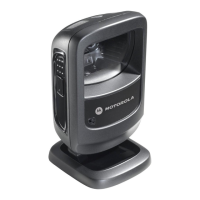
Motorola DS9208-1D - User Manual

Motorola DS9208-1D
276 pages
Print Icon
To Next Page IconTo Next Page
Loading...
DS9208-1D
DIGITAL SCANNER
PRODUCT REFERENCE
GUIDE

Table of Contents

Questions and Answers

  • J
    Joseph JacksonJul 29, 2025
    What to do if my Motorola DS9208-1D decodes but does not transmit data?
    • S
      Suzanne HurstJul 30, 2025
      If your Motorola scanner decodes the bar code but doesn't send the data to the host, first ensure the scanner is programmed for the correct host type by scanning the appropriate programming bar code. Check that the interface cable is securely connected. If you hear specific beep patterns, they indicate particular issues: four long low beeps suggest a transmission error (adjust the scanner's communication parameters to match the host's settings), five low beeps indicate a conversion or format error (configure the scanner's conversion parameters), low/high/low beeps mean an invalid ADF rule was detected (program the correct ADF rules), and high/low beeps indicate the scanner is buffering Code 39 data (normal scanning when the Code 39 Buffering option is enabled).
  • K
    Kimberly MurrayAug 2, 2025
    How to fix Motorola DS9208-1D when the aiming dot does not appear?
    • M
      Mr. Derrick GonzalezAug 3, 2025
      If the aiming dot doesn't appear when you press the trigger on your Motorola scanner, start by ensuring the scanner is receiving power; reconnect the power supply if needed. Verify that you're using the correct host interface cable and that all cables are securely connected. Also, confirm that the scanner is enabled via the host interface, especially in IBM 468x and USB IBM hand-held, IBM table top, and OPOS modes. If using RS-232 Nixdorf B mode, make sure the CTS line is asserted. Finally, check if the aiming dot is disabled in settings and enable it if necessary.
  • B
    Brittany BowenAug 7, 2025
    Why does my Motorola Scanner display scanned data incorrectly?
    • C
      Christopher CampbellAug 7, 2025
      If the host displays scanned data incorrectly from your Motorola scanner, ensure the scanner is programmed to work correctly with the host by scanning the appropriate host type programming bar code. For RS-232 connections, verify that the scanner's communication parameters match the host's settings. If you're using a Keyboard Wedge configuration, program the system for the correct keyboard type and ensure the CAPS LOCK key is turned off. Additionally, program the proper editing options, such as UPC-E to UPC-A Conversion.
  • D
    David AndradeAug 12, 2025
    What to do if Motorola DS9208-1D emits aiming dot but does not decode?
    • J
      Janice CarpenterAug 12, 2025
      If your Motorola scanner emits an aiming dot but doesn't decode the bar code, first program the scanner to read that specific type of bar code. Ensure the bar code symbol isn't damaged by scanning test symbols of the same type. Center the aiming dot directly on the bar code. If picklist mode is enabled, it might be preventing the scanner from decoding; disable it to allow the scanner to read any bar code in its field of view.
  • S
    samantha95Aug 16, 2025
    Why does my Motorola DS9208-1D beep low/low/low/extra low when idle?
    • I
      Isabel WarrenAug 16, 2025
      This sound is normal during a host reset. If it occurs at other times, set the Motorola digital scanner's RS-232 parity to match the host setting.
  • L
    Lisa RodgersAug 20, 2025
    What does it mean when Motorola DS9208-1D beeps low/high during programming?
    • K
      Kevin SimmonsAug 20, 2025
      If your Motorola scanner emits low/high beeps during programming, this indicates an input error or that the Cancel bar code was scanned. To resolve this, scan the correct numeric bar codes within the valid range for the parameter you are programming.
  • M
    Michael MartinAug 25, 2025
    What to do if Motorola DS9208-1D Scanner beeps low/high/low/high during programming?
    • C
      Chris BrownAug 25, 2025
      If your Motorola scanner emits low/high/low/high beeps during programming, it means you've run out of ADF parameter storage space. To fix this, erase all existing rules and reprogram with shorter rules to free up storage.

Summary

Chapter 1: Getting Started

Setting Up the Digital Scanner

Installing the Interface Cable

Step-by-step instructions for connecting the interface cable to the scanner and host.

Chapter 2: Data Capture

Scanning

Presentation Mode Scanning

Details on how the scanner operates in presentation mode for hands-free scanning.

Chapter 3: Maintenance & Technical Specifications

Troubleshooting

Technical Specifications

Chapter 4: User Preferences & Miscellaneous Options

User Preferences

Set Default Parameter

Procedure to reset scanner parameters to factory or custom defaults.

Miscellaneous Scanner Parameters

Transmit Code ID Character

Configures the transmission of a code ID character to identify scanned bar code types.

Chapter 5: USB Interface

Connecting a USB Interface

USB Host Parameters

USB Device Type

Selects the desired USB device type for scanner communication.

Simulated Caps Lock

USB CAPS Lock Override

Preserves data case regardless of Caps Lock key state for HID Keyboard Emulation.

USB Transmission Speed Parameters

USB Polling Interval

Sets the interval to increase data transmission speed for USB devices.

Chapter 6: RS-232 Interface

Connecting an RS-232 Interface

RS-232 Parameter Defaults

RS-232 Host Types

Chapter 7: IBM 468 X; 469 X Interface

Connecting to an IBM 468 X;469 X Host

IBM 468 X;469 X Host Parameters

Port Address

Sets the IBM 468X/469X port used for scanner communication.

Chapter 8: Keyboard Wedge Interface

Connecting a Keyboard Wedge Interface

Keyboard Wedge Parameter Defaults

Keyboard Wedge Host Parameters

Keyboard Wedge Host Types

Selects the appropriate keyboard wedge host type for scanner configuration.

Chapter 9: Symbologies

UPC;EAN

Code 128

Code 39

Code 93

Codabar (NW - 7)

MSI

Matrix 2 of 5

GS1 DataBar

GS1 DataBar

Enables or disables various types of GS1 DataBar symbologies.

Chapter 10: 123 Scan2

123 Scan2 Requirements

Chapter 11: Advanced Data Formatting

Motorola DS9208-1D Specifications

General IconGeneral
TypeBarcode Scanner
Weight6.5 oz
ConnectivityUSB
Light SourceLaser
Decode Capability1D and 2D barcodes
Decoding Capability1D barcodes
Operating Temperature0°C to 50°C
Storage Temperature-40°C to 70°C
Drop Specification1.5 m drop to concrete

Related product manuals