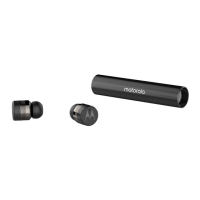
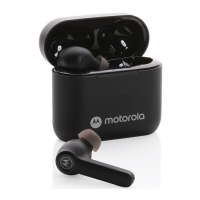
The Motorola Moto Buds+ (XT2441-1) and Moto Buds (XT2443-1) are wireless earbuds designed to provide a seamless and comfortable audio experience for users on the go. These earbuds allow for control of media, management of calls, and activation of voice assistants through simple gestures.
Function Description
The earbuds feature a triple-microphone system that captures audio from three different points, enhancing ambient noise suppression and echo cancellation for clearer calls and audio. They are compatible with a wide range of Bluetooth-enabled devices, including smartphones, tablets, and laptops, allowing for wireless audio playback.
Usage Features
-
Pairing and Connection:
- Fast Pairing: The earbuds support Google Fast Pair for quick connection with Motorola mobile devices running Android 12 or later, as well as other compatible Android smartphones and tablets. This feature allows for automatic pairing with a pop-up window appearing on the device.
- Manual Pairing: For devices not supporting Fast Pair or when a manual connection is preferred, users can manually pair the earbuds by enabling Bluetooth on their device, opening the charging case, and pressing and holding the function button on the case for 2 seconds until the LED indicator flashes blue. The earbuds will then appear in the list of available Bluetooth devices.
- Dual Connection: The earbuds can be connected to two devices simultaneously, though this feature is off by default. To enable dual connection, users need to install the Moto Buds app on an Android device, ensure the earbuds are connected to the Android device, and then toggle the "Dual connection" switch within the app. A second device can then be connected. When paired with two devices, audio playback is prioritized, with incoming calls taking precedence over media playback. Media playback from a second device will be paused or muted if media is playing on the first connected device, and will only be heard when media on the first device is paused.
-
Touch Controls: The earbuds feature touch-sensitive areas for various functions:
- Double Tap: Plays or pauses music, or answers or ends a call.
- Triple Tap (Right Earbud): Plays the next track.
- Triple Tap (Left Earbud): Plays the previous track.
- Long Tap (3 seconds): Switches between noise control modes, launches the voice assistant, or rejects a call.
- These gestures can be personalized through the Moto Buds app on Android devices.
-
Noise Control Modes: With both earbuds in the ears, users can select from different noise control modes via the Moto Buds app or by long-tapping the earbud's touch area:
- Off: Turns off all noise control modes.
- Transparency: Allows users to hear sounds in their surroundings.
- Adaptive: Automatically adjusts the level of noise control based on the changing noise conditions (only available through the Moto Buds app).
- Noise Cancellation: Blocks external noise for focused listening.
-
Earbud Sound Settings: The Moto Buds app offers various sound customization options:
- Spatial Audio or Equalizer: Provides spatial audio with head tracking (on Moto Buds+ XT2441-1 only) or allows selection of stereo audio options like Smart audio, Music, Movie, Game, Podcast, or Custom modes, each designed for a unique listening experience.
- Hi-Res Mode: Enhances audio clarity.
- Gaming Mode: Minimizes latency for an immersive gaming experience.
- Volume Boost: Provides powerful sound.
-
Spatial Audio and Head Tracking: Spatial audio creates an immersive experience by adjusting the direction of sound based on head position and orientation. This feature can be enabled through the Moto Buds app or, on compatible Motorola phones, via the Sound & vibration settings. Head tracking is supported on Moto Buds+ (XT2441-1) only.
-
Voice Assistant: Users can activate their phone's voice assistant by long-tapping the chosen earbud. This gesture can be customized in the Moto Buds app.
-
In-ear Detection: This feature automatically pauses music playback when an earbud is removed from the ear and resumes playback when it's put back on. It can be toggled on or off in the Moto Buds app. Calls remain active even if earbuds are removed.
-
Find Your Earbuds: If misplaced, the Moto Buds app can help locate the earbuds by ringing them. This feature works when earbuds are nearby (within 10 meters) and connected to the device.
Maintenance Features
-
Charging:
- The charging case for both Moto Buds+ (XT2441-1) and Moto Buds (XT2443-1) is charged using a USB-C® cable.
- The Moto Buds+ (XT2441-1) charging case also supports Qi-certified wireless charging. For optimal wireless charging, the case's wireless charging area should be aligned with the wireless charger.
- Earbuds automatically charge when placed in the charging case, provided the case itself is charged.
- Protective film should be removed from earbuds and case before charging.
- To maximize battery life, earbuds should be stored in the charging case when not in use, as sensors remain active otherwise, draining the battery.
-
LED Indicator Status: The LED indicator on the charging case provides status updates:
- Flashing blue: Earbuds are pairing.
- Flashing green twice: Earbuds are paired.
- Flashing orange or solid orange: Case is charging or battery is low.
- Solid green: Charging of case is completed or case battery is over 60%.
- Flashing white: Earbuds are reset.
-
Troubleshooting (Unpair, Restart, Reset):
- Unpair: Earbuds can be unpaired via Bluetooth settings on the connected device by tapping "Forget."
- Restart: To restart, place both earbuds in the charging case, close the lid, and then reopen it.
- Factory Reset: To factory reset, place both earbuds in the charging case, then press and hold the function button for 12 seconds until the LED indicator flashes white. This will require re-pairing.
-
Audio Issue Resolution: If audio is unclear or call quality is poor, users should:
- Adjust volume on the connected device or move to a different area.
- Clean the eartips and earbuds, especially outlets and mesh areas.
- Ensure earbuds and the paired device are within the maximum Bluetooth range (10 meters) and away from electromagnetic waves.
-
Cleaning:
- Charging Case: Do not immerse the case in cleaning agents or use bleach/abrasive materials. Use wipes or cloths moistened with 70% isopropyl alcohol for the exterior. Use a soft, dry cloth to clean the interior, especially charging contacts, to remove built-up material. Avoid moisture in openings.
- Earbuds: Do not immerse earbuds in cleaning agents or use bleach/abrasive materials. Use a soft, dry cloth to clean the earbuds and charging contacts. When cleaning, remove eartips and carefully remove any earwax or lint around the eartip and mesh area of the snout to ensure sound quality and volume are not negatively affected. If necessary, use wipes or cloths moistened with 70% isopropyl alcohol, avoiding moisture in openings. Reattach eartips firmly and ensure buds and charging contacts are dry before placing them back in the case.
-
Water Damage Prevention: The product is water and splash resistant but not fully waterproof. Avoid exposure to pressurized water, salt water, or liquids other than fresh water, and do not intentionally submerge it. Water and splash resistance may decline with daily use, and liquid damage is not covered by warranty. Users should dry the product and ports thoroughly if wet and avoid charging when wet. Dropping, puncturing, or scratching the product can damage its water repellent features.

 Need help?





 To Next Page
 General