4. Account Registration
5. Add Camera to App
A new user needs to register account in App with an email address.
Click 'Sign up' to register a new account.
Note:
* When register a new account, please choose the region you are actually in and fill in
correct country code. (People registered in different regions can't share the camera.)
* Please register with e-mail address.
support@mubview.com
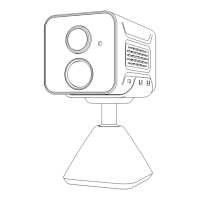
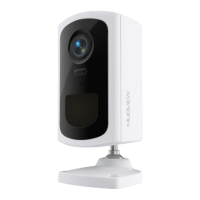
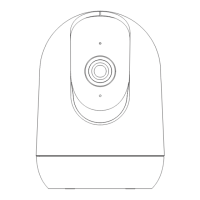
1. Add camera to App: Home page - Right up corner '+' - ' Power Plug Camera'
5.2 Connect Camera to App
5.1 Preparations for connection
1. Before turn on the camera, insert a Micro SD Card (not included) to save
video clips or you can start the 3-day free cloud service. Without Micro SD
Card or cloud service, no video will be saved.
2. Make sure your WiFi is 2.4GHz. The camera only works with 2.4GHz WiFi,
not support 5GHz.
3. Put the camera and your smart phone as closer as you can (suggest 1-3 ft)
to the router when connect WiFi.
2. Connect the camera to Wi-Fi according to the steps in App.
4


 To Next Page