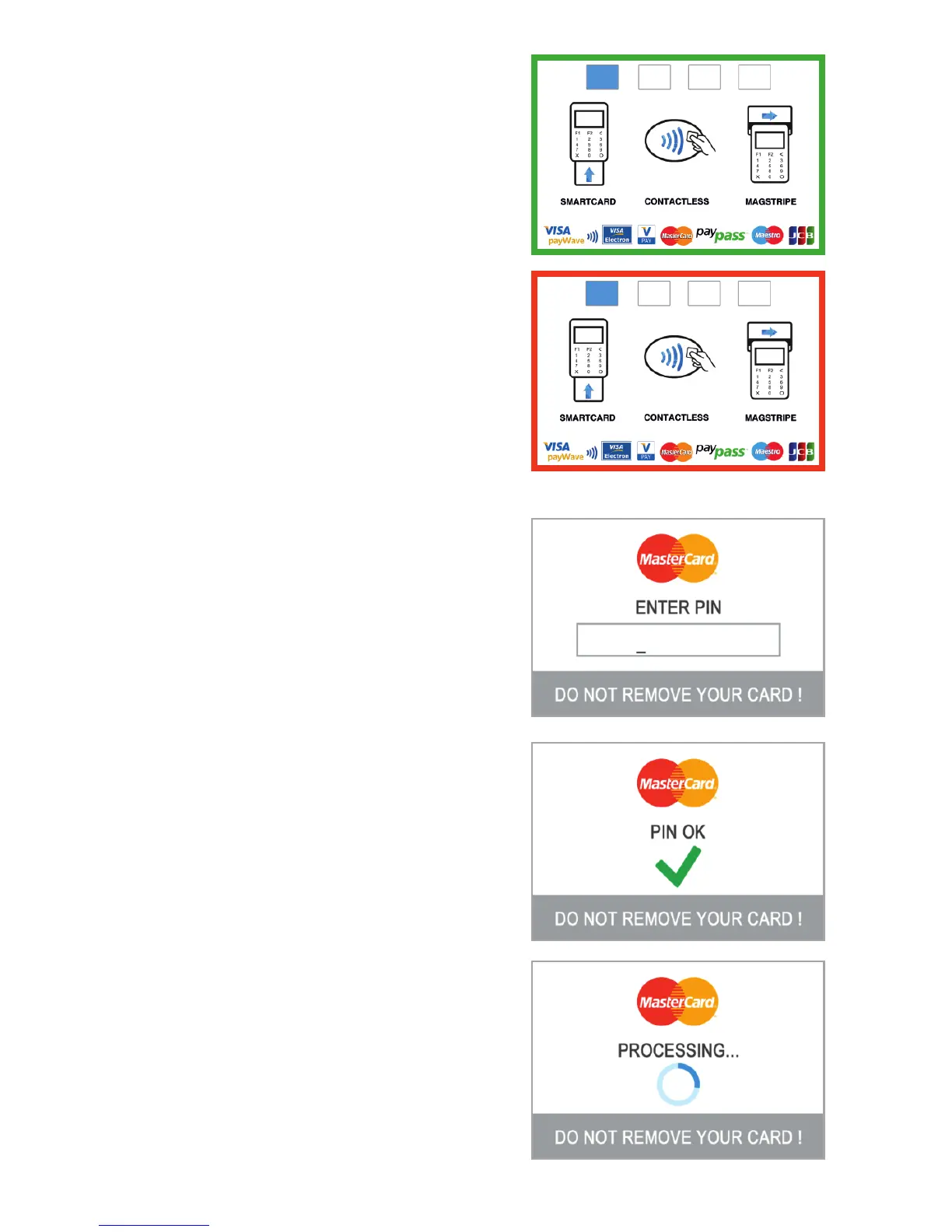
insert the card in the bottom reader with
the CHIP facing towards the keyboard.
When D210 is reading the card, the screen
will flash Green.
If the card is not recognized, the screen
will flash Red.
Please check if the card is inserted
properly in the reader, remove it and try
again. If the problem persists, please ask
your customer for another card.
CHIP cards usually require a PIN code in
order to confirm a transaction. If a PIN
code is required for a card, your D210
terminal will display the ENTER PIN screen.
Please, hand the terminal to the customer
and ask him or her to enter his or her PIN
code securely and to press the green key
(O) when ready.
If the card supports PIN (personal
identification number) check, the
terminal will process the PIN code and will
display PIN OK if the correct PIN code has
been entered by your customer.
The D210 will initiate the transaction
authorization process by communicating
with myPOS. The PROCESSING screen will
indicate that the procedure is not
completed.
If the transaction request with a card has
been approved by the issuer, the D210
EN 15|



 To Next Page