џ
Step1:
Step2:
Step3:
Step1:
Step2:
Step3:
Never refund more than the original transaction amount.
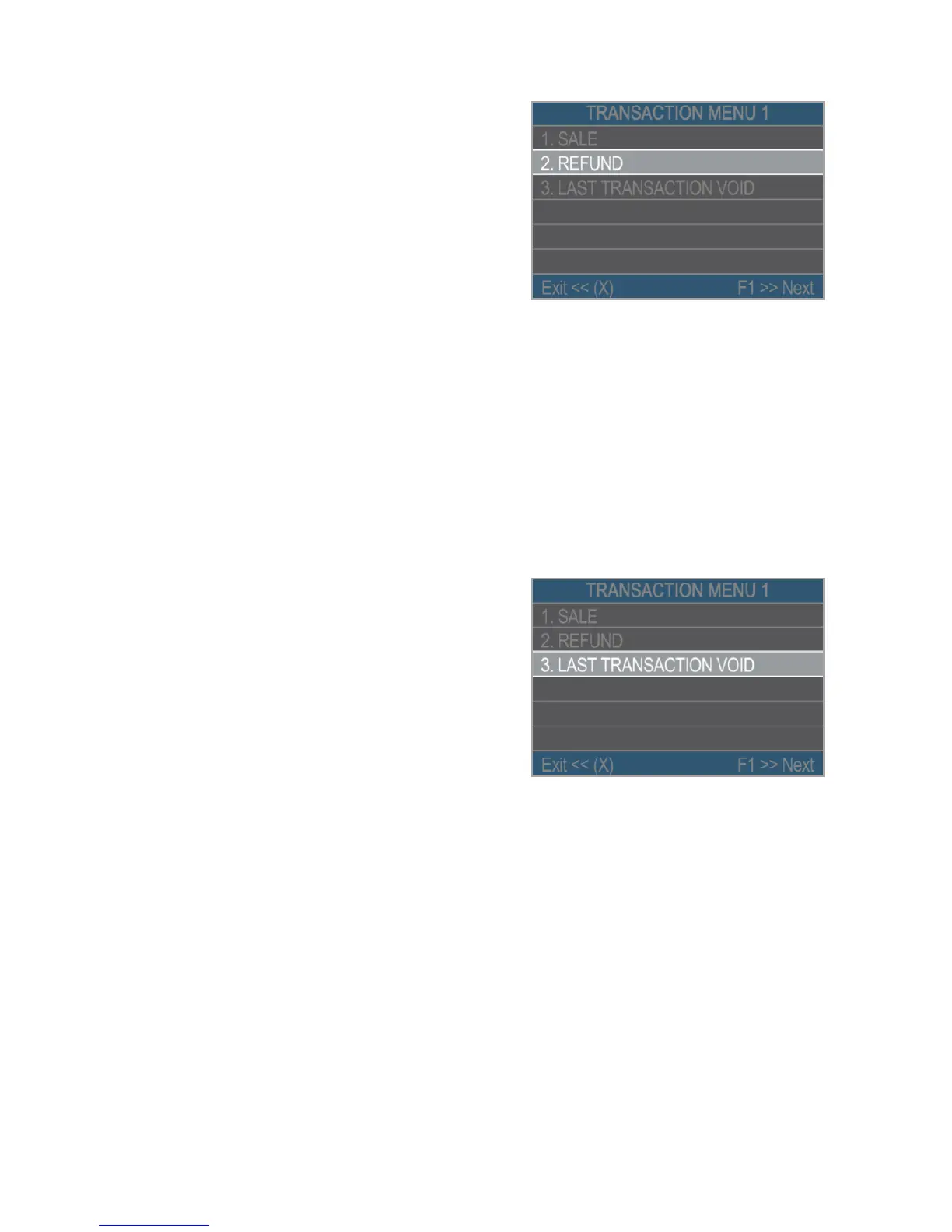
From the home screen, press the
green key (O) and then press (F1) in order
to enter the Transaction type menu. Select
REFUND by pressing key (2) and confirm
with the green key (O). The D210 terminal
will display the REFUND screen.
Type in the amount of the refund
transaction and press the green key (O) to confirm. Present the customer
card to the terminal either via the Magnetic Stripe, Chip or contactless
reader.
Ask your customer to Enter PIN code where required.
Last transaction void
From the home screen, press the
green key (O) and then press (F1) in order
to enter the Transaction type menu. Select
Last Transaction Void by pressing key (3)
and confirm with the green key (O). The
D210 terminal will display the Last
Transaction void screen showing the
amount of your last transaction.
Confirm by pressing the green key (O) if you want to proceed.
Ask your customer to Enter PIN code where required.
If there is no previous successfully processed transaction or it has been
voided, the D210 terminal will display an error message “No transaction
found”.
If the transaction is declined with a “Transaction is not permitted” message,
then take into account that this type of transaction is forbidden for the
particular D210 device.
EN 18|



 To Next Page