Internet connectivity
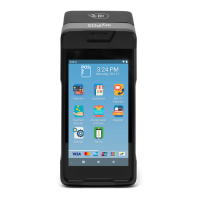
In order to be able to process payments with credit and debit cards, the D210
device has to be connected to the Internet. Your D210 can use the internet
connection of your mobile phone (via Bluetooth or personal hotspot), a
wireless router or a GPRS (SIM Card).
Using D210 with a mobile phone
(via Bluetooth or personal hotspot)
Make sure you have an internet connection (data) activated on your mobile
phone. In order to connect your D210 device to your mobile phone, please
read carefully the information below. Please be aware that different
operating systems may not support all connectivity modes.
A. iOS 6.0 or later
If you are using an iPhone which runs iOS 6.0 or later, you can connect your
D210 ONLY via Bluetooth.
Download our free iPay Mobile App from Apple store and install it on your
mobile phone. Starting the Mobile application will automatically launch a
communication service. You can then close your Mobile App as it is not
needed anymore for your D210 operation. Please follow the procedure
described in the “How to connect your D210 with Bluetooth” section.
B. Android 3.0 or later
If you are using a mobile phone which runs Android 3.0 or later, you can
connect your D210 via Bluetooth or Wi-Fi (Personal Hotspot).
To connect via Bluetooth, download the free iPay Mobile App from Google
Play Store and install it on your mobile phone. Starting the Mobile
application will automatically launch a communication service. You can then
close your Mobile App as it is not needed anymore for your D210 operation.
Please follow the procedure described in the “How to connect your D210
with Bluetooth” section.
To connect via Wi-Fi (Personal Hotspot) activated on your mobile phone,
please follow the procedure described in the “How to connect your D210
with Wi-Fi” section. The iPay Mobile application is not required for using this
type of connection but you can download and use it for managing your e-
EN 4|



 To Next Page