6. About
By pressing (6) on the keyboard you can find more information about your
D210 device such as terminal ID (TID), name, software and firmware version
and last transaction STAN.
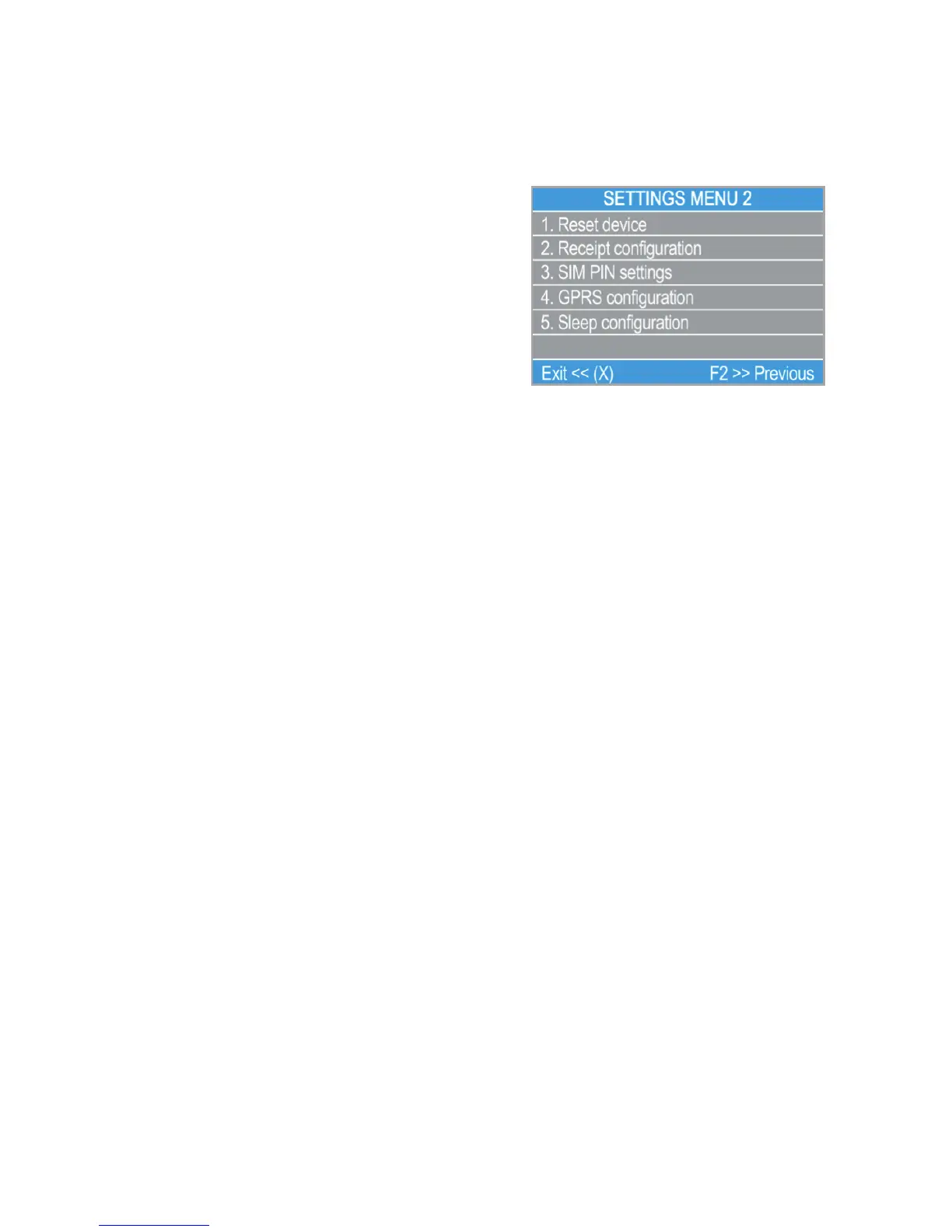
SETTINGS MENU2 shows the second list
of supported settings for your D210
device:
1. Reset device
Use this option with caution and only if
you want to reset your D210. The D210 will
display a screen where you need to enter a
deactivation code. The code can be generated when you log in to
menu and chose 'reset'
from the Actions menu of the D210 you want to reset.
Please, take into account that this will restore your device settings to the
default ones and your D210 will no longer be attached to your myPOS
account. If you want to continue accepting payments, you will need to
activate the device again.
2. Receipt configuration
Use this option to change the default settings of the customer receipt copy.
You can choose to print it automatically, after confirmation or not to print
customer receipt copy. By default your new D210 device will print
automatically the customer receipt copy 3 seconds after printing the
merchant receipt.
3. SIM PIN settings
This option is available only if your D210 device is using GPRS connection.
Use this option to change the default security settings of your SIM card. You
can choose to enable or disable the PIN check of your SIM card.
4. GPRS settings
This option is available only if your D210 device is using GPRS connection.
Use this option to change the default APN (Access point name) on your
device. You can choose from the standard APN settings of your mobile
operator or enter manual settings.
www.myPOS.eu Merchant services » POS terminals
EN 21|


 To Next Page