Accepting Payments
Step1:
Once your new D210c device is connected to the Internet and activated, it is
ready to accept payments with credit and debit cards.
Your D210c supports three different methods for accepting payments with
credit and debit cards - Magnetic Stripe, CHIP & PIN and Contactless (NFC).
For this purpose, the D210c incorporates two readers (right and bottom) and
one built-in antenna. The reader located at the right side of the device is
designated for swiping magnetic stripe cards, while the reader located at the
bottom is for CHIP cards. The antenna for contactless cards is located under
the display.
Sale Transaction
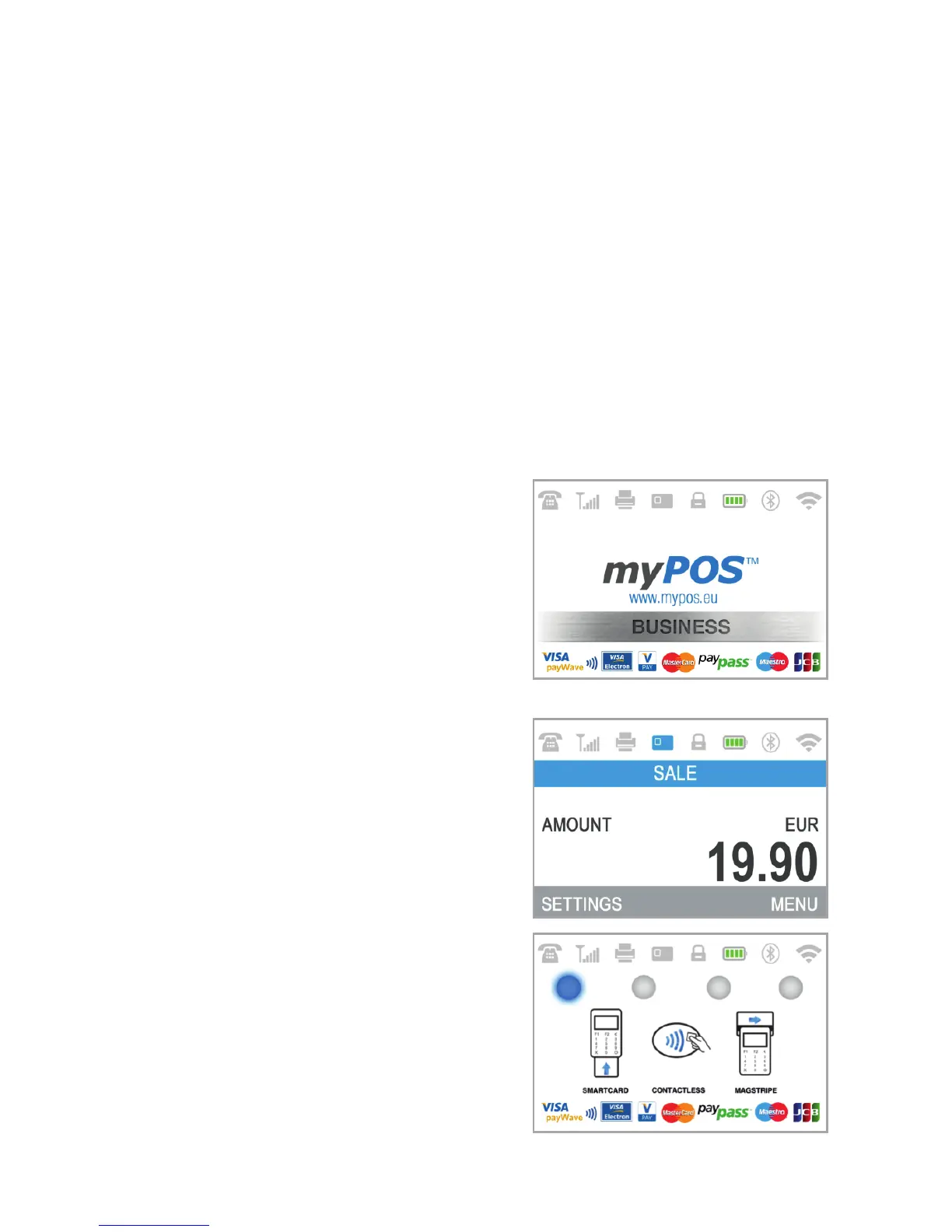
Every time you switch on your D210c
terminal, it will automatically connect to
the Internet and will display the home
screen.
When you press the green key ( ENTER),
the terminal will go directly to the SALE
screen ready for performing a Sales
transaction. Making a SALE transaction
with your D210c is easy and convenient.
Please follow the 3 basic steps written
below.
Enter the amount of the
transaction in the SALE Screen. The
amount must be entered without the
decimal point. For example: for an amount
of 5.00, enter 500 on the keyboard. When
the SALE screen display the correct
amount, confirm by pressing the green
key ( ENTER). If you need to correct
the amount, please use the yellow key
( CLEAR) to delete the last entry or the
red key ( CANCEL) to start the process
from the beginning.
O
O
<
X
EN 14|



 To Next Page