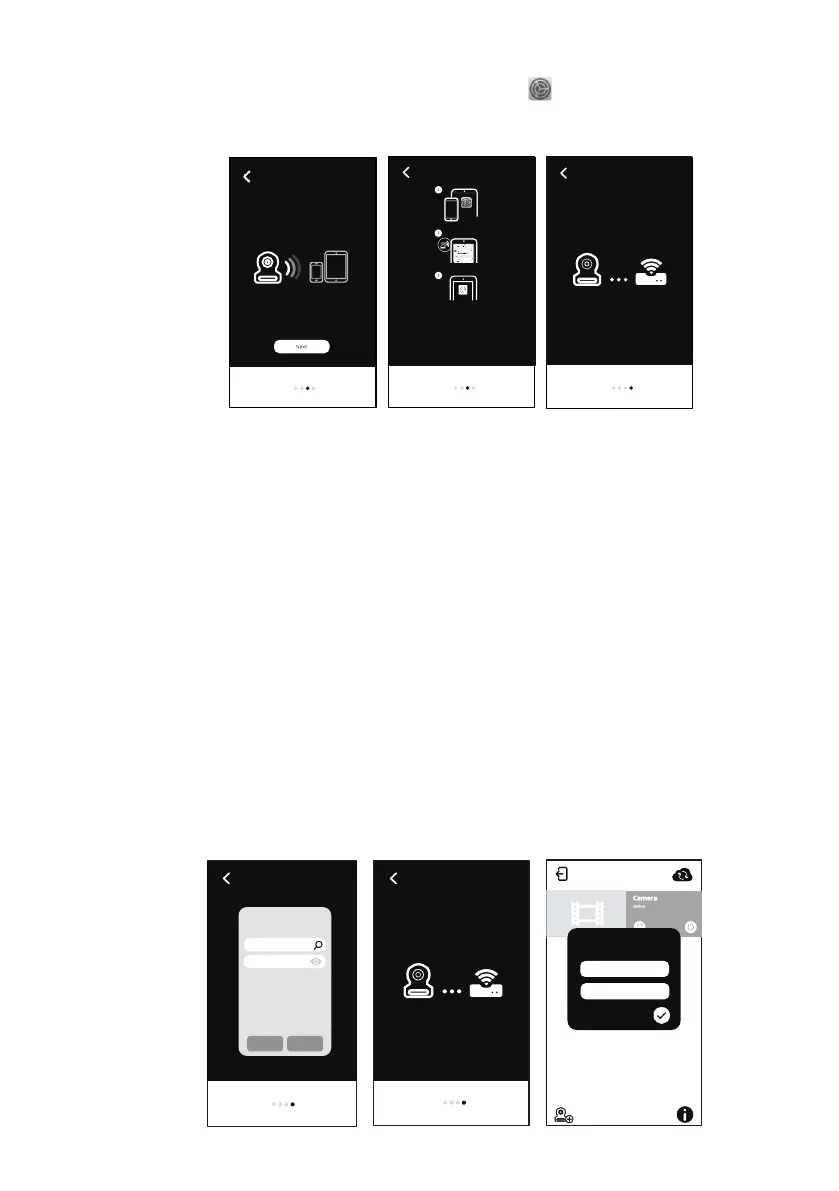
6. Android: The APP will automatically search for camera.
iOS: a. Press “Home” key and go to “Setting” b. Turn on Wi-Fi
c. Tap the name of camera “Mini Nanny-XXXXXX” and join > setting
back to APP.(See A4)
7. The camera will scan for available Wi-Fi networks in range. Select your Wi-Fi
network, and enter your Wi-Fi router password if necessary. (See A5)
Note : Please make sure you enter the correct Wi-Fi network password
otherwise connection error may occur.
It will take a few minutes for the camera to connect to your Wi-Fi network.
Tap camera on the list to watch live video. (See A6~A8)
Note : If your monitor is on, the monitor will disconnect and back
in 10 seconds.
After Wi-Fi setup is configured, it is needed to change the camera
password instead of default. (“12345678” )(See A7)
8. The standard password “12345678” must now be changed to a secure
personal password, enter your new password and repeat it for verification.
(see fig. A7).Only uppercase, lowercase, numbers and the following special
characters are supported: “!#$%&’()*+,-./:;<=>?@[\]^_{|}~”
Note: If you get the “wrong password” status, you have probably used an
unsup-ported character, remove the camera and follow the steps from 6.4
again.
6
A4
A5 A6
Wi-Fi setup will complete in 2
Go to ios wi-Fi sett ing and select
the name of the came ra (Sta rts
with "MiniNann y_xxxxxx")Then,
come back here.
Wi-Fi network se tup wil l compl ete in 2 minutes
1. Tap search & select wi-Fi network
2. Enter the WiFi network password
Cancel Select
Wi-Fi network
Password
A7
Set up th e camera pas sword.
"1234 5678" IS NOT ALLOW ED.
New pass word
Confir m


 To Next Page