Deleting Bookmarks
To delete a specific bookmark:
*
Press MENU (Main), 4, and 2 to display the Bookmark folder screen.
Use the navigation keys to highlight the desired bookmark folder and press (Select) to display the Bookmark folder list
screen.
Use the navigation keys to highlight the desired bookmark and press MENU (Options Menu) and 5 to display the decision
screen, “Delete.
Use the navigation keys to highlight Yes or No and press (Select). If Yes was selected, the bookmark is deleted and a
confirmation screen displays, “Deleted.”
To delete selected bookmarks in a folder:
*
Press MENU (Main), 4, and 2 to display the Bookmark folder screen.
Use the navigation keys to highlight the desired bookmark folder and press (Select) to display the Bookmark folder list
screen.
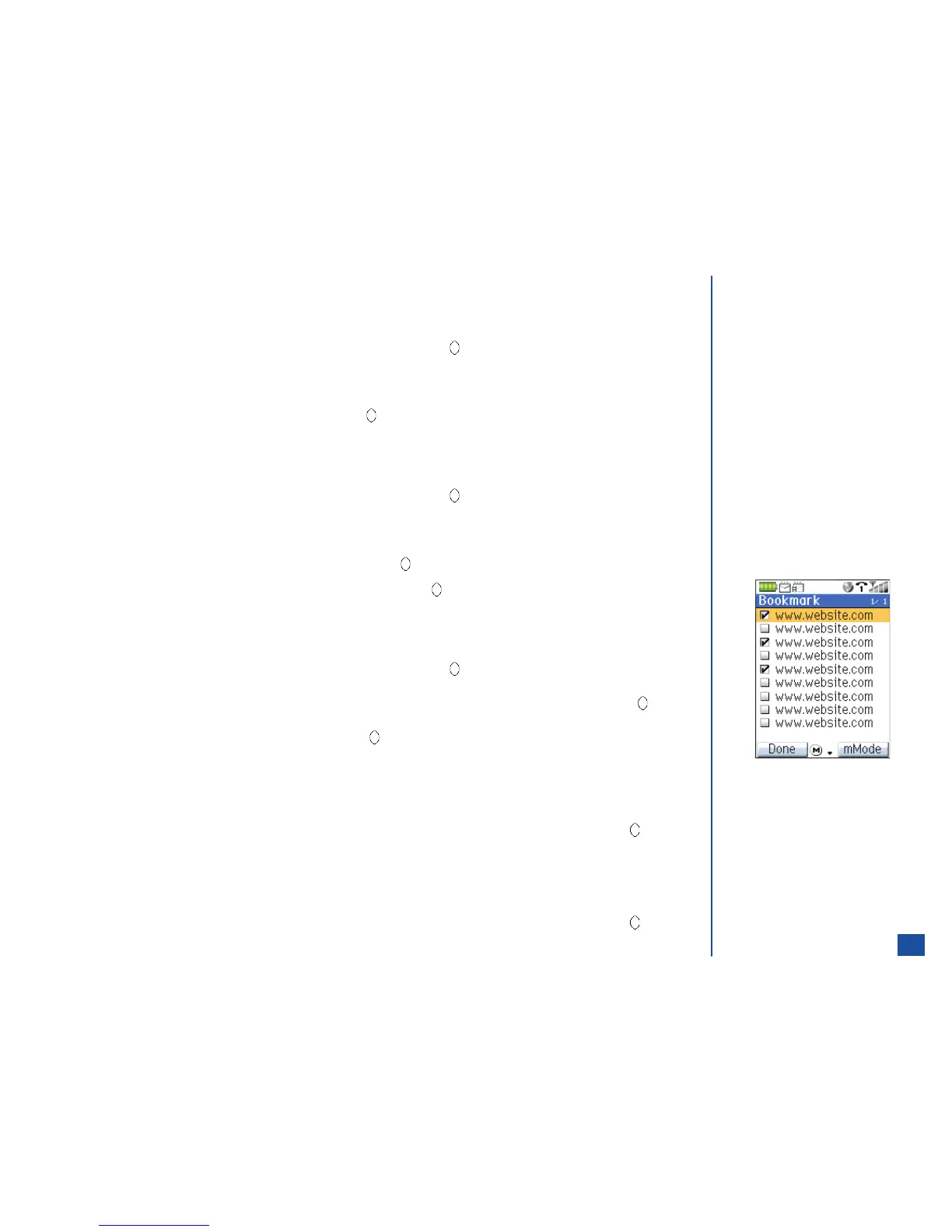
Press MENU (Options Menu) and 6 to display the list of bookmarks in the selected Bookmark folder. A box displays beside each
bookmark name.
Use the navigation keys to highlight a bookmark name and press (Select) to check or uncheck the box. When all bookmarks
to be deleted have a checkmark beside them, press Softkey 1 (Done). A decision screen displays, “Delete selected
bookmarks?” Use the navigation keys to highlight Yes or No and press (Select). If Yes was selected, the bookmark is deleted
and a confirmation screen displays, “Deleted.”
To delete all bookmarks in a selected folder:
*
Press MENU (Main), 4, and 2 to display the Bookmark folder screen.
Use the navigation keys to highlight the desired bookmark folder and press (Select) to display the Bookmark folder list
screen.
Press MENU (Options Menu) and 7. The Security code screen displays. Enter the correct security code and press (Select) to
display the decision screen, “Delete all bookmarks in this folder?”
Use the navigation keys to highlight Yes or No and press (Select). If Yes was selected, the bookmarks are deleted and a
confirmation screen displays, “All deleted.”
To delete a folder (See Flag.):
*
Press MENU (Main), 4, and 2 to display the Bookmark folder screen.
Use the navigation keys to highlight the desired bookmark folder and press MENU (Options Menu) and 4. Enter the correct
security code to display the decision screen, “Delete.” Use the navigation keys to highlight Yes or No and press (Select). If
Yes was selected, the bookmark is deleted and a confirmation screen displays, “Deleted.”
To delete all folders (See Flag.):
*
Press MENU (Main), 4, and 2 to display the Bookmark folder screen.
Use the navigation keys to highlight the desired bookmark folder and press MENU (Options Menu) and 5. Enter the correct
security code to display the decision screen, “Delete.” Use the navigation keys to highlight Yes or No and press (Select). If
Yes was selected, the bookmark is deleted and a confirmation screen displays, “Deleted.”
O
The default “Bookmark” folder
cannot be deleted. Only folders that
you have created can be deleted. If
you have not created any folders,
the delete option is not available
(grayed out.)
You may delete bookmarks that you
have added to the Bookmark folder.
94


 To Next Page