6, The successful connection is indicated by the WiFi icon in the bottom right corner
of the display and the network frequency 2 or 5. For stable communication, it is
recommended to connect to a 2.4GHz WiFi network (number 2 next to the WiFi icon)
7, Check the connection, navigate to digitalhandpan.com/setup for login to the
interface. If the GREEN indicator icon is visible on the interface, then the instrument
is successfully connected to the interface via WiFi.
Connect to WiFi by setting up a hotspot on your smartphone
1, Switch on the instrument by pressing the power button. Wait for about 30 seconds,
until the front indicator light color will be GREEN.
2A, Android:
Navigate to Settings > Wireless & networks >Tethering & portable hotspot > Portable
Wi-Fi hotspot. Choose Configure Wi-Fi hotspot to set the name “Neotone”, and
password “digitalhandpan”, then tap Save.
2B, iPhone:
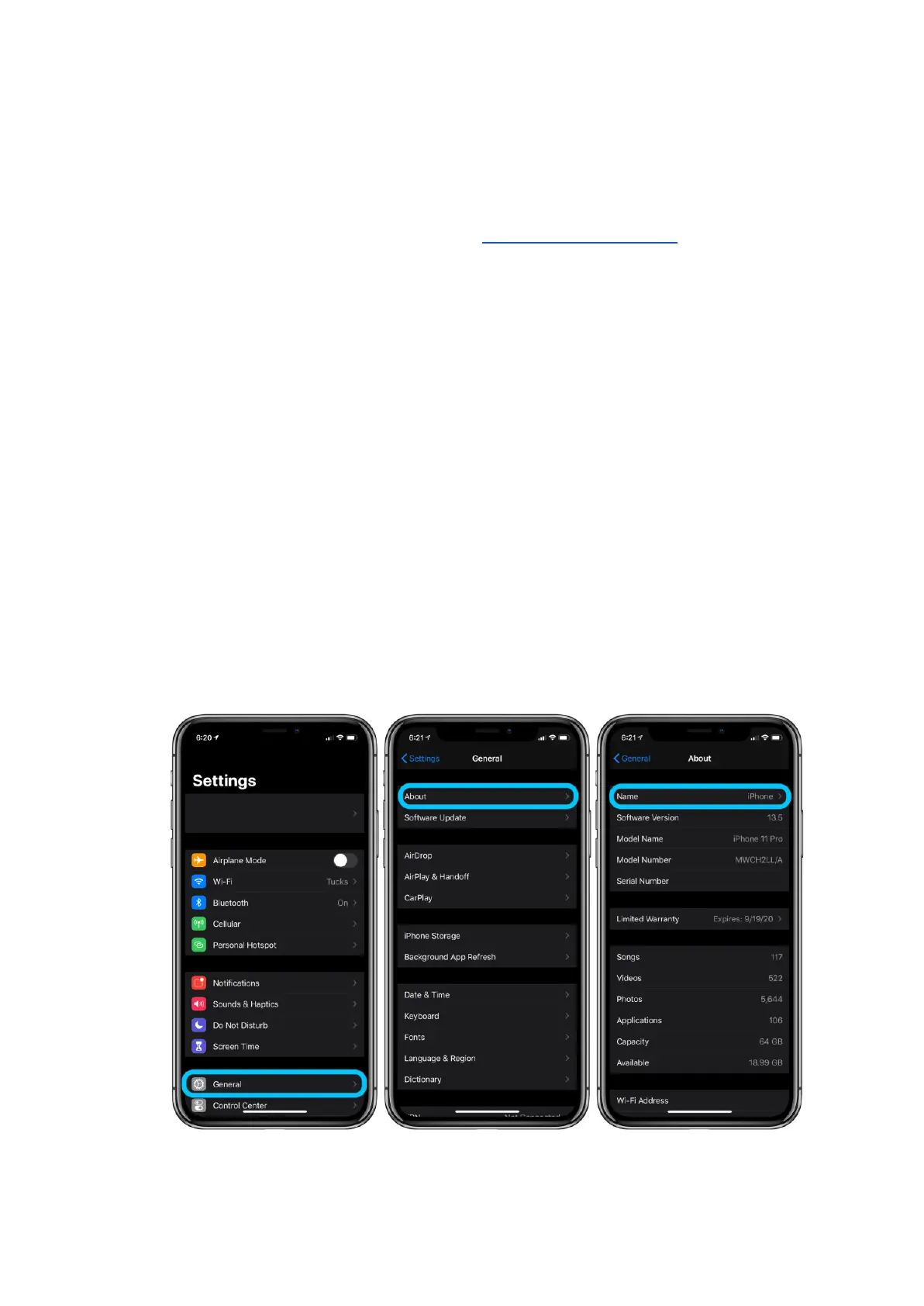
● Navigate General > About > Name, enter the name “Neotone” then tap Done.


 To Next Page