Connecting to a WiFi hotspot
Connect the instrument to a WiFi hotspot
You need to connect the instrument to a WiFi hotspot if you like to use the interface.
You can do it by several ways:
Connect to WiFi by WPS push button
1, Switch on the instrument by pressing the power button. Wait for about 30 seconds,
until the front indicator light color will be GREEN.
2, Press the power button shortly three times, the front indicator light color will turn
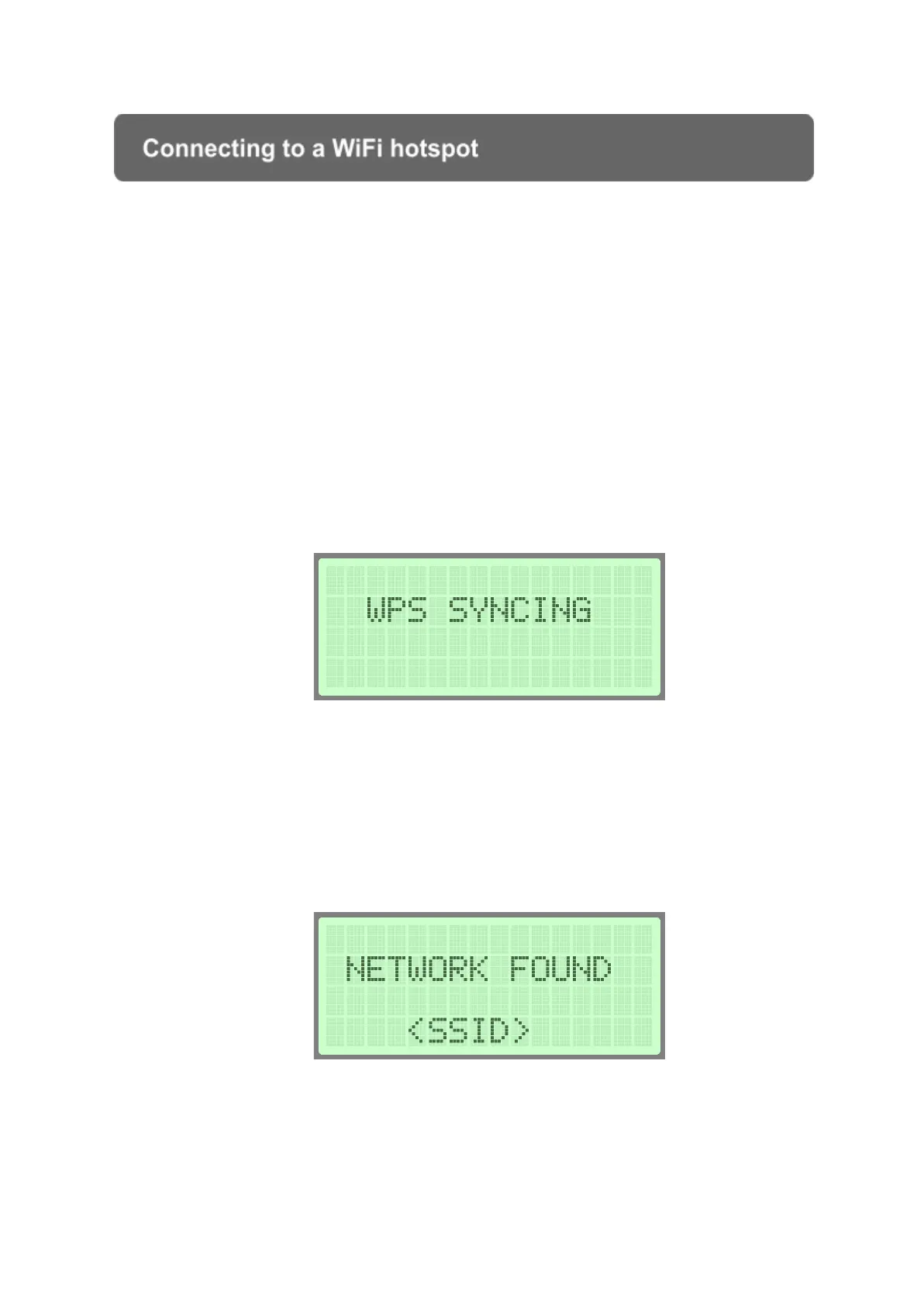
into ORANGE and the display shows “WPS SYNCING”
3, Press the WPS button on your WiFi router to establish a connection. Depending
on the router and the home configuration, it may take 1-2 minutes to connect. If you
share a hotspot via smartphone, just tap the “WPS button” (Only available for android
devices, iPhone does not support WPS)
4, If there is a successful connection the “NETWORK FOUND” message will appear
on the LCD screen with the name of the WiFi network:
5, Following this, soon the instrument will turn off, the power button should be
pressed again to turn the instrument back on and to refresh the preferred network
settings.


 To Next Page