Audio CD And Audio Files
11. Choose a method for creating the file name in the Mode for Creating File Names drop-
down menu.
12. Define other settings according to your preferences.
13. Click the Copy button.
Conversion starts. A folder with the album name is created in the desired directory. The
audio files are saved in this folder and named according to the method you chose. Meta-
data that is identified with Gracenote is written into the audio file.
The Progress window indicates the saving progress. When the save process is com-
plete, this window is closed automatically.
14. Click the Close button.
The Save Audio Tracks to Hard Drive window is closed. You have saved audio files.
6.5.1 Save Audio Tracks to Hard Drive Window
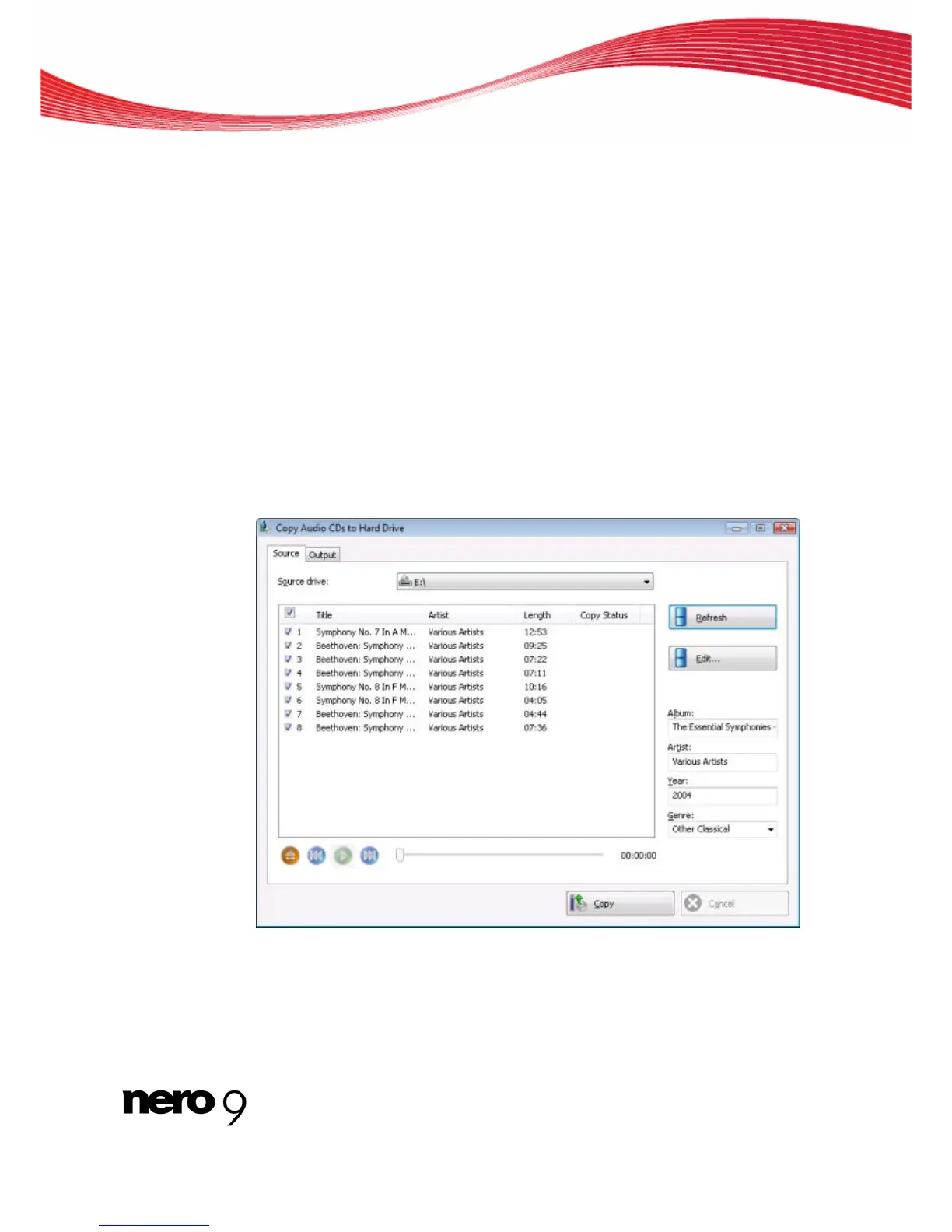
Define the settings for audio files to be saved to the hard drive in the Save Audio Tracks to
Hard Drive window. The window is opened by clicking the Extras > Save Audio Tracks
menu.
Save Audio Tracks to Hard Drive - Source
Nero Burning ROM 42



 To Next Page