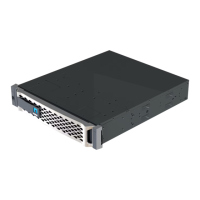
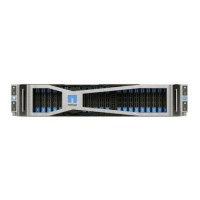
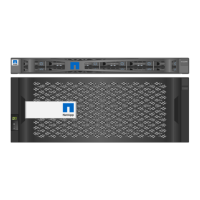
Replace SSD Drive - AFF A70, AFF A90
You can replace a failed SSD drive nondisruptively while I/O is in progress.
When a drive fails, the platform logs a warning message to the system console indicating which drive has
failed. In addition, both the fault LED on the operator display panel and the fault LED on the failed drive are
illuminated.
Before you begin
• Follow best practice and install the current version of the Disk Qualification Package (DQP) before
replacing a drive.
•
Identify the failed disk drive by running the
storage disk show -broken command from the system
console.
The failed drive appears in the list of failed drives. If it does not, you should wait, and then run the
command again.
It can take up to several hours for the drive to appear in the list of failed drives.
• Determine whether SED authentication is enabled.
How you replace the disk depends on how the disk drive is being used. If SED authentication is enabled,
you must use the SED replacement instructions in the
ONTAP 9 NetApp Encryption Power Guide. These
Instructions describe additional steps you must perform before and after replacing an SED.
• Make sure the replacement drive is supported by your platform. See the NetApp Hardware Universe.
• Make sure all other components in the system are functioning properly; if not, you must contact technical
support.
About this task
Drive firmware is automatically updated (nondisruptively) on new drives that have non-current firmware
versions.
When replacing several disk drives, you must wait 70 seconds between the removal of each failed disk drive
and the insertion of the replacement disk drive to allow the storage system to recognize the existence of each
new disk.
1. If you want to manually assign drive ownership for the replacement drive, you need to disable automatic
drive assignment replacement drive, if it is enabled
You manually assign drive ownership and then reenable automatic drive assignment later in
this procedure.
a.
Verify whether automatic drive assignment is enabled:
storage disk option show
You can enter the command on either controller module.
If automatic drive assignment is enabled, the output shows
on in the “Auto Assign” column (for each
controller module).
b.
If automatic drive assignment is enabled, disable it:
storage disk option modify -node
node_name -autoassign off
50



 To Next Page