ADSL2+ Modem Router User Manual
9
2) Click “Network and Sharing Center” and then click “Manage network connection” (“Change
adapter settings” for Windows 7).
3) Right click “Local Area Connection” and then click “Properties”.
4) Select “Internet Protocol Version 4 (TCP/IPv4)” and click “Properties”.
5) Select “Obtain an IP address automatically” and “Obtain DNS server address automatically”.
Click OK.
Note: After your computer is configured successfully, go to the next section to configure the
Modem Router via web. Otherwise, refer to the section of Troubleshooting T1 to reset the
modem.
3.2 Login
After the initial configuration is done, you can login to the Web based UI. Here are the steps to
log in the UI.
Step 1: Start your web browser and enter http://192.168.1.1 in the browser address bar.
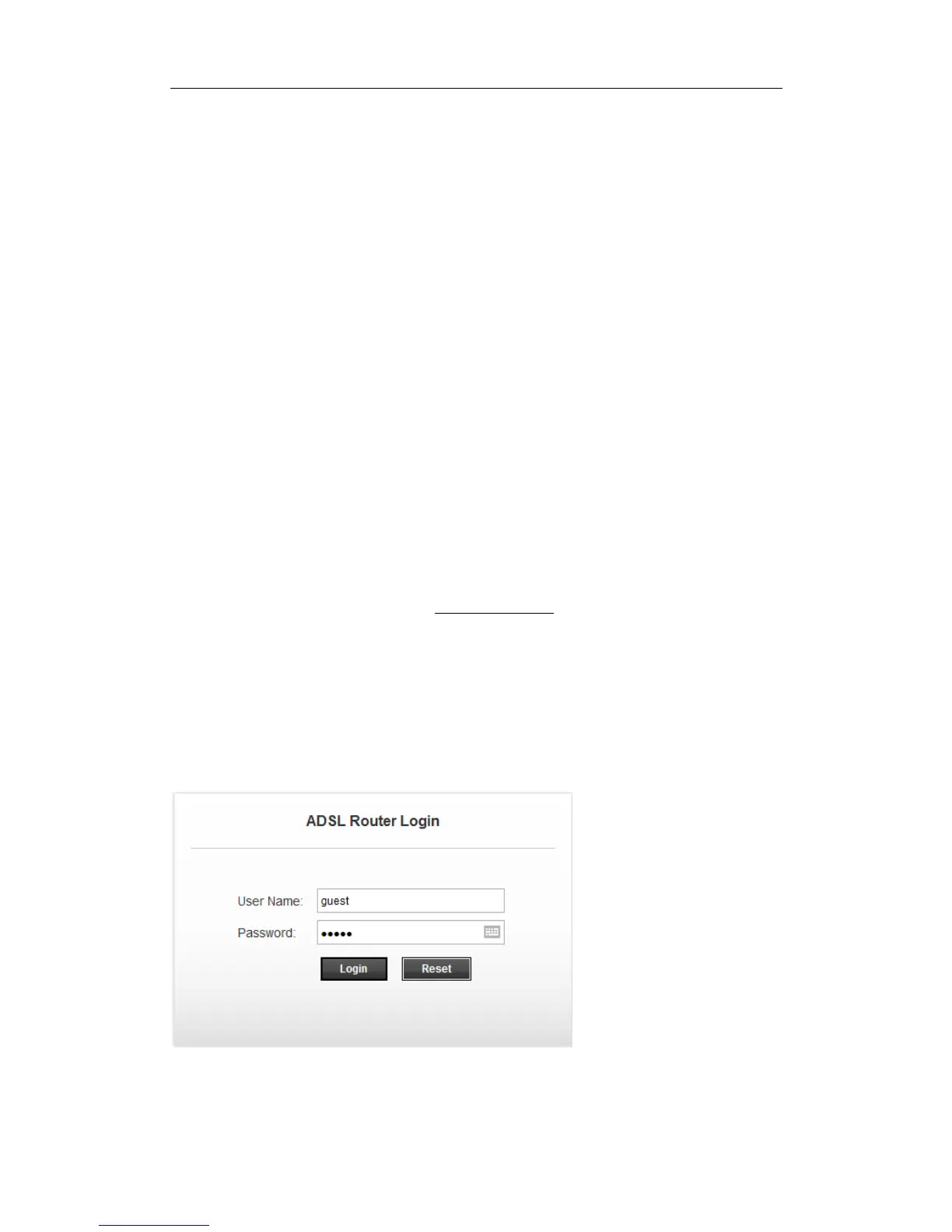
Step 2: When ADSL connection is OK, the following login box will pop up. Enter default user
name (admin) and password (admin) as shown below. The user name and password are
case-sensitive, they are both in lower case. Click “Login” to enter the Web-based UI of the
Modem Router.
Note: If this Window would not pop up, you can refer to the Troubleshooting T4 to get the
solution.



 To Next Page