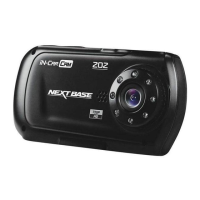
EasyManua.ls Logo

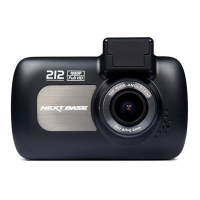
NextBase 212 - User Manual

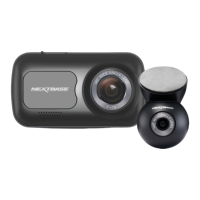
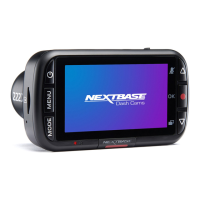
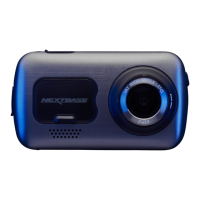
NextBase 212
36 pages
Print Icon
To Next Page IconTo Next Page
Loading...
Instruction Manual

Questions and Answers

  • C
    Cheyenne GriffinSep 10, 2025
    Why NextBase 212 has no power in car?
    • J
      John LittleSep 12, 2025
      If your NextBase Dash Cameras has no power but works on your PC, inspect the fuse in the Car Power plug and replace it with a 2A 32mm type if blown. Also, check the power cable for any damage that may have caused the fuse to blow.
  • M
    Marc SmithSep 9, 2025
    What does 'Cluster size wrong' mean on NextBase 212 Dash Cameras?
    • J
      Jeremy BennettSep 9, 2025
      If your NextBase Dash Cameras shows the message 'Cluster size wrong. Please format SD card', it means the SD card was formatted in another device with an incompatible cluster size. Use the Setup option within the dash cam to reformat the SD card.
  • P
    perezjasonSep 8, 2025
    Why does my NextBase 212 shut down by itself?
    • D
      delacruzbrianSep 8, 2025
      If your NextBase Dash Cameras shuts down by itself, it could be due to a flat battery or lack of power, which triggers the AutoPower Off feature.
  • M
    mercerrobertAug 22, 2025
    What to do if my NextBase 212 says 'Card Full'?
    • B
      Brian BurtonAug 22, 2025
      If you get a 'Card Full' message on your NextBase Dash Cameras screen, it means the SD card is full. This can happen if there are too many protected files that can’t be deleted, preventing further recording. To fix this, you can delete unnecessary files or format the SD card using the Setup Menu in your dash cam.
  • K
    Karen CarpenterSep 5, 2025
    Why does my NextBase 212 screen turn off after a few minutes?
    • M
      marellanoSep 5, 2025
      If your NextBase Dash Cameras screen blanks after a few minutes, the screen saver is likely turned ON. You can turn it OFF in the settings if desired; the default setting is OFF.
  • A
    alicefrankSep 4, 2025
    Why can't I save files to memory card on NextBase 212 Dash Cameras?
    • M
      Marie NovakSep 4, 2025
      When your NextBase Dash Cameras is connected to your computer under Mass Storage mode, you cannot save files to the memory card because the dash cam is a ‘read-only’ device. It is also not recommended to save files from other sources to the same memory card you use for recording in the dash cam.
  • R
    Rick EllisSep 3, 2025
    How to remove Micro SD card from NextBase Dash Cameras?
    • D
      dianepaulSep 3, 2025
      If you cannot remove the Micro SD card from your NextBase Dash Cameras, push the card further inwards slightly using your fingernail until you hear and feel a small latch. If you have difficulty, use the edge of a small coin. Release pressure, and the card will spring out enough for you to grab it.
  • A
    Adam MillerSep 2, 2025
    What to do if I can't insert Micro SD card in NextBase Dash Cameras?
    • A
      Alex HerreraSep 2, 2025
      If you cannot insert the Micro SD card into your NextBase Dash Cameras, align the card with the diagram shown on the dash cam and insert it until you feel slight spring resistance. Push the card with your fingernail until you hear and feel a small latch. Release pressure to keep the card retained. If you have difficulty, use the edge of a small coin.
  • C
    craigbondSep 1, 2025
    Why does my NextBase 212 Dash Cameras battery only last 30 seconds?
    • S
      Steven KnightSep 1, 2025
      If the battery in your NextBase Dash Cameras only lasts 30 seconds, the battery will only charge when the dash cam is connected to a power source. Reconnect the car adapter and leave the dash cam turned on. Charging takes about 90 minutes, and a full charge is indicated when the BLUE (charging) LED goes out.
  • A
    Austin KlineAug 30, 2025
    How to record longer videos on NextBase 212?
    • J
      James ThompsonAug 31, 2025
      If you can only record a few minutes of video on your Micro SD card with NextBase Dash Cameras, try changing the recording size (Video Length function) to a smaller size or increase the size of the MicroSD card (Max 32GB).

Summary

Introduction to Using an In-Car Cam

Basic Operation

Explains the camera's seamless recording, file management, and automatic deletion of old files.

Tips for Capturing Best Video Footage

Provides advice on optimal camera positioning and minimizing dashboard reflections for clear recordings.

Tips for Stable Memory Card Performance

Offers guidance on periodic memory card reformatting and safe insertion/removal procedures.

Precautions

Electrical Safety and Servicing Warnings

Advises against exposing the unit to water and performing unauthorized servicing.

LCD Screen Information

Explains pixel behavior in Liquid Crystal Displays and normal failure rates.

WEEE Disposal Guidelines

Provides instructions for the proper disposal of electronic waste and batteries.

Product Specification

Package Contents

Product Features

2.7 LCD Colour Screen

Details the screen for ease of use and viewing recorded videos and photos.

Powered Mount

Highlights the Easy-Fit powered mount for quick camera attachment and removal.

G Sensor; File Protection

Explains automatic and manual file protection during impacts or emergencies.

Automatic Start; Stop Technology

Describes how the camera automatically records based on vehicle ignition.

Parking Mode

Details the feature that records 30 seconds of video upon detecting vehicle movement.

Built-in Microphone & Speaker

Notes the integrated microphone and speaker for audio recording and playback.

Powered Mount

Locking Lever

Mechanism for attaching and releasing the window mount to the windscreen.

Locking Ring

Used to adjust the iN-CAR CAM's position on the mount.

DC-IN Socket

Connection point for the supplied car power cable.

Suction Cup

Component used to attach the mount securely to the vehicle's windscreen.

Suction Release Tab

A tab used to break the seal of the suction cup for removal.

Camera - Parts & Controls

Mounting Point

Location on the camera for attaching the powered mount, under a dust cover.

Camera Lens

Describes the wide-angle, 6-element glass lens for optimal picture quality.

Speaker

Integral speaker for audio playback directly from the iN-CAR CAM.

Camera - Parts & Controls (Contd.)

Screen Display

The 2.7" LCD colour screen for viewing recorded files.

Protect File Button

Press during recording to protect the current file from being overwritten.

Menu Button

Press to open menus or general settings.

Down; Screen Off Button

Navigates menus, moves files, or turns the screen off.

Record; OK Button

Starts/stops recording, takes photos, or confirms menu selections.

Camera - Parts & Controls (Contd.)

Up; Microphone Off Button

Navigates menus, moves files, or turns the microphone on/off.

Mode; Screen Capture Button

Switches between video, photo, or playback modes, or captures screen.

Power On; Off Button

Press and hold to turn the iN-CAR CAM device on or off.

Dual Colour LED Indicator

Indicates power status (red) and charging status (blue).

Camera - Parts & Controls (Contd.)

AV Out Socket

Used to connect the iN-CAR CAM to a television via an AV Cable.

DC-IN & USB Socket

Connects the car power cable or a USB data cable.

Reset Button

Restarts the iN-CAR CAM if it becomes unresponsive.

MicroSD Card Slot

Slot for inserting the MicroSD memory card.

Microphone

Integral microphone for audio recording.

In Vehicle Installation

Insert MicroSD Card

Instructions for inserting a suitable MicroSD card into the camera.

Remove Dust Cover from IN-CAR CAM

Guidance on removing the protective dust cover from the camera.

In Vehicle Installation (Contd.)

Attach Mount to iN-CAR CAM

Steps to slide the camera onto the powered mount.

Attach Mount to Windscreen

Instructions for cleaning the windscreen and securing the mount.

In Vehicle Installation (Contd.)

Connect Car Power Cable

Instructions for connecting the power cable to the mount and vehicle.

Video Mode

Video Mode (Contd.)

Resolution Setting

Allows selection of recording resolution: 1080P, 720P, or 720P 60FPS.

Exposure Setting

Adjusts exposure level for different light conditions, from -2 to +2.

Audio Recording Setting

Enables or disables the built-in microphone for audio recording.

Video Mode (Contd.)

Video Length Setting

Sets the duration of individual video files to 2, 3, or 5 minutes.

Information Stamp

Turns on/off camera model, time, and date stamps on recorded files.

G Sensor Sensitivity

Adjusts the sensitivity of the G Sensor for automatic file protection.

Photo Mode

Photo Mode (Contd.)

Photo Exposure Setting

Adjusts the exposure level for still photographs.

Photo Time & Date Stamp

Turns on or off the time and date stamp shown on images.

Playback Mode

Playback Mode

Playback Mode (Contd.)

Deleting Files

Provides options to delete the current file or all files.

Playback Mode (Contd.)

Protecting Files

Options to protect the current file or all files from deletion.

Setup Menu

Parking Mode Setup

Configures the parking mode to record motion-detected events.

Time & Date Adjustment

Allows adjustment of the device's time and date settings.

Setup Menu (Contd.)

Language Selection

Enables selection of the preferred language for the device interface.

Screen Saver Setting

Configures the screen saver to shut down after a period of inactivity.

Device Sounds

Turns on or off beep sounds for button presses and device shutdowns.

Auto Power Off Timing

Adjusts the timing for the auto power off function after power loss.

Setup Menu (Contd.)

Number Plate Entry

Allows input of the vehicle's registration number for video files.

Format SD Card

Clears all content from the inserted memory card.

System Information

Displays the version number of the iN-CAR CAM's software.

Default Settings Reset

Resets the iN-CAR CAM to its factory default settings.

Mass Storage & PC Camera

Mass Storage (Windows;Mac)

Enables the camera to function as a card reader for PC or Mac.

PC Camera Function

Allows the camera to operate as a webcam for your PC.

Power On Mode

Powers the device via USB, enabling all functions and charging.

Video & Audio Output

Trouble Shooting

Blurred Video Image

Solutions for unclear video, involving lens and windscreen cleaning.

Micro SD Card Insertion Issues

Guidance for correctly inserting and removing the Micro SD card.

Video Playback Problems

Troubleshooting for unplayable, jumpy files, or sync issues.

Audio Issues

Solutions for problems like no sound or audio not synchronised with video.

Blurred Photograph

Advice on holding the camera steady for clear photos.

Limited Recording Time

Solutions for recording only a few minutes on the Micro SD card.

Connectivity Function Errors

Troubleshooting for Mass Storage or PC Camera function failures.

File Saving Errors

Addressing issues saving files to the memory card in Mass Storage mode.

Suction Cup Adhesion

Tips for ensuring the suction cup stays securely in place on the windscreen.

Trouble Shooting (Contd.)

Auto Shutdown Issue

Diagnosing why the iN-CAR CAM shuts down by itself.

PC Connection Issues

Resolving problems when connecting the device to a PC.

SD Card Read Error

Solutions for when the SD card cannot be read by the iN-CAR CAM.

File Deletion Error

Troubleshooting issues with deleting files from the SD card.

Screen Blanking

Addresses screen blanking issues, likely related to screen saver settings.

Cluster Size Error

Resolving "Cluster size wrong" messages by re-formatting the SD card.

Battery Charging Problems

Troubleshooting battery not charging or only lasting short periods.

Card Error Message

Solutions for "Card Error" messages, suggesting reformatting.

Card Full Message

Addressing "Card Full" messages, often due to protected files.

AV Output Buzzing

Troubleshooting AV output issues, like buzzing on TV.

Parking Mode Recording

Guidance on stopping recording when Parking Mode is active.

Trouble Shooting (Contd.)

Menu Button Not Responding

Explains why the menu button may not respond during recording.

Download Software Issues

Resolving malicious software warnings when downloading software.

Unresolved Issues

General advice to reset the device and contact support for persistent problems.

Notes

NextBase 212 Specifications

General IconGeneral
Screen Size2.7 inches
Field of View120 degrees
GPSNo
Wi-FiNo
Loop RecordingYes
G-SensorYes
Night VisionYes
Resolution1080p
Mount TypeSuction cup
StorageMicroSD card (up to 32GB)

Related product manuals