EasyManua.ls Logo

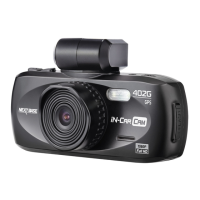
NextBase 402G - User Manual

NextBase 402G
40 pages
Print Icon
To Next Page IconTo Next Page
Loading...
Instruction Manual
inc. Driving Recorder Player
Software Installation Guide

Other manuals for NextBase 402G

Questions and Answers

  • J
    John MataAug 30, 2025
    How to delete protected files on NextBase Dash Cameras SD card?
    • A
      andrew96Aug 30, 2025
      If you can't delete files on your SD card within the NextBase Dash Camera, check to see if these files are 'protected'. If so, follow the instructions to 'un-protect' them.
  • V
    Valerie PatelAug 23, 2025
    How to fix NextBase Dash Cameras SD card when it cannot be read?
    • Y
      yperezAug 23, 2025
      To resolve an issue where the SD card in your NextBase Dash Camera cannot be read, use a good quality branded SD card between 4GB and 32GB (suggested). Format the card within the SETUP menu of the Dash Camera.
  • B
    Beverly HarrellAug 31, 2025
    How to fix NextBase DVR when video has no sound?
    • P
      Patricia LambertSep 1, 2025
      Ensure that the “Record Audio” setting is turned ON within the Video Menu.
  • J
    John MartinezSep 1, 2025
    What to do if my NextBase DVR shows 'Card Full' message?
    • K
      Kevin BrownSep 1, 2025
      Set the “Loop Recording” function to 3 mins (default) to enable the cycle recording function and automatic deletion of older files.
  • D
    danagarzaSep 2, 2025
    Why won't the NextBase DVR sucker stay on my windscreen?
    • A
      Amy FosterSep 2, 2025
      Ensure that the protective cover (plastic film) has been removed from the suction pad. Moisten the sucker slightly before affixing upon the windscreen. Ensure that the lever is fully pushed towards the windscreen. Make sure that the glass is smooth and clean.
  • E
    elizabethwilliamsSep 3, 2025
    What does 'Card Error' mean on my NextBase DVR and how to fix it?
    • N
      Nina CannonSep 3, 2025
      Remove useful files using your PC and then perform a “FORMAT” upon the SD card from within the SETUP menu of the NextBase DVR.
  • T
    Tonya GloverSep 3, 2025
    How to fix blurred video image on NextBase DVR?
    • A
      Alyssa Bauer MDSep 3, 2025
      Remove the protective lens cover, clean the lens, clean the windscreen!
  • M
    Melissa SullivanSep 4, 2025
    Why does my NextBase DVR have no power in the car but works on my PC?
    • J
      Jesse SmithSep 4, 2025
      Inspect the fuse in the Car Power plug. Replacement fuse = 2A 20mm type. If the fuse is found to be blown, inspect the power cable for damage which may have caused the fuse blow.
  • K
    Kayla GonzalezSep 5, 2025
    How do I insert a Micro SD card into my NextBase DVR?
    • K
      knightmatthewSep 5, 2025
      Align the card with the diagram shown upon the device and insert the card until you feel a slight spring resistance. You now need to push the card, using your finger nail, until you hear and feel a small latch. Release pressure and the card will stay retained within the device. Use the edge of a small coin if you have difficulty.
  • K
    Kevin JacksonSep 5, 2025
    How do I remove the Micro SD card from my NextBase DVR?
    • M
      Melanie ThompsonSep 6, 2025
      With the card previously installed, you now need to push the card further inwards slightly, using your finger nail, until you hear and feel a small latch. Use the edge of a small coin if you have difficulty. Release pressure and the card will spring out sufficiently for you to take hold of it.

Summary

Safety and Precautions

Cautions on Using This Product

Important safety warnings and guidelines for using the product.

Parts and Controls

Memory Card Slot

Location for inserting the MicroSD memory card.

Reset

Button to reset the device to its default state.

Parts and Controls (Continued)

SOS File Protection

Button to protect current recording during emergencies.

MENU Button

Button to access device menus and settings.

MODE Button

Button to switch between Video, Photo, and Playback modes.

POWER Button

Button to turn the device on and off.

START;STOP & OK Button

Button to start/stop recording or confirm selections.

In-Vehicle Installation

Inserting the Memory Card

Steps to insert the MicroSD card correctly.

Attaching the Windscreen Mount

How to attach the mount securely to the windscreen.

Positioning the Device

Guidance on optimal placement and cleaning the glass.

Connecting Power

Steps to connect the car adaptor and power the device.

In-Vehicle Installation (Continued)

Optimal Placement Guidelines

Advice on positioning to avoid obstructing view and airbag zones.

Securing the Device and Cable Management

Ensuring device is secure and power cable is managed safely.

Operating While Driving

Warning against adjusting settings while driving.

Playback Mode

Control Buttons

Buttons for navigating and controlling playback.

Menus and Settings

G Sensor Setting

Adjust G Sensor sensitivity for collision detection.

Menus and Settings (Continued)

Format Memory Card

Format the inserted memory card.

Password Settings

Set a password to access menus and settings.

Default Setting

Reset the device to default settings.

Driving Recorder Player for Windows

Driving Recorder Player for Windows (Continued)

Driving Recorder Player for Mac

Minimum System Requirements

Operating system requirements for Mac.

Installation Guide

Steps to install the player software on Mac.

Driving Recorder Player for Mac (Continued)

Installation Process

Steps to install the software via DMG file.

Trouble Shooting

Blurred Video Image

Solutions for blurred video footage.

Micro SD Card Insertion Issues

Guidance on inserting the Micro SD card correctly.

Micro SD Card Removal Issues

Guidance on removing the Micro SD card.

Video File Playback Issues

Troubleshooting for unplayable or jumpy video files.

Playback Jumpiness

Solutions for jumpy playback with the player software.

Sound Synchronization Issues

Troubleshooting for audio not syncing with video.

No Sound in Video

Solutions for videos with no audio.

Limited Recording Time

Solutions for only recording a few minutes of video.

Mass Storage;PC Camera Functionality

Troubleshooting for connection issues.

Suction Pad Issues

Solutions for the suction pad not staying in place.

Trouble Shooting (Continued)

Device Shuts Down Unexpectedly

Reasons for the device shutting down by itself.

Motion Detection Recording Issues

Issues with stopping recording when motion detection is on.

No Power to Device

Troubleshooting for no power issues.

MENU Button Not Responding

Troubleshooting for the MENU button not working.

SD Card Not Readable

Solutions for the device not reading the SD card.

File Download Malicious Software Message

Handling malicious software messages during file downloads.

Cannot Delete Files

Troubleshooting for inability to delete files on SD card.

Unresolved Issues

Contacting support for persistent problems.

Cluster Size Error

Error message regarding cluster size.

Player Not Opening

Troubleshooting for the player software not opening.

Cannot Lock Onto Satellite

Solutions for GPS satellite acquisition issues.

Battery Not Charging

Troubleshooting for battery charging problems.

Short Battery Life

Issues with the battery only lasting a short time.

Very Short Battery Life

Issues with the battery only lasting minutes.

Card Error Message

Troubleshooting for "Card Error" messages.

Card Full Message

Solutions for "Card Full" messages.

NextBase 402G Specifications

General IconGeneral
Resolution1080p Full HD
GPSYes
G-SensorYes
Lens6-element glass lens
Field of View140 degrees
Loop RecordingYes
Night VisionYes
Wi-FiNo
StoragemicroSD up to 32GB
Screen Size2.7 inches

Related product manuals