EasyManua.ls Logo

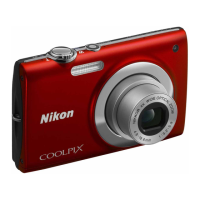
Nikon Coolpix S210 - User Manual

Nikon Coolpix S210
148 pages
Print Icon
To Next Page IconTo Next Page
Loading...

Table of Contents

Other manuals for Nikon Coolpix S210

Questions and Answers

  • E
    eric93Sep 22, 2025
    Why is the date imprint not available on my Nikon Coolpix S210 Digital Camera?
    • D
      Dawn MunozSep 22, 2025
      If the date imprint is not available on your Nikon Digital Camera photos, it's because the camera clock has not been set. Set the camera clock to enable the date imprint feature.
  • C
    Calvin DiazAug 23, 2025
    Why my Nikon Coolpix S210 Digital Camera cannot focus?
    • H
      Heather Davis DDSAug 23, 2025
      If your Nikon Digital Camera cannot focus, it may be because the subject is difficult for autofocus to handle. Try choosing a different subject. If there's a focus error, turn the camera off and then on again.
  • T
    Thomas LewisAug 25, 2025
    Why my Nikon Digital Camera settings reset?
    • J
      Justin GibsonAug 25, 2025
      If your Nikon Digital Camera settings have reset, the backup battery is likely exhausted. Replace the backup battery to restore your settings.
  • C
    craig90Aug 26, 2025
    How to fix a blank monitor on my Nikon Coolpix S210 Digital Camera?
    • J
      Jeremy BeckAug 26, 2025
      If the monitor on your Nikon Digital Camera is blank, first ensure the camera is turned on. If it is on, the battery may be exhausted, so try replacing it. If the camera is in standby mode to save power, press the shutter-release button halfway. Also, if the flash lamp is blinking red, wait until it has finished charging. Disconnect any USB or AV cables connected to a computer or TV. Finally, if time-lapse or interval timer photography is in progress, wait for it to complete.
  • C
    Christopher FriedmanAug 27, 2025
    How to fix blurred pictures on Nikon Digital Camera?
    • S
      Sara MolinaAug 27, 2025
      If your Nikon Digital Camera pictures appear blurred, try enabling the flash or switching to high-sensitivity shooting mode. You can also enable electronic vibration reduction or utilize Best Shot Selector (BSS). For best results, use a tripod and the self-timer.
  • L
    Lisa TrujilloSep 18, 2025
    How to display indicators in monitor on Nikon Coolpix S210 Digital Camera?
    • K
      knightrhondaSep 18, 2025
      To display indicators on the monitor of your Nikon Digital Camera, select Show info.
  • T
    Theresa GutierrezSep 15, 2025
    Why I cannot zoom in on a picture on my Nikon Coolpix S210 Digital Camera?
    • T
      Terri StephensSep 15, 2025
      If you cannot zoom in on a picture on your Nikon Digital Camera, it may be because playback zoom cannot be used with movies, small pictures, or pictures that have been cropped to below 320 × 240. Select a different picture.
  • M
    markjamesSep 16, 2025
    Why can't I use D-Lighting, electronic VR, crop, or small picture options on my Nikon Digital Camera?
    • R
      Rachel RamirezSep 16, 2025
      If you cannot use D-Lighting, electronic VR, crop, or small picture options on your Nikon Digital Camera, it's because these options cannot be used with movies. Use pictures instead. Excluding electronic VR, these options also cannot be used with pictures taken when 16:9 (1920) is applied in the Image mode setting; use a different Image mode.
  • A
    angela24Sep 6, 2025
    How to fix pictures that are too dark (underexposed) on Nikon Coolpix S210 Digital Camera?
    • A
      Allison NguyenSep 6, 2025
      If your Nikon Digital Camera's pictures are too dark (underexposed), first ensure the flash is turned on. If the flash window is blocked, unblock it. If the subject is too far away, move closer. You can also adjust the exposure compensation or use a higher ISO sensitivity. If the subject is backlit, select the Backlight scene mode or use fill flash.
  • A
    Ashley CastroSep 3, 2025
    Why does my Nikon Coolpix S210 turn off without warning?
    • K
      Karen HeathSep 3, 2025
      If your Nikon Digital Camera turns off without warning, the battery may be low. Try charging or replacing the battery. The camera might also be turning off automatically to save power; if so, simply turn it on again. If the battery is cold, allow it to warm up.

Summary

For Your Safety

Safety Warnings

Important safety precautions and warnings for using the camera.

Battery Handling Precautions

Guidelines for safe handling and charging of the camera battery.

Notices

U.S.A. Customer Notice

FCC Radio Frequency Interference Statement and compliance information.

Canada Customer Notice

Apparatus compliance with Canadian ICES-003 standard.

Introduction

About This Manual

Introduction to the manual's purpose and how to use it effectively.

Symbols and Conventions

Explanation of icons and notations used throughout the manual.

Information and Precautions

Nikon Brand Accessories

Recommendation to use only genuine Nikon accessories to avoid damage.

Pre-Shot Test Shots

Advice to take test shots before important occasions to ensure camera function.

Parts of the Camera

Camera Body Overview

Diagram and labels identifying external parts of the camera body.

Camera Monitor Indicators

Explanation of indicators displayed on the camera's monitor during shooting.

Basic Operations

Shooting;Playback Button

Function and usage of the Shooting/Playback button for mode switching.

Mode Button

How to use the Mode button to select shooting or playback modes.

Multi Selector Usage

How to use the multi selector for navigation and selection in menus and modes.

First Steps

Charging the Battery

Instructions for charging the camera's rechargeable battery.

Inserting the Battery

Step-by-step guide for inserting the fully charged battery into the camera.

Setting Language, Date, and Time

Guide to setting initial language, date, and time on the camera.

Inserting Memory Cards

Step-by-step instructions for inserting an SD memory card into the camera.

Basic Photography and Playback: Auto Mode

Starting and Selecting Auto Mode

How to turn on the camera and select the Auto shooting mode.

Framing a Picture

Instructions on how to hold the camera and frame your subject.

Focusing and Shooting

How to focus on the subject and take a picture.

Viewing and Deleting Pictures

How to view pictures in playback mode and delete them.

Using the Camera Flash

Explanation of available flash modes and their usage.

Exposure Compensation

How to adjust exposure to make pictures brighter or darker.

High-sensitivity Shooting Mode

High-Sensitivity Shooting Mode

Explanation of how to use high-sensitivity mode for low-light conditions.

Shooting Suited for the Scene

Scene Mode Photography

Overview of scene modes and how to select them for optimized settings.

Panorama Photography

How to take a series of pictures to create a panorama.

More on Playback

Thumbnail Playback

How to view multiple pictures simultaneously as thumbnails.

In-Camera Picture Editing

Overview of available picture editing functions like D-Lighting, Crop, etc.

Voice Memos

How to record and play back voice memos for pictures.

Viewing Pictures by Date

How to view pictures organized by date.

Movies

Recording Movies

Instructions for shooting movies with sound.

Time-Lapse Movie Recording

How to record time-lapse movies.

Voice Recordings

Making Voice Recordings

Instructions for recording voice memos.

Playing Voice Recordings

How to select and play back recorded voice files.

Connecting to Televisions, Computers and Printers

Connecting to a Television

How to connect the camera to a TV using the AV cable for playback.

Connecting to a Computer

How to connect the camera to a computer for transferring pictures.

Connecting to a Printer

Overview of connecting the camera directly to a printer for printing.

Creating DPOF Print Orders

How to create a digital print order (Print set) for DPOF.

Shooting, Playback and Setup Menus

Shooting Menu Options

Overview of settings available in the camera's shooting menu.

White Balance Settings

How to adjust white balance for different lighting conditions.

Playback Menu Options

Overview of options available in the camera's playback menu.

Menu Display Options

How to choose how menus are displayed (list or icons).

Resetting Camera Settings

How to restore all camera settings to their default values.

Technical Notes

Approved Memory Cards

List of memory cards tested and approved for use with the camera.

Caring for the Camera

Precautions for using and storing the camera to ensure its longevity.

Error Messages and Solutions

List of common error messages and steps to resolve them.

Troubleshooting Common Problems

A guide to diagnosing and resolving common camera malfunctions.

Nikon Coolpix S210 Specifications

General IconGeneral
Megapixel8 MP
Camera typeCompact camera
Sensor typeCCD
Image sensor size1/2.5 \
Image formats supported-
Maximum image resolution3264 x 2448 pixels
Digital zoom4 x
Optical zoom3 x
Digital SLRNo
Dimensions (WxDxH)90 x 18 x 55.5 mm
ISO sensitivity64, 100, 200, 400, 800, 1600, 2000
Internal memory52 MB
Compatible memory cardssd
Display diagonal2.5 \
USB version2.0
Product colorSilver
Weight and Dimensions IconWeight and Dimensions
Depth18 mm
Width90 mm
Height55.5 mm
Weight100 g

Related product manuals