[Digitare qui]
VIDEO SETTINGS
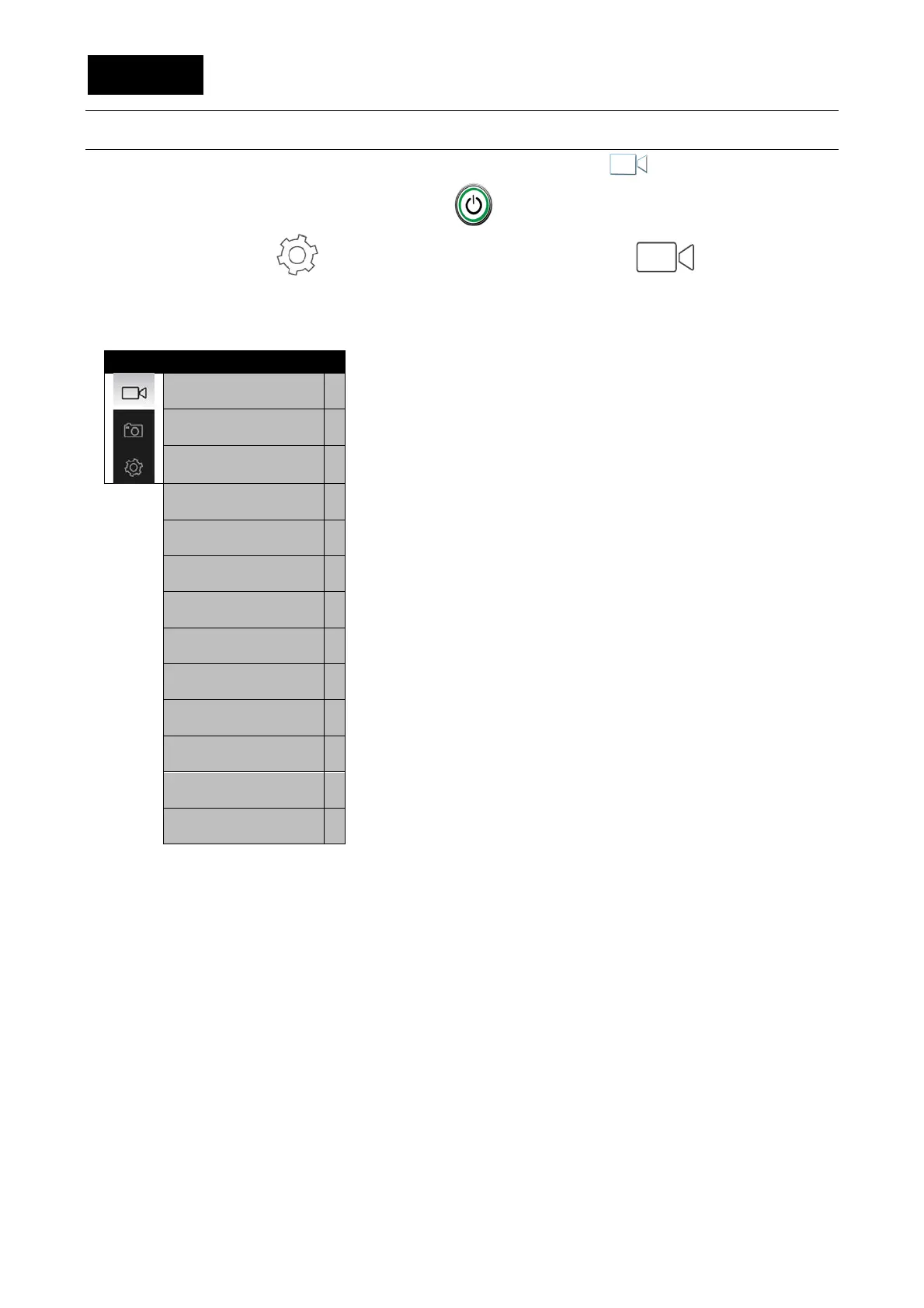
The EVO 4K30 must be in video mode to set video settings; an icon appears at the top left, if
this is not the case, touch the video shutter key on the front
Open the settings menu from the main menu and activate the icon
At this point, it is possible to vary general and video settings.
General settings are always variable in every function mode of the cam.
-Video: Audio and video recording.
-Video only: Only to record videos without audio
-Audio: Only to record audio
-Video auto: Deferred recording start of a video:
• 5/10/20 sec.
-Videos and Photos: Lets you take photos during a video
recording in Manual
• Mode/5/10/30/60 sec.
-Time-lapse: It allows to set the recording interval of time
to catch a sequence of recorded frames at certain intervals.
It registers any changes that slowly happen over time:
• 1/2/5/10/30 sec.
-Pre Video: a push of the shutter starts a 10 second pre-
registration that will not be saved on the card; a further push
starts the actual recording, that will also include the 10
seconds before the second push.
-Video resolution: Lets you select the video resolution:
• 4k@30fps/1440P@60fps or 30fps/1080P@100fps or
60fps or 30fps/960P@60fps/720P@200fps or120fps or 60fps
-Angle of view: It allows to modify the cam wide angle
extent:
• Ultra-wide/wide/medium/tight.
-Bit-rate:
• High/normal.
-Rewrite automatically: When it is activated, if the
microSD card is full, it will rewrite the file in date order
(starting from the oldest).
• On/Off.
-180 Rotation: It overturns the camera recording to allow
the upside down editing:
• On/Off.
-Show time: It allows to print the date and the time on
videos and photos:
• On/Off.
Video
>
Video only
>
Audio
>
Video auto
>
Videos and Photos
>
Time-lapse
>
Pre Video
>
Video resolution
>
Angle of view
>
Bit-rate
>
Rewrite automatically
>
180 Rotation
>
Show time
>


 To Next Page