21
4.9 Cloud upload
When connected to the Internet via WiFi, the LF10 will
automatically upload any snapshots on the device to the
NL Cloud as long as Upload snapshots is turned on under
the Snapshot Browser (see Section 4.4: Snapshot Browser).
Snapshot upload can also be triggered manually if the
automatic snapshot upload is turned off. The number of
snapshots currently saved on the device is shown next
to the Snapshot Browser button. If there are two dots
visible next to the number, snapshots are currently being
uploaded to the NL Cloud.
4.10 USB export
Snapshots in the LF10 can be exported to a USB flash
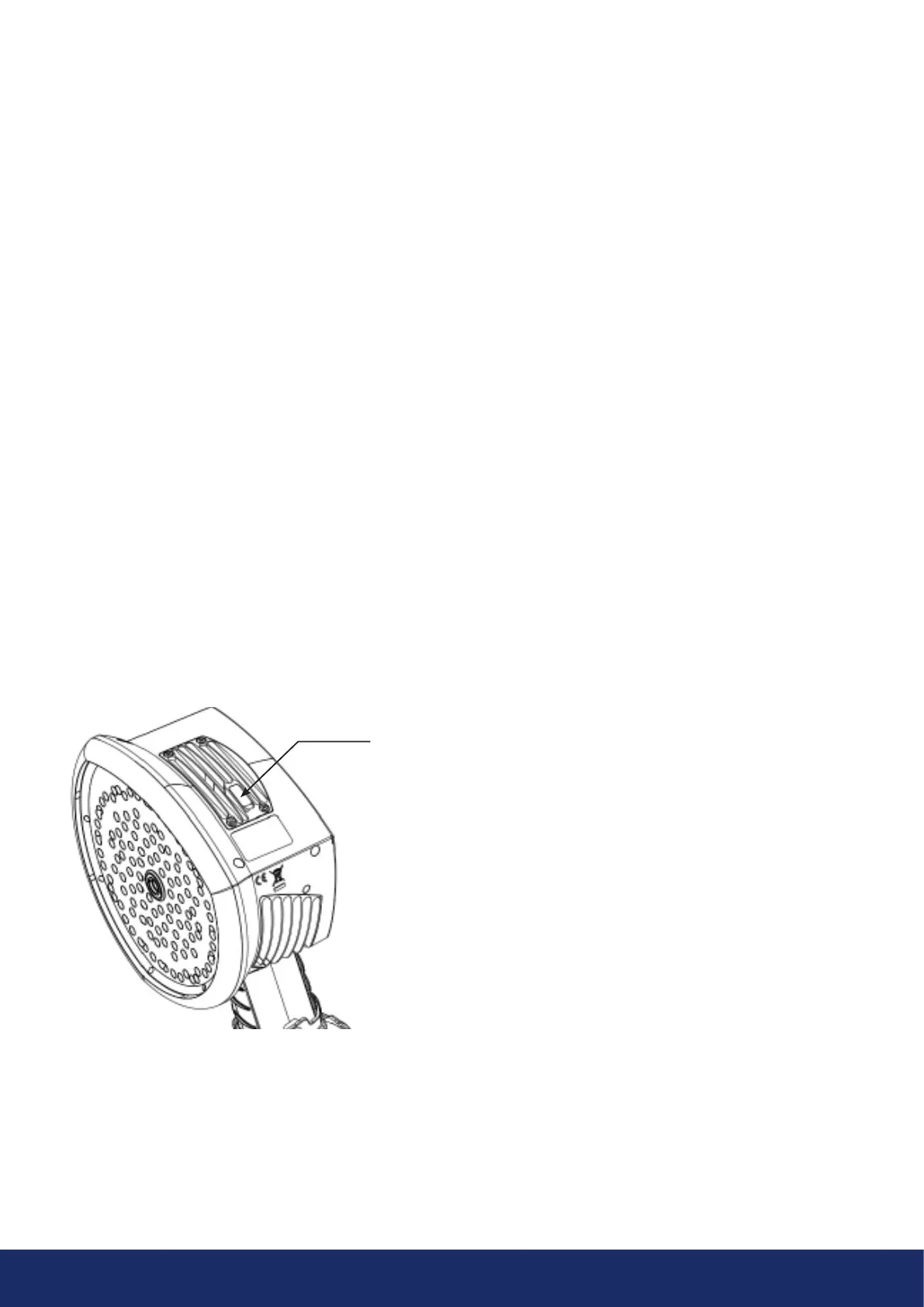
drive. Open the cover on top of the LF10 (Image 11) and
insert the memory stick in the USB port. Check to ensure
that the memory stick is correctly aligned to the port
before inserting the stick.
- NOTE: Use only the USB flash drives supplied with
the LF10. Other flash drives are not guaranteed to
work and may lead to loss of data! -
The LF10 will recognize the inserted flash drive and ask if
you want to transfer snapshots to the USB device. Ifyou
press Yes, the transfer will begin. During the transfer,
the progress will be displayed, and the transfer can be
aborted by pressing the Stop button. Snapshots already
transferred to the USB flash drive will remain on the
flash drive and snapshots not transferred will remain on
the LF10. Do not remove the flash drive from the
USB port while the transfer is in progress, as this
may corrupt the file system on the flash drive. Once the
transfer has been successfully completed (or aborted if
you pressed the Stop button), the main view of the user
interface is shown, and the flash drive can be removed
from the USB port. Remember to put the USB port cover
back in place.
The snapshots transferred to the flash drive can be
browsed on a PC with the NL Camera Viewer soware
(see Section 8: NL Camera Viewer and NL Camera Viewer
Pro offline soware for more information). The snapshots
on the USB flash drive are organized into subfolders.
Snapshots transferred to a USB flash drive will not be
uploaded to the NL Cloud. The snapshot .nlz files can be
uploaded at a later point from the flash drive or any other
storage location using the Import files upload feature in
the NL Cloud.
4.11 Direct data transfer
If the USB export function cannot be used for exporting
the data to a PC, direct data transfer is an alternative way
to transfer snapshots directly from the LF10 to the NL
Camera Viewer Pro soware (see Section 8: NL Camera
Viewer and NL Camera Viewer Pro offline soware) only
supported on the NL Camera Viewer Pro.
This feature uses a direct WiFi connection between a PC
and the LF10. Direct data transfer can be accessed in the
snapshot browser (see Section 4.4: Snapshot Browser).
Click on the Snapshots Upload button, press direct
upload on the menu, and the camera will then be ready
to start the Direct data transfer. Open the NL Camera
Viewer Pro on your PC and click on Import from Camera
in the upper bar menu. Once the PC and the camera are
connected, the file transfer will start. Aer the files are
transferred, the PC prompts a confirmation message, and
you then click the Stop button on the camera. The camera
then reboots and you can re-connect your PC to WiFi.
Image 11: Location of the USB port cover
USB port cover



 To Next Page