NOOK HD+ User Guide 53
7. At the end of the book, next to the back cover, press the blue Done button at the top of the screen.
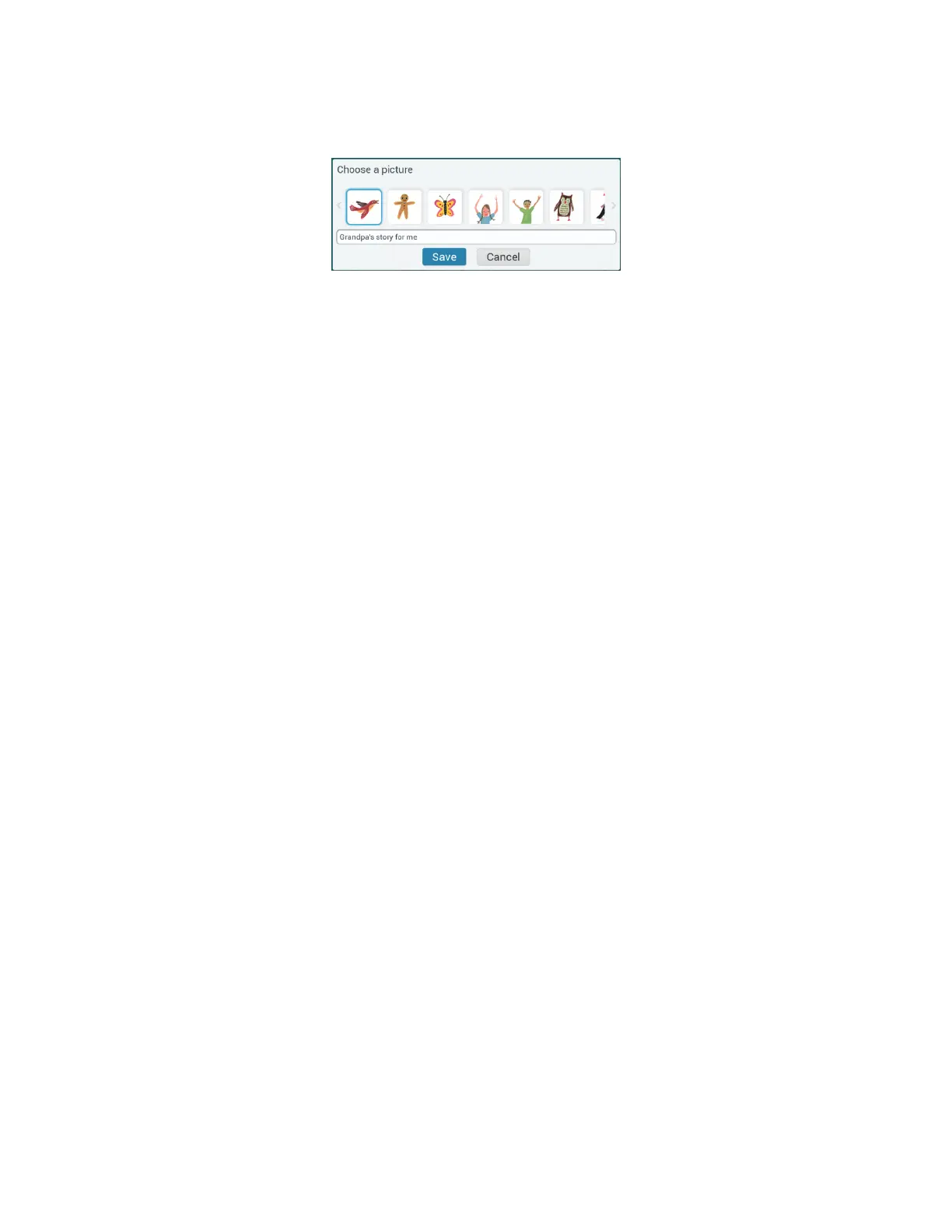
Your NOOK opens a dialogue box for giving your recording a title and labelling it with a picture.
Choose a picture and type a title for your recording.
8. Tap the picture you want to use as a label.
9. Tap the text field for the recording’s name. Type the name for the recording.
10. Tap Save.
Your NOOK returns you to the front cover of the NOOK Children’s book. You recordings appear in the lower
left-hand corner of the screen.
NOTE: Your NOOK Shops your recordings as audio files in the My Files area. The recordings are not part of
the NOOK Children’s books themselves. If you are planning to erase and deregister your NOOK, you
can back up these audio files to your personal computer to preserve them.
NOTE: Your NOOK saves audio files for Read and Record books on its internal file system. You cannot record
audio files directly onto an SD memory card.
Playing a Recording
To play a recording you made of a NOOK Children’s book, do this:
1. Tap the cover of the NOOK Children’s book you want to hear.
2. On the opening screen of the book, tap the picture of the recording you want to play.
Your NOOK opens to the first page of the book and plays your recording of that page.
3. Swipe or tap to turn the page.
4. Continue turning pages and listening your recording until you have finished the book.


 To Next Page