Using e-mail
97
— Inbox
— Outbox
— Send
— Draft email
9. Press OK.
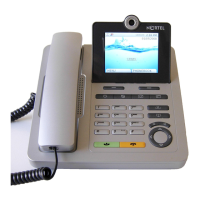
The IP Phone 1535 deletes all saved e-mails from the selected folder.
Sending attachments
You can send created or received multimedia content as attachments to
e-mail.
1. From the Write window, press OPTIONS.
2. Select Attachments.
3. Press OK.
4. Select one of the following options:
—Attach image
— Attach sound
— Attach video
5. Press OK.
6. Select the gallery with the content file you want to attach.
7. Press OK.
8. Select the required content file.
The IP Phone 1535 attaches the content file to your message. To
attach another file, press OPTIONS and repeat step 3 to step 7.
9. To send the message, press BACK, then select Send and press OK.
If you have already entered the destination address, the
IP Phone 1535 sends your e-mail. If you have not yet entered the
destination address, see “Entering a destination address” on
page 90.


 To Next Page