EasyManua.ls Logo

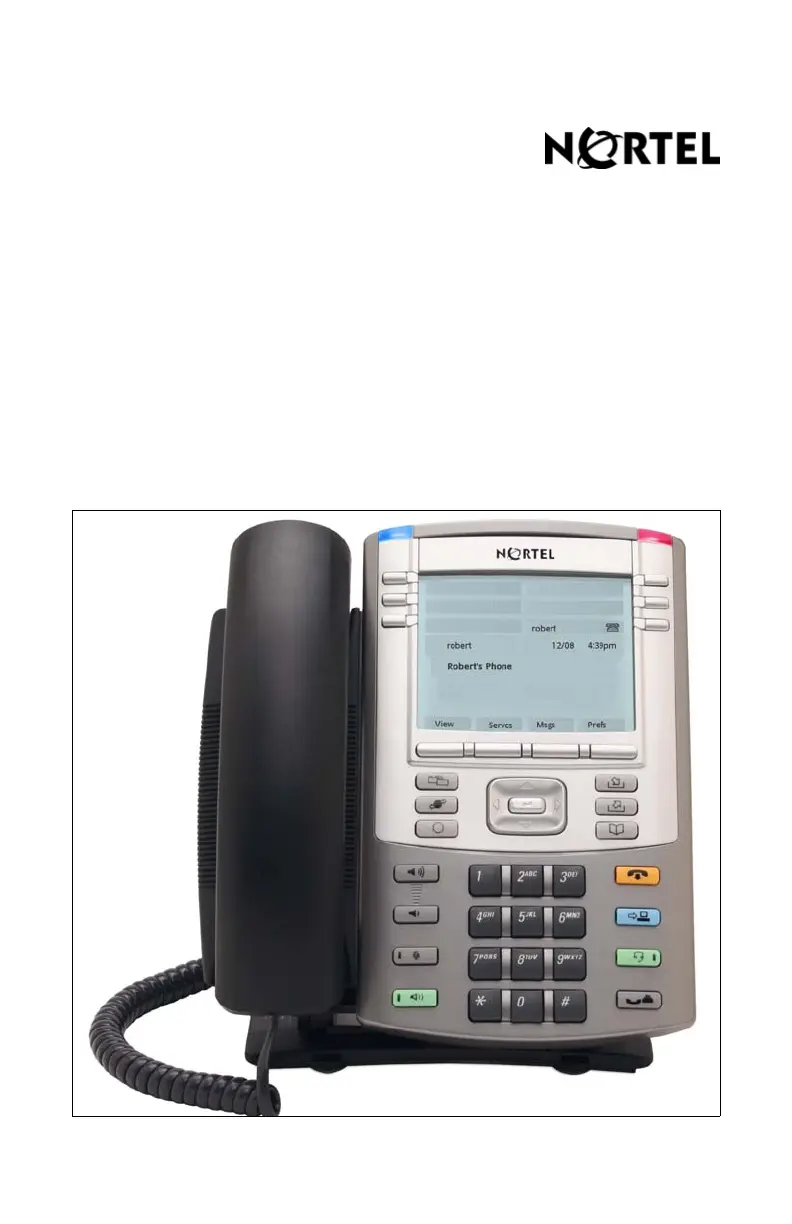
Nortel 1140E - User Manual

Nortel 1140E
216 pages
Print Icon
To Next Page IconTo Next Page
Loading...
SIP Firmware Release 1.1 for IP Phone
1140E
User Guide
Title page

Table of Contents

Other manuals for Nortel 1140E

Questions and Answers

  • J
    Jennifer ParkSep 18, 2025
    What to do if my Nortel IP Phone is locked from login?
    • J
      James TranSep 18, 2025
      If your Nortel IP Phone is 'Locked from Login', this is likely because there were three unsuccessful attempts to enter the correct Station Control Password. You can either wait one hour for the lock to clear automatically, or contact your system administrator to clear the lock immediately.
  • M
    Matthew HillAug 25, 2025
    What to do if my Nortel 1140E says 'Busy, try again'?
    • B
      Bryce NavarroAug 25, 2025
      If your Nortel IP Phone displays 'Busy, try again', it could be due to several reasons. The remote IP Phone might be currently in use. In this case, wait until the remote IP Phone is idle before attempting your call again. Alternatively, if you are logged into ACD, log out of the ACD IP Phone before initiating Virtual Office from another IP Phone. Also, ensure that the 'Make Set Busy' feature is active on your ACD IP Phone; if it's inactive, configure it to be active.
  • Y
    Yvonne PhillipsAug 25, 2025
    What does 'Locked from Login' mean on my Nortel 1140E IP Phone and how to fix it?
    • K
      Kimberly DurhamAug 26, 2025
      If your Nortel IP Phone displays 'Locked from Login', it means there were three unsuccessful attempts to enter the correct Station Control Password. You can either wait one hour for the lock to clear automatically, or notify your system administrator to clear the lock immediately.
  • J
    Joanne SmithAug 27, 2025
    Why does my Nortel IP Phone say 'Server Unreachable (1)'?
    • C
      Colton PalmerAug 27, 2025
      If your Nortel IP Phone displays 'Server Unreachable (1)', it indicates a network problem. Notify your system administrator if the problem continues.
  • J
    Jessica NguyenSep 18, 2025
    What does 'Permission Denied (6)' mean on my Nortel IP Phone?
    • S
      slopezSep 18, 2025
      If your Nortel IP Phone displays 'Permission Denied (6)', it could be due to entering an incorrect User ID or an incorrect Station Control Password. If you entered an incorrect Station Control Password, select Retry, and try again with the correct password.
  • S
    salasjillSep 23, 2025
    What to do if my Nortel 1140E IP Phone says 'Server Unreachable (2)'?
    • R
      Renee CollinsSep 23, 2025
      If your Nortel IP Phone displays 'Server Unreachable (2)', this indicates a network problem. If the issue persists, notify your system administrator.
  • R
    rcarterSep 9, 2025
    What to do if my Nortel 1140E shows 'Permission Denied (4)'?
    • J
      Jennifer VangSep 9, 2025
      If your Nortel IP Phone displays 'Permission Denied (4)', it could be due to an incorrect User ID or an attempt to log in to a remote IP Phone 1120E or IP Softphone 2050 from an IP Phone 1140E (some restrictions apply). First, make sure you've entered the correct User ID. If you are using an IP Phone 1140E, try logging in from an IP Phone 1120E or IP Softphone 2050, or consult your local system administrator.
  • A
    anasanchezSep 10, 2025
    What to do if my Nortel IP Phone shows 'Permission Denied (5)'?
    • L
      Lori McdanielSep 10, 2025
      If your Nortel IP Phone displays 'Permission Denied (5)', it could be due to an incorrect User ID or the remote IP Phone lacking VOUA Class of Service. First, ensure that you have entered the correct User ID. If the issue persists, notify your system administrator as the remote IP Phone might need VOUA Class of Service.
  • P
    Patrick MendozaSep 3, 2025
    Why does my Nortel 1140E say 'Permission Denied (1)'?
    • C
      Christopher FrederickSep 3, 2025
      If your Nortel IP Phone displays 'Permission Denied (1)', it indicates that the remote IP Phone has no Station Control Password. You should notify your system administrator.
  • B
    bradbarnettSep 1, 2025
    Why does my Nortel IP Phone say 'Permission Denied (4)'?
    • A
      Amber HorneSep 1, 2025
      If your Nortel IP Phone displays 'Permission Denied (4)', it could be due to an incorrect User ID being entered. Ensure the correct User ID is used. It can also occur if you're trying to log in to a remote IP Phone 1120E or IP Softphone 2050 from an IP Phone 1140E. Try logging in from an IP Phone 1120E or IP Softphone 2050, or consult your system administrator.

Summary

About the Nortel IP Phone 1140 E

Basic Features

Details the fundamental capabilities and components of the IP Phone 1140E.

Security Features

Outlines the security measures, including login and password protection.

Telephone Controls

Context-Sensitive Soft Keys

Idle State Context-Sensitive Soft Keys

Describes the soft keys available when the phone is in its idle state.

In-Call Context-Sensitive Soft Keys

Explains the soft keys available during an active phone call.

Connecting the Components

Connecting the Components of the Phone

Details the steps for physically connecting all necessary cables and parts.

Entering Text

Entering Text Using the Telephone Dialpad

Explains how to input text and characters using the phone's dialpad.

Accessing the IP Phone 1140 E

Logging In

Guides users through the process of logging into the IP Phone.

Setting the Domain

Explains how to set or change the network domain for phone connectivity.

Entering Your User Login and Password

Details the steps for entering user credentials to log in.

Logging Out from the IP Phone 1140 E

Guides users on how to properly log out of the IP Phone.

Configuring the IP Phone 1140 E

Configuring Bluetooth Wireless Technology Headset

Guides on pairing and managing Bluetooth headsets with the IP Phone.

Making a Call

Making a Call Using Off-Hook Dialing

Explains how to make calls by lifting the handset or using headset/handsfree first.

Making a Call Using On-Hook Dialing

Details how to dial a number before lifting the handset.

Using Handsfree Calling

Explains how to use the speakerphone function for calls.

Receiving a Call

Answering an Incoming Call

Guides on how to accept an incoming call using various methods.

The Address Book

Initiating a Call from the Address Book

Explains how to make calls directly from the address book.

Adding a Contact to Your Address Book

Details the process of adding new contacts to the phone's directory.

Call Inbox

Accessing the Call Inbox

Guides on how to open and view the call inbox.

Initiating a Call from the Call Inbox

Explains how to make a call directly from a call inbox entry.

Instant Messaging (IM)

Composing an Instant Message

Guides on how to create and send instant messages.

While on an Active Call

Making a New Call

Explains how to initiate another call while on an existing one.

Initiating a Call Using the Action Context-Sensitive Soft Key

Details using the Action key to start a new call during an active call.

Placing a Call On Hold

Guides on how to put an active call on hold.

Multiple Calls On Hold

Explains handling multiple calls simultaneously on hold.

Using 3-way Calling

Details how to combine three calls into a single conference call.

Setting Up a Conference Call

Explains how to set up a multi-party conference call.

Transferring a Call

Guides on how to redirect a call to another number or person.

Using the Park Call Feature

Explains how to temporarily park a call for later retrieval.

Retrieving a Parked Call

Guides on how to retrieve a call that was previously parked.

Additional Features

Using Feature Key Options

Explains how to configure programmable feature keys.

Creating a Speed Dial Feature Key

Guides on assigning a feature key for quick dialing.

Creating a Call Forward Feature Key

Guides on assigning a feature key to activate call forwarding.

Creating a Do Not Disturb Feature Key

Guides on assigning a feature key to enable Do Not Disturb.

Using Call Forward

Explains how to redirect incoming calls to another number or destination.

Setting the Phone to Do Not Disturb

Guides on how to activate the feature to block all incoming calls.

Setting a Presence State

Explains how to set and display your availability status to others.

Advance System Features

Checking for Updates

Explains how to check for and install firmware updates.

Resetting the Phone

Details how to perform a factory reset on the IP Phone.

Erasing User Data

Explains how to delete user-specific files and settings.

Regulatory and Safety Information

Nortel 1140E Specifications

General IconGeneral
Display ColorMonochrome
Lines6
SpeakerphoneYes
ProtocolsSIP, H.323
Volume ControlsYes
Wall MountableYes
DisplayBacklit LCD
AudioWideband audio
Ethernet Ports2
Power over EthernetYes (IEEE 802.3af)
Headset SupportYes
Supported CodecsG.711, G.729, G.722

Related product manuals