Northstar Explorer 660 Installation and Operation Manual10
2 Basic Operation
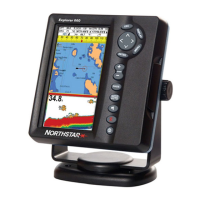
Overview of the keys
Go back to an earlier menu or display. Any changes
are ignored. In chart mode centers chart at boat's
position.
Show a menu of the main Explorer 660 displays. To
go to a display, select it from the menu (see section
2-6).
, , , Cursor keys, to move the cursor or the selection
highlight.
Show a menu of the options for the current display.
Press MENU again to display the Setup menu (see
section 15).
Start an action or accept a change.
, For the chart display: Zoom in or out to display dif-
ferent areas and detail on the chart.
For the sonar display: Change the depth range
displayed.
Switch the display to the next in the favorites list
(see section 2-6-2).
For a navigation display: Start navigating to a point,
waypoint or along a route (see section 3-4).
For sonar display: Select a sonar operating mode
(see section 8-1).
Create an instant waypoint at the boat position (see
section 5-2-1).
Man overboard (MOB, see section 2-3).
Turn Explorer 660 on and off (see section 2-1); adjust
the backlighting (see section 2-2).
In this manual:
Press means to push the key for less than a
second.
Hold means to hold the key down.
The internal beeper beeps when a key is pressed
(to disable or enable the beep, see section 13-1).
Selecting an item in a menu
The Explorer 660 is operated by selecting items
from menus shown on the display.
1 Press
or to move the highlight to the
item.
2 Press ENTER to select the item.
Changing a number or word
To change a number or word on the display:
1 Press
or to move the highlight to the
digit or letter to change.
Press
or to change the digit or letter.
2 Repeat the above step to change any other
digits or letters.
3 Press ENTER to accept the change.


 To Next Page