Northstar Explorer 660 Installation and Operation Manual40
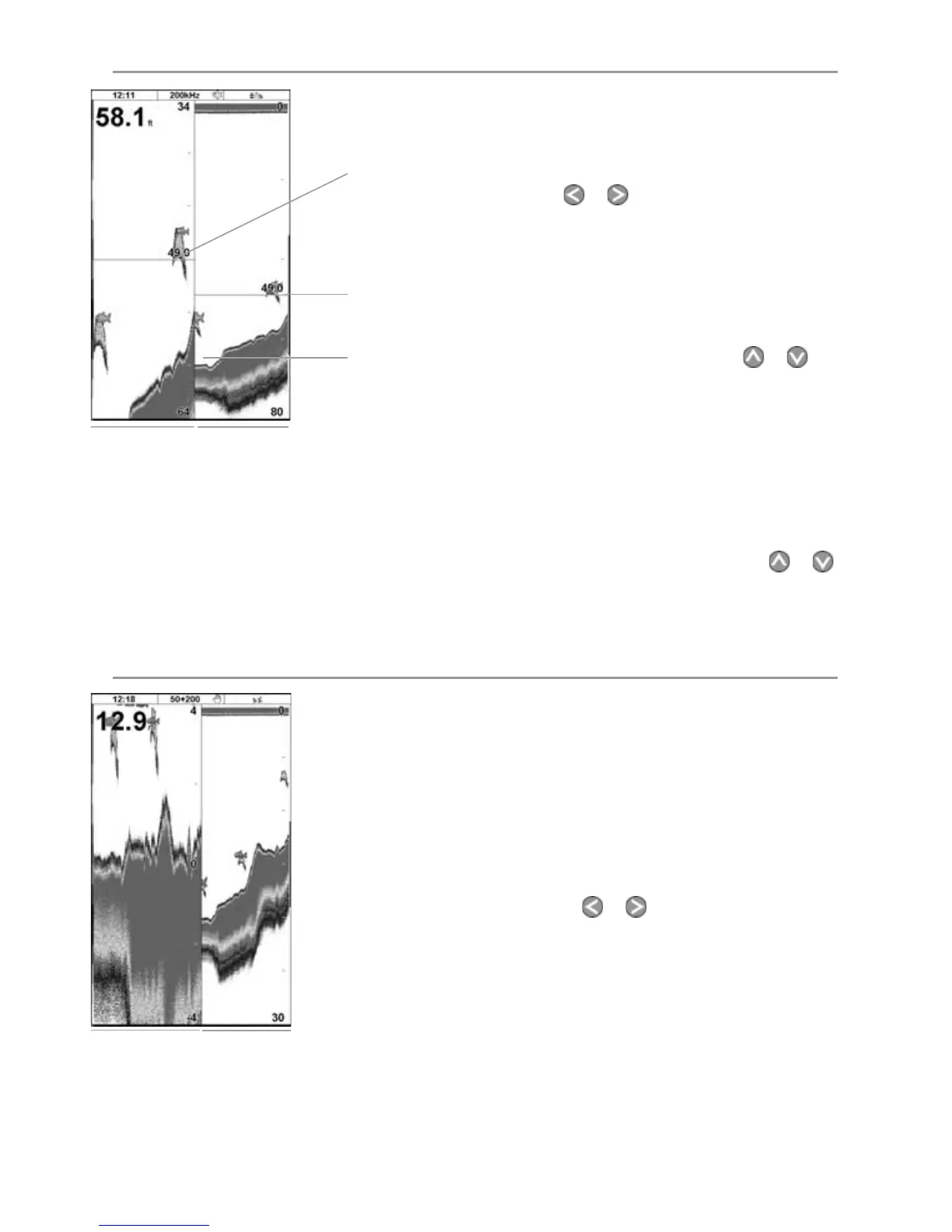
9-2 Sonar Zoom display
The display shows the sonar history on the right
and the zoomed section on the left.
The zoom bar on the far right shows the area of
the history that is magnified in the zoom section:
• Press
or to adjust the zoom range
(the range of depths included in the zoom
section).
• If Bottom lock is on, the zoom depth
(the depth of the zoom section) is adjusted
automatically so that the bottom is always
displayed in the zoom section.
If Bottom lock is off, press
or
to manually adjust the the zoom depth. If
bottom lock is on it will turn off.
Bottom lock
To turn Bottom lock on or off:
1 Press MENU and select Bottom lock.
2 Select On or Off.
or If Bottom lock is on, pressing
or
will turn it off.
9-3 Sonar Bottom display
The display shows the sonar history on the right
and the bottom signal as a flat trace in the centre
of the zoom section on the left. The flat trace
make it easy to compare the echo strengths
shown in the bottom signals. This can help to
identify the type of bottom and objects close to
the bottom.
The zoom bar on the far right shows the area of
the history that is magnified in the zoom section:
• Use the
or keys to adjust the zoom
range.
• The Explorer 660 calculates the zoom depth
automatically.
It is not necessary to turn Bottom lock on for
this display.
Zoom bar
Sonar historyZoom section
Divider line
Depth line
marks the
centre of the
zoomed area
Sonar historyZoomed bottom
signal


 To Next Page