36
ML0042 October 15, 2019 Copyright 2019 Bitronics, LLC
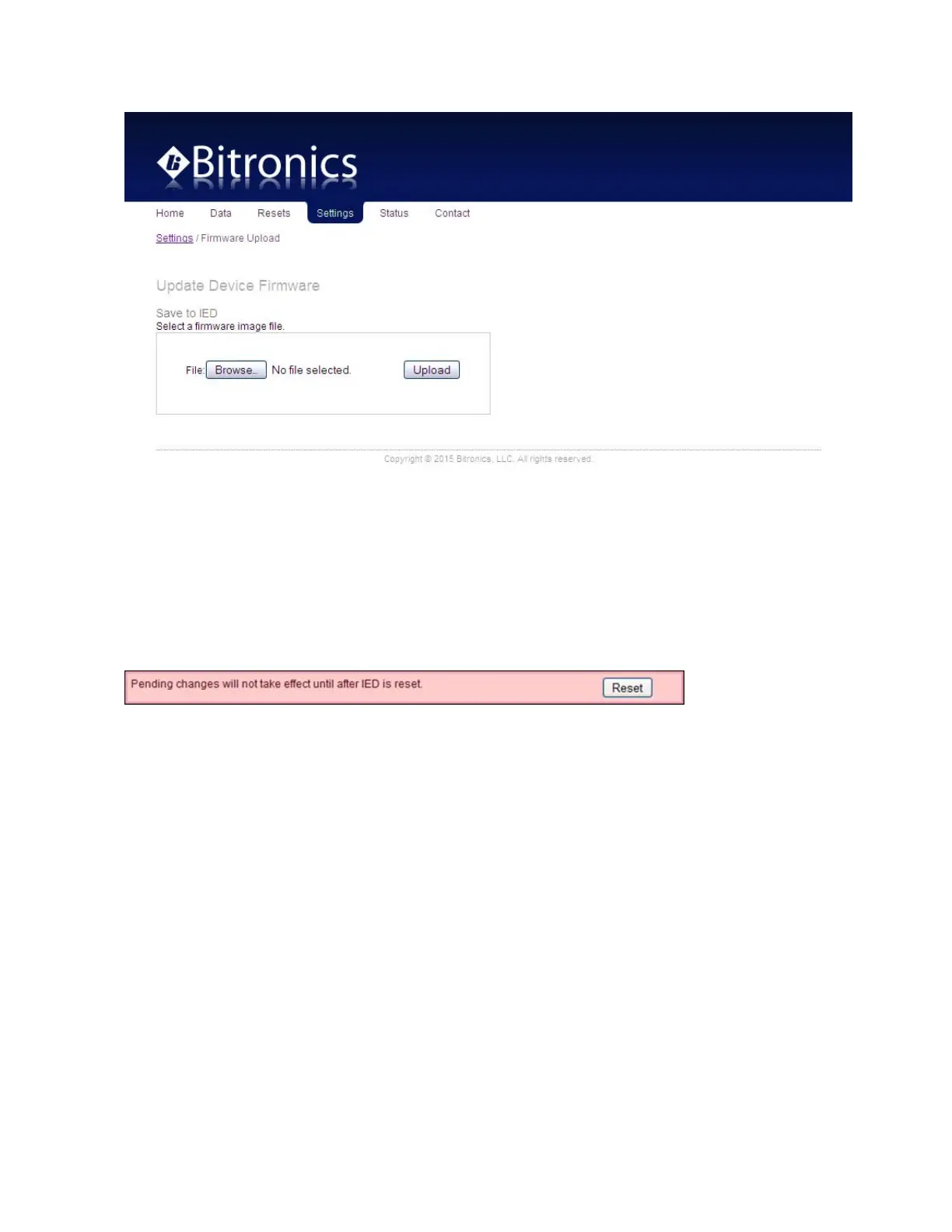
Figure 4 – Bitronics M66X Firmware Upload Page
Once the Firmware Upload page is visible, use the Browse button to locate the
firmware image on your computer. Next use the Submit button to initiate the file
transfer and installation process. The instrument must be rebooted to make the new
firmware active. At the completion of the file transfer and installation process, the
instrument will prompt you to reset the instrument remotely by displaying the dialog
box below after the firmware has been successfully installed.
It is strongly recommended that you clear your web browser’s cache (delete the
temporary internet files) after updating the firmware so that the new content will be
loaded into your browser. Please refer to your browser’s help file on how to clear the
cache. A useful keyboard shortcut common to Internet Explorer, Firefox and Chrome
is CONTROL + SHIFT + DELETE, which will take you directly to the relevant dialog
panel. Carefully select the items to be cleared. Be sure to check the boxes that clear
“temporary internet files”, “cache” or “website data” and uncheck any boxes that
preserve data.
If you had a previously saved configuration that you wish to now load to your M66X,
you should now go back to the Load/Store Settings page and go to the top box “Select
a configuration file”. Click on the box “Load network settings from file” and then
browse to find the configuration file you wish to load. Once selected, click on Submit,
and then you will need to reboot the unit.
3.5 Optional Serial Port


 To Next Page