—22—
Recipes
Saving Recipes on Aero®
Recipe Management Tool
1. Insert USB ash drive in external computer.
2. Create a le folder to hold the Aero Recipe
Management Tool. is will be the same
location that the .csv le that is created for
transport to your press will be saved.
3. Open the ARMTx.x.xlsm le.
4. Instructions for inputting or modifying
recipes will be contained within the Aero
Recipe Management Tool, including how
to export the les to transport via the USB
ash drive to the Aero press.
ere are ten (10) folders available for o-
line recipe storage: Group 1 – 10. Up to 99
recipes may be stored for each group. Recipes
in Group 1 – 10 are editable on an external
computer, but not at the press. If a recipe
from Group 1 – 10 is edited at the press, it
may be saved to Group 0.
When changes are made at an external
computer to Group 1 – 10 and then loaded to
press, it updates all Group 1-10 recipes.
Loading Recipes from Aero®
Recipe Management Tool
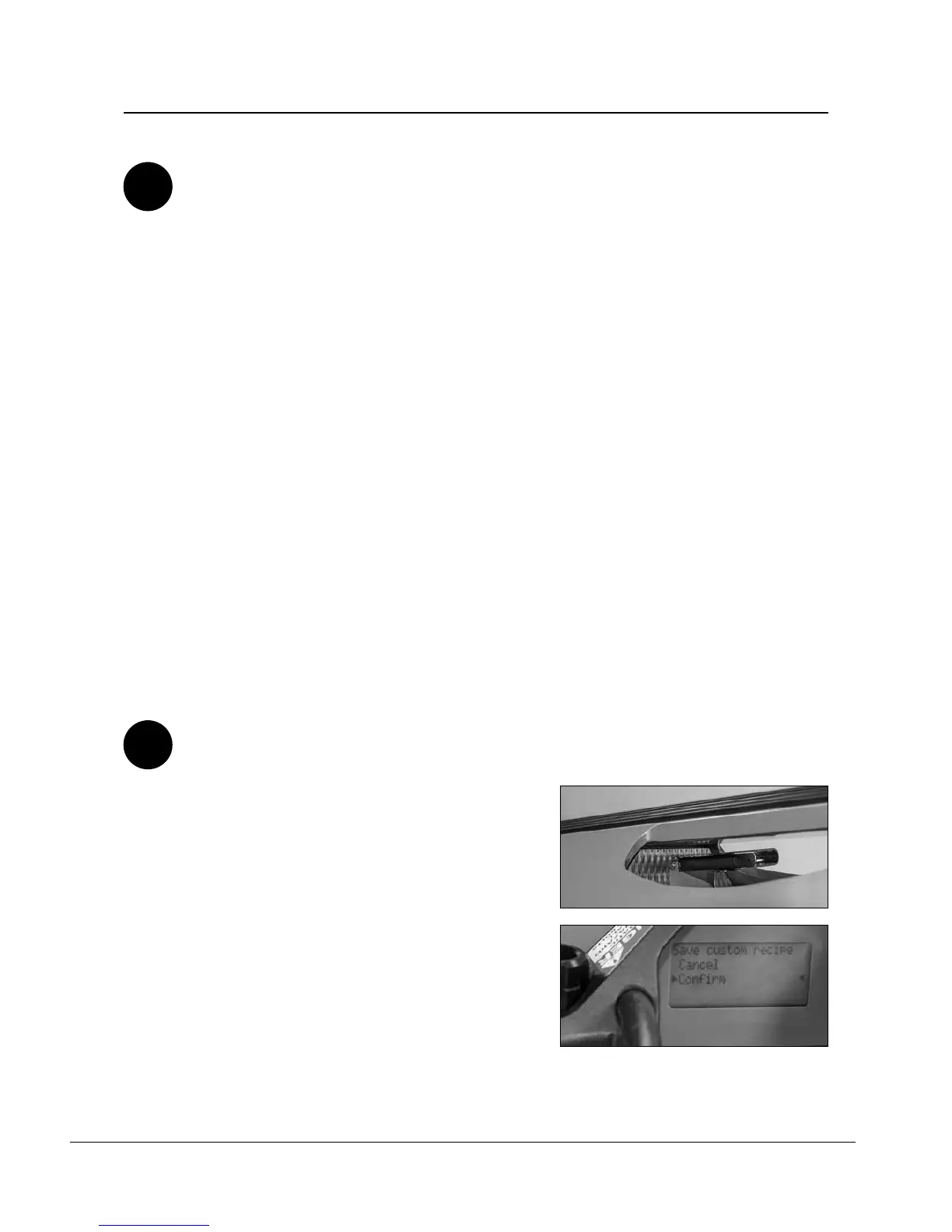
a. Follow instructions on powering up the
press, then insert USB ash drive into the
USB port in the top of the press.
b. Display reads USB Device Detected with
options to select “Export Data Log”,
“Import Recipes”, “Export Recipes”, and
“Back”. Scroll to “Import Recipes” and
depress selector knob. Select “Cancel or
Conrm.” If “Cancel” is selected, it will
return to Options menu. If “Conrm” is
selected, the display states “Processing”.
C3
C4
a.
b.


 To Next Page