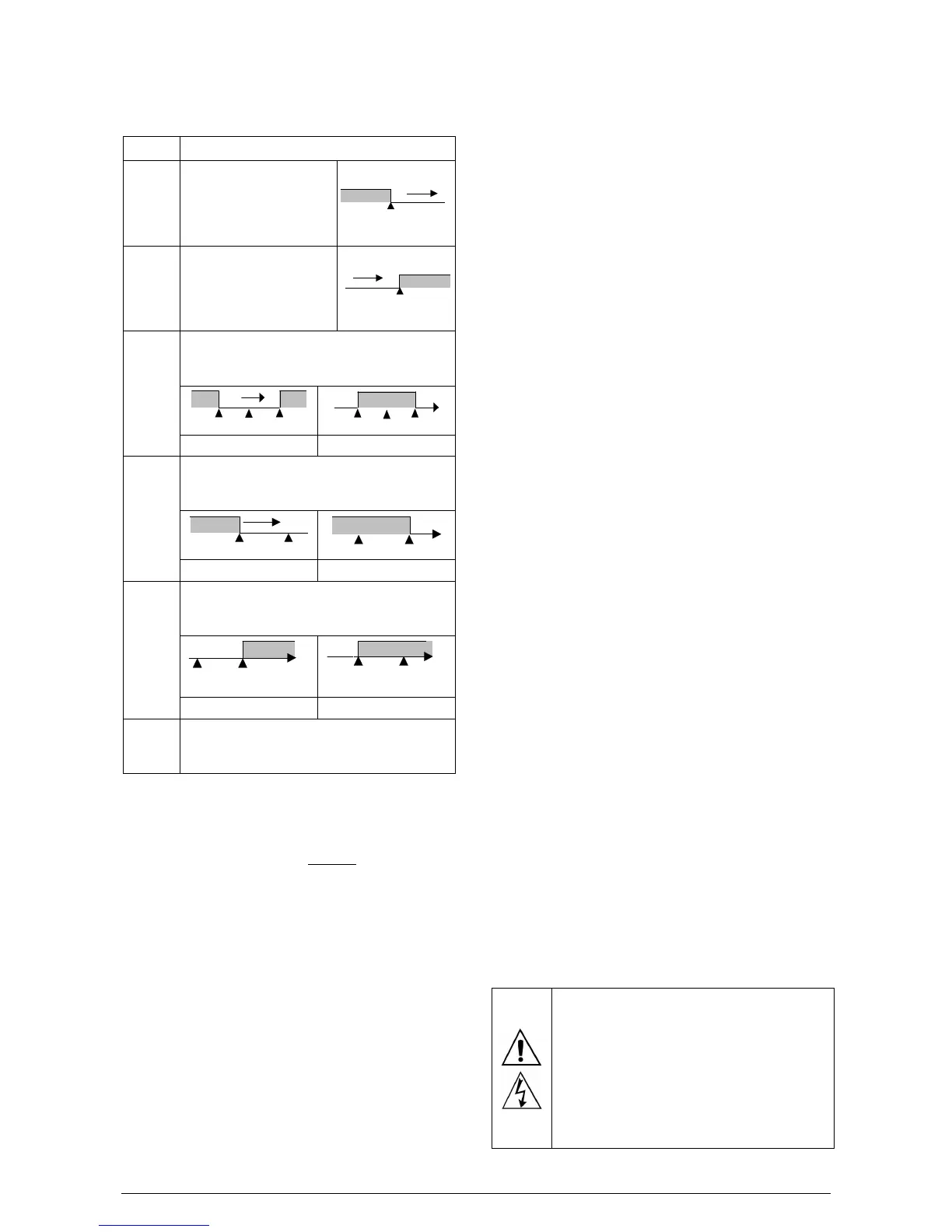
Positive SPA4 Negative SPA4
ierr
ierrierr
ierr
Alarms of the Sensor Break (Sensor Break Alarm). It
is activated when the Input presents problems such
as interrupted sensor, bad connection, etc.
Table 02 – Alarm functions
INITIAL BLOCKING OF ALARM
The option to Block initial alarms inhibits the alarms in the case that
there is an alarm condition present on startup. The alarm will be
enabled only after the occurrence of a non alarm condition.
Initial Blocking is useful, for example, in the initialization of process
control operations when the value of the PV is still far from the SP
value. Hence the system waits for alarm situations and unwanted
alarms are avoided.
The initial blocking is disabled for the sensor break alarm function
ierr
ierrierr
ierr.
OFFSET
Allows fine adjustments to the PV reading for compensation of
sensor error. Offset allows measurements errors to be corrected
when the occur, for example after the substitution of a temperature
sensor.
FUNCTION LBD – LOOP BREAK DETECTION
The parameter defines a time interval, in minutes, within which the
PV is expect to react to a control output signal. If the PV does not
react properly within the time interval configured in lbd.t
lbd.tlbd.t
lbd.t, the
controller interprets this as a control loop break and signals this
occurrence in the display.
If the lbd.t
lbd.tlbd.t
lbd.t parameter is set to 0 (zero) then this function is disabled.
This function allows the user to detect problems in the installation, for
example an actuator with a defect, a failure of supply power, etc.
A LBD event may be sent to any output channel. Simply configure
the LDB function to the desired output channel (OUT1 or OUT2): the
selected output will be activated when a LDB condition is detected.
When the Lbd.t
Lbd.tLbd.t
Lbd.t parameter is programmed with 0 (zero), the LDB
function is disabled.
The LBD is useful in detecting system failures, such us defective
sensors or actuators, loads and power supply, among others.
SAFE OUTPUT VALUE WITH SENSOR FAILURE
This function defines an output value (user defined) to be assigned to
the control output in the event of a sensor failure.
When the input sensor is identified as broken, the controller switches
the control mode to MANUAL while forcing MV to assume the user
configured value in the 1E.ov
1E.ov1E.ov
1E.ov parameter. This function requires that
one of the alarms be configured as 1Err
1Err1Err
1Err and the 1E.ov
1E.ov1E.ov
1E.ov parameter
(control output percentage) programmed with a value other then 0
(zero).
Once this function is triggered, the controller remains in SAFE mode
(MANUAL control output) even after the sensor failure appears to be
fixed. The operator intervention is required for switching back to
AUTO mode.
1E.ov
1E.ov1E.ov
1E.ov values are only 0 and 100 % when in ON/OFF control mode.
For PID control mode any value in the range from 0 to 100 % is
accepted.
USB INTERFACE
The USB interface is used for CONFIGURING or MONITORING the
controller. The NConfig software must be used for the configuration.
It makes it possible to create, view, save and open configurations
from the equipment or files in your computer. The tool for saving and
opening configurations in files makes it possible to transfer
configurations between pieces of equipment and to make backup
copies. For specific models, the NConfig software also makes it
possible to update the firmware (internal software) of the controller
through the USB.
For MONITORING purposes you can use any supervisory software
(SCADA) or laboratory software that supports the MODBUS RTU
communication on a serial communications port. When connected to
the USB of a computer, the controller is recognized as a conventional
serial port (COM x). Use the NConfig software or consult the
DEVICE MANAGER in the Windows CONTROL PANEL to identify
the COM port that was assigned to the controller. Consult the
mapping of the MODBUS memory in the controller’s communications
manual and the documentation of your supervisory software to
conduct the MONITORING process.
Follow the procedure below to use the USB communication of the
equipment:
1. Download the NConfig software from our website and install it
on your computer. The USB drivers necessary for operating the
communication will be installed together with the software.
2. Connect the USB cable between the equipment and the
computer. The controller does not have to be connected to a power
supply. The USB will provide enough power to operate the
communication (other equipment functions cannot operate).
3. Open the NConfig software, configure the communication and
start recognition of the device.
The USB interface IS NOT SEPARATE from the signal
input (PV) or the controller’s digital inputs and outputs.
It is intended for temporary use during
CONFIGURATION and MONITORING periods. For the
safety of people and equipment, it must only be used
when the piece of equipment is completely
disconnected from the input/output signals. Using the
USB in any other type of connection is possible but
requires a careful analysis by the person responsible
for installing it.


 To Next Page