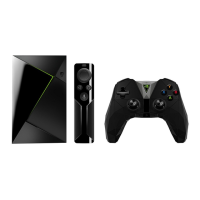
You will connect to the Internet as part of your SHIELD TV setup. You can always change the
Wi-Fi network your SHIELD TV is using.
To change your Wi-Fi network:
1. On the SHIELD TV Home screen, select Network Settings .
2. Select Wi-Fi.
3. You'll see a list of available networks.
4. Select a network and follow the on-screen instructions to connect.
o If you don't see your network listed, scroll to the bottom of the screen and select
Add new network. Follow the on-screen instructions to connect.
What is my MAC Address?
To view your MAC address after setup, go to Settings > Device > About > Status > MAC
address.
Trouble Connecting to Wi-Fi
Try these troubleshooting steps if your device won't connect to Wi-Fi.
4K HDR Display Setup
Your SHIELD TV supports 4K Ultra HD (3840 x 2160p) resolution content when available from
the applications of your choice.
To ensure that your SHIELD TV is optimized for 4K video output, keep your device updated with
the latest system software.
Watching 4K content from SHIELD TV requires a 4K display with HDMI 2.0 and HDCP 2.2
support. Make sure SHIELD TV is connected to an HDMI input that supports HDCP 2.2. Consult
your 4K display's user guide to find the correct HDMI port to plug SHIELD TV into for watching
4K content.
NOTE Most 4K streaming content requires HDCP 2.2 compatible ports. See your 4K
display's user guide for further details.
SHIELD TV also supports content rendered with 4:4:4, and 4:2:0 chroma subsampling
frequency ratios.


 To Next Page