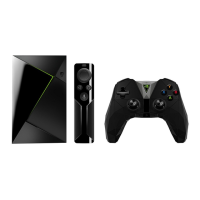
My SHIELD ran out of space.
If you have a lot of apps or games on your SHIELD, you may run out of storage space. If you are
out of space on your device, you'll get a notification the next time you try to install a game or
app from the Play Store.
If you run out of space but you'd like to install new apps or games, you have to uninstall some
of your other apps or games or else insert an SD card or attach an external hard drive.
Here's how to uninstall apps or games:
On the SHIELD Home screen, select Settings .
Under "Device," select Apps.
Under "Downloaded," find and select an app.
Select Uninstall.
Select OK to confirm.
My SHIELD is sluggish and unresponsive.
In this case, your 3rd party apps may be causing this issue. We recommended booting up your
SHIELD in Android Safe Mode.
To enable Android Safe Mode:
1. Disconnect the power cable.
2. Connect a USB keyboard to your SHIELD USB 3.0 port, or connect a SHIELD controller to
your SHIELD USB port.
3. Connect the power cable.
4. Hold down the 'S' key on your keyboard until your TV display shows the Android TV
home screen, or turn on your SHIELD controller (with NVIDIA button on controller) and
hold down the volume down button on your SHIELD controller until the TV display
shows the Android home screen.
5. You will see "Safe mode" on the bottom left part of the home screen.
How to Optimize Internet and Video
Performance


 To Next Page