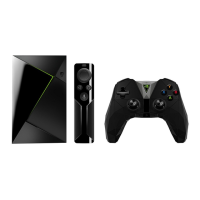
5. When finished with setup, you can control your SHIELD with the remote
How to Transfer Content to SHIELD
From a PC, you can access internal and USB attached storage on your SHIELD TV.
Direct USB
To transfer content to your SHIELD:
1. Connect your SHIELD to a computer using the supplied micro USB cable plugged into the
micro USB port on your SHIELD.
2. Use a file explorer on your PC to identify your SHIELD device and click on your SHIELD
device name.
NOTE For convenience, ensure that the type of content you copy from your computer
to your SHIELD matches the folder name. For example, copy movie files to the
"Movies" folder and music files to the "Music" folder.
Over Local Network
Your SHIELD TV can become discoverable as a network addressable device.
1. Under Settings > Device > Storage & reset, select "Over Local Network."
2. The following page will have the information needed to log into your SHIELD TV to
transfer files in and out of your storage.
Control Volume from TV, AV Receiver or
Soundbar
By default, volume control will adjust the output volume from your SHIELD TV. If you control
your volume on another device (e.g., TV, AV receiver, soundbar), you can configure your SHIELD
Remote or Controller to directly control those devices.
If your audio device supports HDMI-CEC volume control, we recommend turning on CEC control
in Settings > Display & Sound > Volume control. If your audio device cannot be controlled
by CEC, you may still use the Remote's IR emitter using the Configure IR setting.


 To Next Page