5-4 Printing Operations
Printing Operations
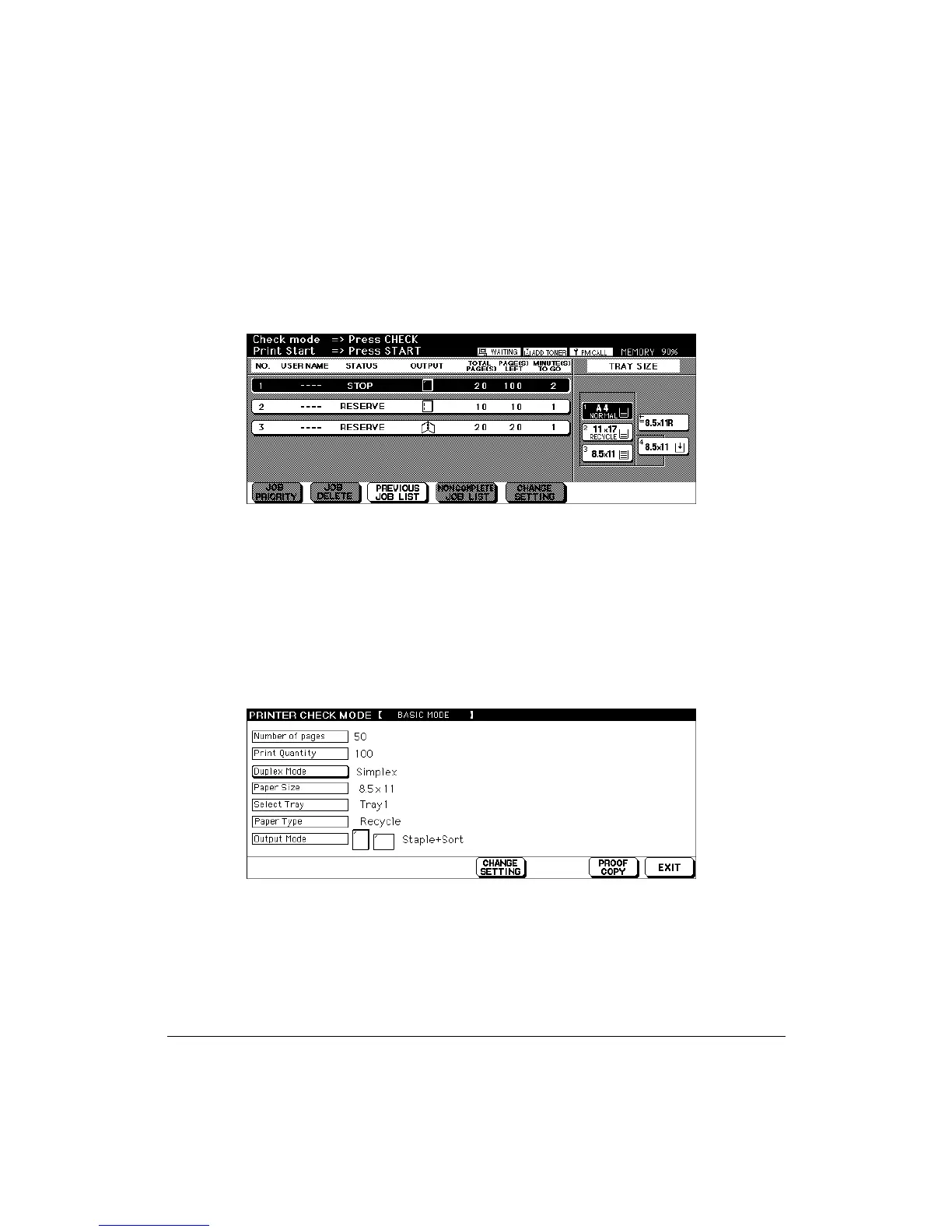
Check Mode Message
When the temporary stop function is specified by the driver, the following message
displays on the Basic Screen.
When the [CHECK] key is pressed the Printer Check Screen will be displayed.
When the [START] key is pressed, printing will begin.
Check Mode Screen
When you press the [CHECK] key on the control panel, the Printer Check Mode Screen
displays as shown below. You may view the list, which is displayed in real time.
Touch the CHANGE SETTING key to display the Change Setting Screen.
Make setting changes and press OK.
Touch the PROOF COPY and output only one set of the print quantity amount, whether a
change has been made or not. Then press the [START] key to print out the remaining
quantity.



 To Next Page