44 Chapter 2 Prepare and print
Use Océ DocSetter and Océ PRISMAproduction to create and print a document with tab
[33]
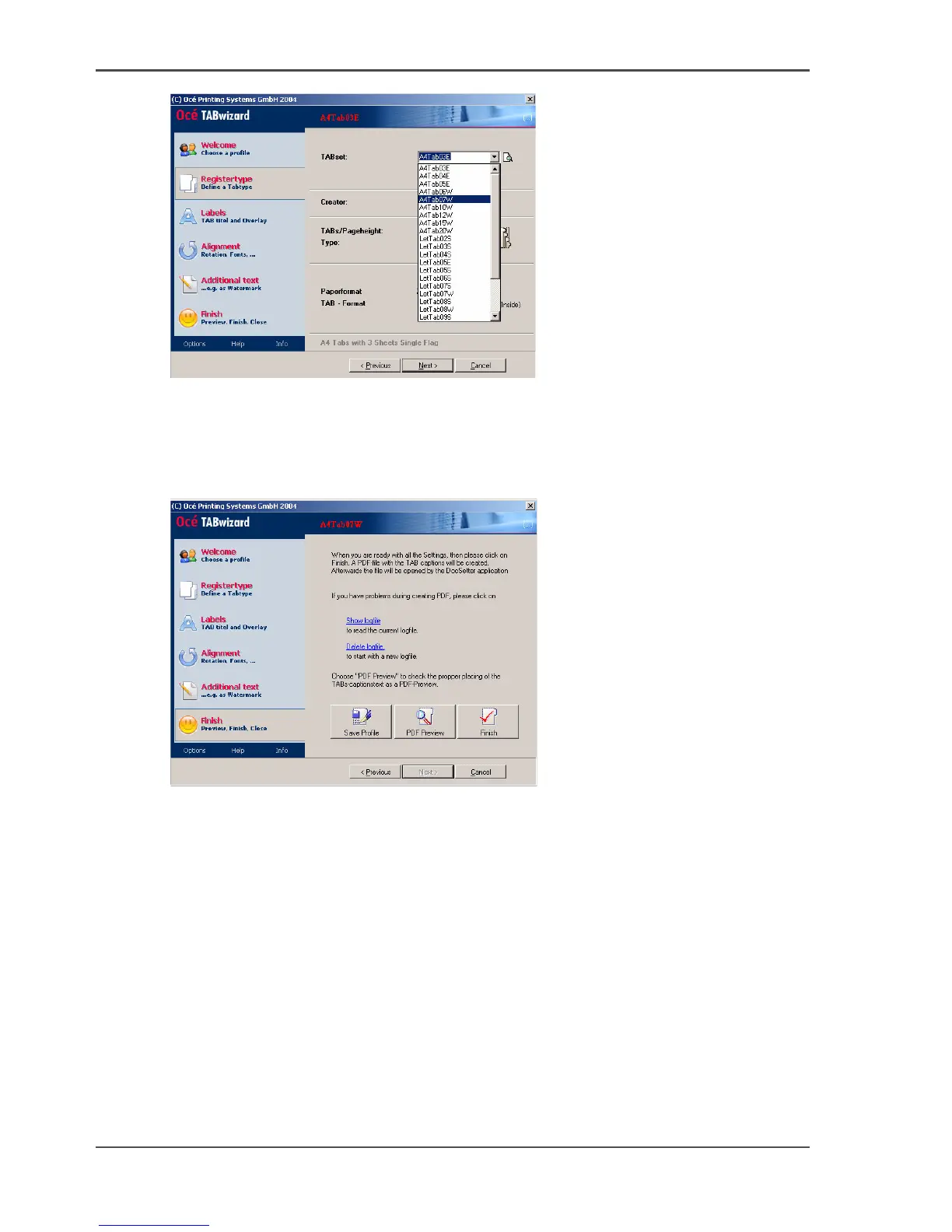
4. Define the order to print and sort the inserted tab sheets.
5. Define the labels for the tab sheet heads.
6. Define the orientation of the tab sheet texts.
7. Define any additional texts.
8. Select 'Finish' --> 'PDF Preview'.
[34]
9. Check the preview PDF and make any necessary corrections.
10. Click 'Finish' to complete the definition of the tab sheets.
Insert the tab sheets into the previously created document
1. If necessary, open the previously created document in which you want to insert the
tab sheets.
2. Open the file that contains the tab sheets that you just defined.
3. Drag a tab sheet from the file with the generated tab sheets to the desired position in
the document in which you want to insert the tab sheets.
Repeat this step for all tab sheets that you want insert. In this way you create a new
print file.














 To Next Page