66
DE
5.
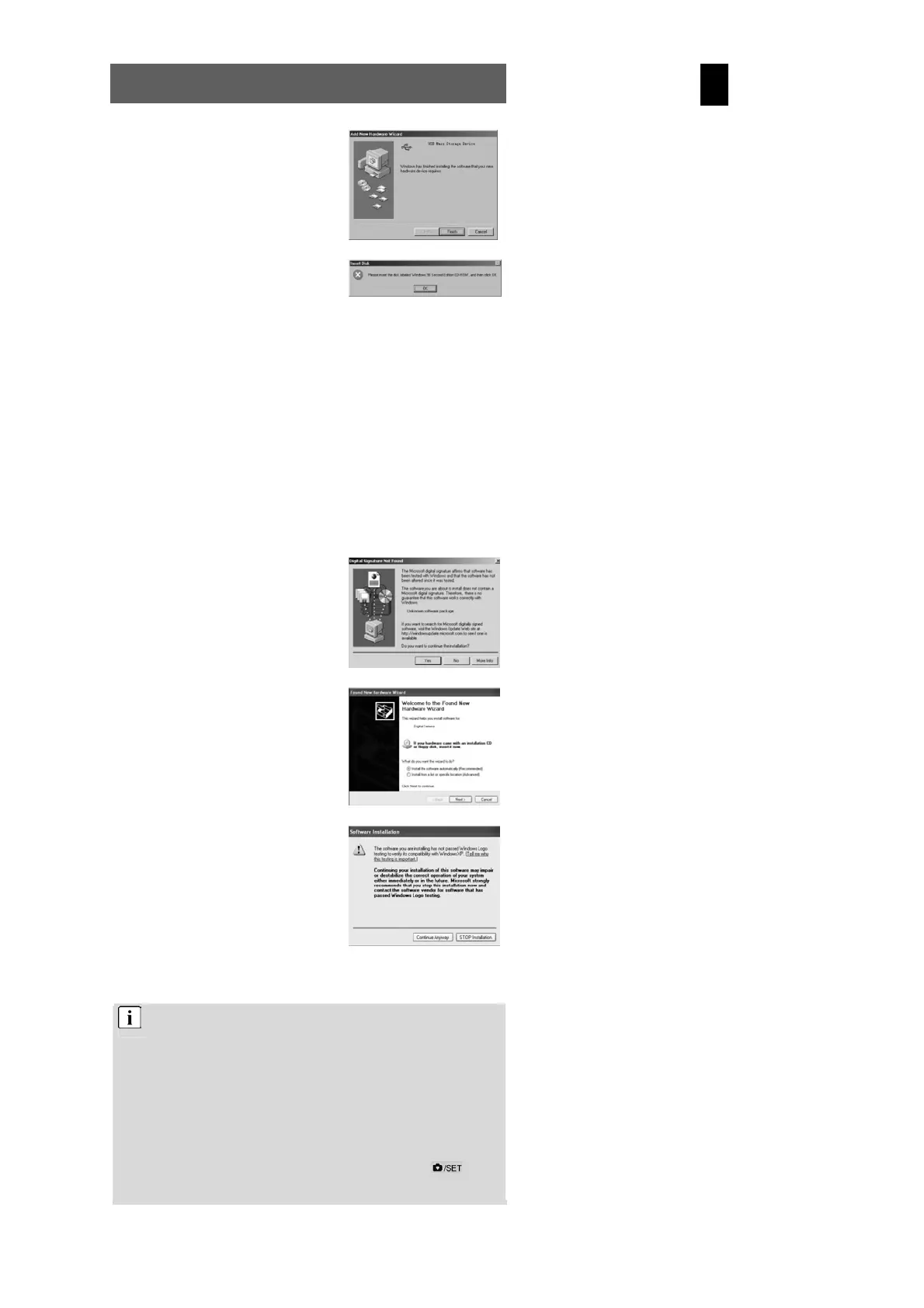
Click “Finish” to complete installation.
6.
You may be prompted to insert the
Windows 98 CD during the installation
process:
6.2.2 Installing the driver in TWAIN mode
1.
Connect the camera to the computer. The system should
automatically recognise that a new device has been connected.
2.
In TWAIN mode, the driver must be installed for all systems.
The procedure is similar to that described for Mass mode.
3.
Under Windows 2000, you may be
asked about the digital signature of the
driver. Click “Yes” to install the driver.
4.
When installing the driver on Windows
XP the Found New Hardware Wizard
appears. Select “Install the software
automatically” (recommended).
The following window may appear. Click
“Continue” and wait until the installation
is complete.
5. The installation procedure under Windows ME is similar.
Either of two driver modes can be selected for the camera.
TWAIN mode uses the video components for the PC (WebCam).
In MASS mode, the internal memory is used as mobile memory.
It can be treated like a hard drive. You can copy, delete, cut and
download photos and videos from the camera.
Location of the drivers on the CD:
(Example: “F:\ ” as the CD-ROM drive)
F:\Driver\mass-storage\Win98: MASS driver for Win 98
F:\Driver\Twain\win98_2k: TWAIN driver for Win 98 / 2000
F:\Driver\Twain\WinMe_XP: TWAIN driver for Win ME / XP
Photos should be downloaded directly in MASS mode. To select the
correct driver mode before installing the driver, press the button
to open the menu and select the corresponding mode via the “Driver
type” option.


 To Next Page