70
DE
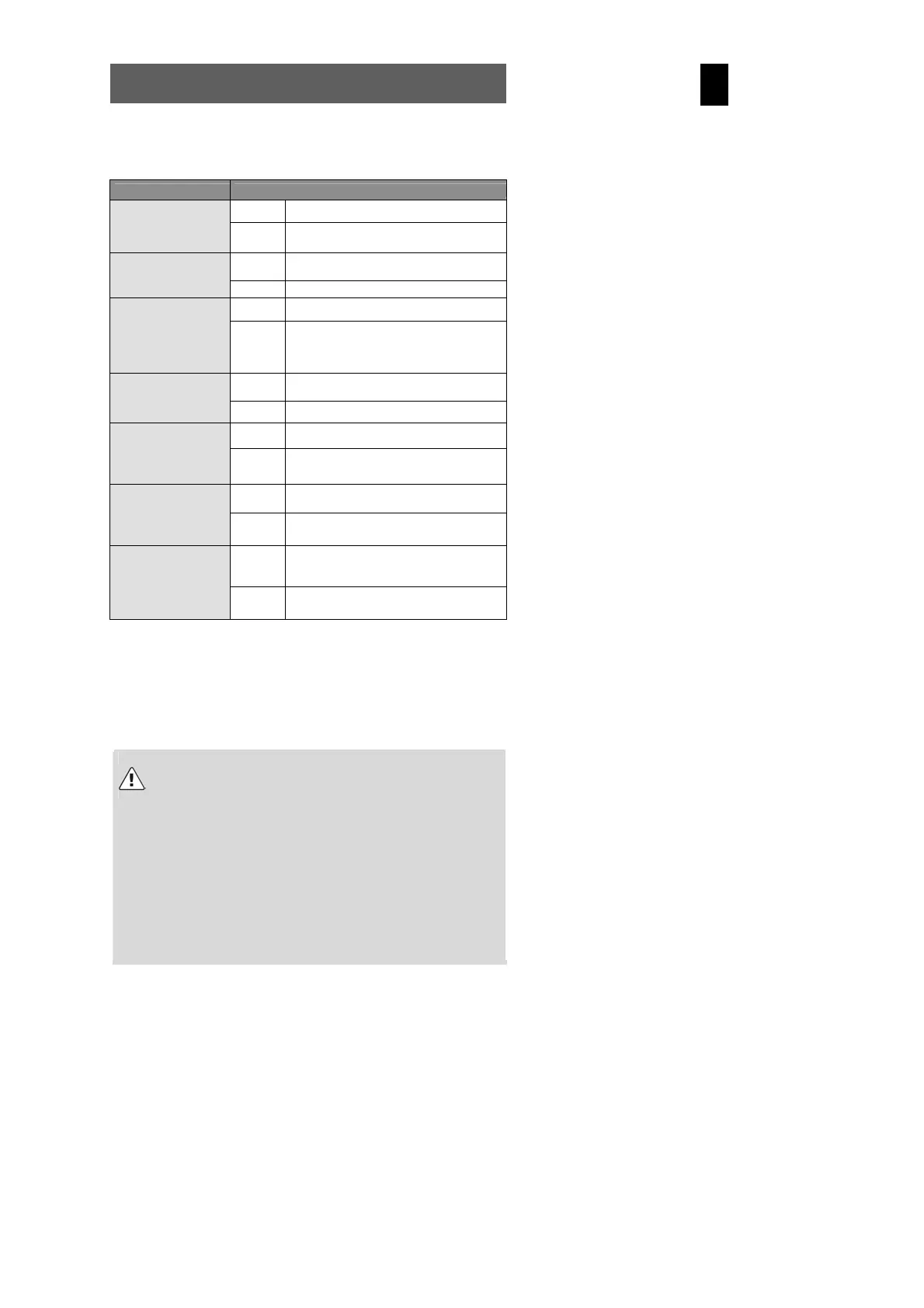
10 Troubleshooting
If your camera does not work properly, please check the following items. If the problem still exists please contact your dealer.
Symptoms Cause and solution
Cause: Not enough light
Error A
Camera does not take
photos
Solution:
Change angle of camera to include more light
or use automatic flash.
Cause: Weak batteries
Error B
Photos disappear from
the LCD after a period
Solution: Insert two fresh batteries.
Cause: The PC does not have enough free RAM.
Error C
Not all images can be
downloaded to the PC
Solution:
Close all other applications before downloading.
If the problem persists, download the images
one at a time to the PC and save them there
before transferring the next image.
Cause: Camera shuts down automatically.
Error D
Camera switches off after
5 minutes. LCD switches
off.
Solution: Restart camera.
Cause: The PC’s USB port is deactivated in the BIOS.
Error E
When the camera is
connected to the PC for
the first time, no new
hardware is found.
Solution: Activate the port in the PC’s BIOS.
Cause:
It is normal for the shutter speed to be slower in
dark conditions.
Error F
The shot to shot time
is longer when taking
pictures in dark
conditions.
Solution:
Change the camera angle or improve the light
conditions.
Cause:
PC or camera is busy and there is no
connection between the two.
Error G
The camera does not
start after connection to
the PC. The camera
display lights up and LCD
shows all symbols.
Solution:
Disconnect the USB cable from the PC, check
why the PC is busy and insert the cable again.
Note: This table contains possible causes of error. Some of these are normal phenomena.
11 Further information
11.1 Safety instructions
Although this product is safe, please observe the following information and warnings.
Caution
1. Do not modify or dismantle the camera.
2. Contact your dealer for repairs and inspections.
3. Do not shake the camera or subject it to hard knocks. The
camera may be damaged if it falls.
4. Ensure that no water or moisture enters the camera. This can
cause short circuits and accidents.
Note
When using the flash, do not look directly into it, as this can
damage the eyes.
11.2 Maintenance and care
Please clean the body, lens and LCD as follows:
• Do not use thinning or cleaning agents which contain petrol. This could damage the camera.
• Clean the camera body with a soft cloth.
• Lens: First remove dust with a lens brush. Then clean with a soft cloth.
• Do not use powerful cleaning agents on the body and lens (contact your dealer if dirt cannot be removed).
• Do not apply pressure to the LCD or use hard objects to clean it.


 To Next Page