EasyManua.ls Logo

Oki C9800hdn - User Manual

Oki C9800hdn
129 pages
Print Icon
To Next Page IconTo Next Page
Loading...
USER’S GUIDE
C9800hdn/C9800hdtn/C9800 GA
C9800
C9000

Table of Contents

Other manuals for Oki C9800hdn

Questions and Answers

  • J
    Joseph MccormickSep 12, 2025
    How do I clear a paper jam in the duplex unit of my Oki All in One Printer?
    • D
      Diana SchaeferSep 12, 2025
      To clear a paper jam in the duplex unit of your Oki All in One Printer, open the duplex cover release button and carefully remove any jammed paper.
  • S
    Sarah LoweSep 10, 2025
    How to clear paper jam in top cover of Oki All in One Printer?
    • D
      Dr. Rita AtkinsSep 12, 2025
      To clear a paper jam in the top cover of your Oki All in One Printer, squeeze the top cover handle and open the top cover. Then, carefully remove any paper on the belt.
  • A
    Anthony CunninghamSep 9, 2025
    How to clear paper jam in side cover of Oki All in One Printer?
    • A
      Andrew MitchellSep 9, 2025
      To clear a paper jam in the side cover of your Oki All in One Printer, ensure the MP Tray is closed. Then, pull the release lever and open the side cover. Carefully remove the jammed paper.
  • N
    Nancy RoseSep 8, 2025
    How to clear paper jam in Tray 1 of Oki All in One Printer?
    • C
      Cody CoxSep 8, 2025
      If your Oki All in One Printer has a paper jam in tray 1, squeeze the catch on the Tray 1 side cover to open it. Then, carefully remove the jammed paper.
  • J
    jaredvazquezAug 23, 2025
    What to do if Oki All in One Printer displays 'File server name not found. Try again?'?
    • J
      James WilliamsAug 23, 2025
      This message appears when the Oki All in One Printer cannot find a file server with the specified name on the network. Check the name of the NetWare file server, verify cable connections, and ensure the NetWare server is powered on.
  • D
    David MendozaSep 6, 2025
    How to fix vertical white lines on Oki All in One Printer?
    • D
      darren79Sep 6, 2025
      If you are experiencing vertical white lines when printing with your Oki All in One Printer, the issue might be due to: * A dirty LED head: Wipe the LED head with a LED lens cleaner or a soft cloth. * Low toner: Replace the toner cartridge. * Foreign materials in the image drum: Replace the image drum cartridge. * A dirty light-shielding film on the image drum cartridge: Wipe the film with a LED lens cleaner or a soft cloth.
  • T
    Timothy BoydSep 4, 2025
    Why is my Oki All in One Printer printing so light?
    • C
      corysimpsonSep 5, 2025
      If the printing on your Oki All in One Printer is too light, here are a few things you can check: * Make sure the toner cartridge is properly seated; if not, reinstall it. * The toner may be low, consider replacing the toner cartridge. * Ensure you are using paper stored in proper temperature and humidity conditions, as moist paper can cause light printing. * Verify that the paper is suitable for the printer; use recommended paper. * Adjust the [Media Weight] and [Media Type] settings in the menu setup to appropriate values for your paper. * If using recycled paper, set one value thicker for [Media Weight] in the menu setup.
  • R
    Richard RowlandSep 3, 2025
    What to do if Oki All in One Printer says 'You must first enable a network port.'?
    • S
      Sara MitchellSep 3, 2025
      Enable at least one network port (Ethernet) in Port Setup before beginning Protocol Setup or Service Setup.
  • D
    Dean WhiteSep 2, 2025
    Why does Oki All in One Printer show 'No AppleTalk zone found'?
    • D
      Derek SimpsonSep 3, 2025
      This message can appear because the Ethernet network cable is either not connected to the connector or not plugged into the hub or network. It could also mean that the AppleTalk network does not have zones. Press Enter to continue.
  • F
    fishermichaelSep 1, 2025
    Why does my Oki All in One Printer say 'No NDS trees found.'?
    • S
      smithbeverlySep 1, 2025
      Check to see that the frame types on the Fiery are properly configured.

Summary

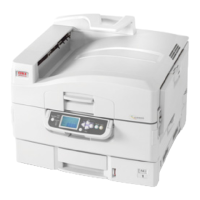
Printer and paper overview

Identifying major components

Identifies and labels the main physical parts of the printer.

Trays and stackers

Tray and stacker examples

Provides examples and instructions for loading paper into trays and using stackers.

Control panel

Controls and Indicators

Identifies and explains the buttons, lights, and indicators on the printer's control panel.

Getting started

Turning off;on

Instructions for safely powering the printer off and on.

Interfaces and connection

Using the Drivers CD

Instructions for installing printer drivers and software from the supplied CD.

Consumables and maintenance

Cleaning the LED heads

Cleaning the paper feed rollers

Troubleshooting

Paper jams - Printer

Guidance for dealing with paper jams in the printer.

Open cover, paper jam, side cover

Steps to clear paper jams accessible via the printer's side cover.

Open cover, paper jam, top cover

Instructions for clearing paper jams under the printer's top cover.

Paper jams - duplex unit

Check duplex unit, paper jam

Steps to clear paper jams within the printer's duplex unit.

Paper jams - Finisher

Check Finisher, paper jam;remains

How to clear paper jams occurring around or within the finisher.

Paper jam in Finisher

Specific instructions for clearing paper jams within the finisher unit.

Paper jam in Finisher;Punch unit

Procedure for clearing paper jams in the finisher or punch unit.

Check Inverter, paper jam

Steps to clear paper jams within the inverter unit.

Avoiding paper jams

Dealing with unsatisfactory printing

Staple jams - Finisher

Check Finisher, Staple Jam

Instructions for clearing staple jams that occur in the finisher.

Specifications

Oki C9800hdn Specifications

Performance IconPerformance
print speed color36 ppm
print speed mono40 ppm
time to first page color10.5 sec
time to first page mono9 sec
warm-up time110 sec
resolution1200 x 1200 dpi
processor1 GHz
duty cycle150, 000 pages/month
Memory IconMemory
standard ram1, 024 MB
flash memory4 MB
hard disk drive20 GB
Paper Handling IconPaper Handling
standard input760 sheets
optional input2nd/3rd universal tray (530 sheets each)
maximum capacity2, 880 sheets
paper sizes supportedup to 12.9" by 47.24"
paper weight trays 1-517 lb.–57.5 lb. bond
duplex printingstandard on C9800hdn
Power and Acoustic Noise IconPower and Acoustic Noise
power consumption typical750W
power consumption peak1500W
power consumption idle200W
acoustic noise operating54dB(A)
Weight and Dimensions IconWeight and Dimensions
size25.8" x 24.4" x 18.2"
weight152 lb.

Related product manuals