EasyManua.ls Logo

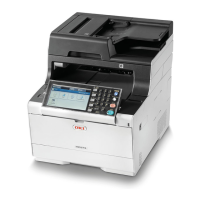
Oki ES5463 - User Manual

Oki ES5463
199 pages
Print Icon
To Next Page IconTo Next Page
Loading...
MC563/ES5463 MFP
User’s Manual

Table of Contents

Other manuals for Oki ES5463

Questions and Answers

  • K
    Kristen FosterSep 7, 2025
    Why is my Oki All in One Printer taking a long time to start copying?
    • B
      Brenda FieldsSep 7, 2025
      If your Oki All in One Printer is taking a long time to start copying, it might be in the process of preparing. If [Warming Up] or [Preparing] is displayed on the screen, wait until the process is complete and the copy starts.
  • K
    kathryntaylorSep 5, 2025
    What to do if a part of the document image is missing on the copied output from my Oki All in One Printer?
    • R
      Rebekah WolfeSep 6, 2025
      If a part of the document image is missing on the copied output from your Oki All in One Printer, ensure that [Edge Erase], [Margin], and [N-in-1] are all set to [OFF].
  • D
    Dean Hammond DDSSep 4, 2025
    Why is the copied output different from the original document on my Oki All in One Printer?
    • M
      Mary WhiteSep 4, 2025
      If the copied output differs from the original document on your Oki All in One Printer, check if [Duplex Copy] is set to [OFF(Simplex)] and [Mixed Size] is set to [OFF].
  • S
    Shelby JohnsonSep 2, 2025
    How to fix the IP address if it is incorrect while printing from my Oki All in One Printer?
    • P
      Priscilla BondSep 2, 2025
      To resolve an incorrect IP address while printing from your Oki All in One Printer: * Check that the same IP address is set for the machine and the machine's port setting on the computer. * Ensure the IP address is not duplicated by another device. * Verify that the correct IP address, subnet mask, and gateway address are set. * If using OKI LPR Utility, check the IP address setting with OKI LPR Utility.
  • S
    Sandra HerreraAug 31, 2025
    How to fix incorrect network connection settings while printing with my Oki All in One Printer?
    • K
      Katelyn RobinsonAug 31, 2025
      To fix incorrect network connection settings while printing with your Oki All in One Printer: * If you are using a cross cable, use a straight cable instead. * Ensure cables are connected before turning the machine on. * If there is a problem with hub compatibility, press the (SETTING) button, select [Admin Setup] > [Network Menu] > [Network Setup] > [Network Setting] > [HUB Link Setting], and then change the setting. * To connect to a wired network, set [Wired] for the network connection to [Enable].
  • T
    Thomas ThomasAug 29, 2025
    What to do if a copy job is cancelled on Oki All in One Printer?
    • S
      stevenbrownAug 30, 2025
      If a copy job is cancelled on your Oki All in One Printer, it may be due to an error. Clear the error and try copying again. If you're using the MP tray, ensure enough paper is loaded before starting. Press the (SETTING) button, select [Paper Setup] > [Select Tray] > [Copy] > [MP Tray], and check that [ON] or [ON(Prior)] is selected.
  • M
    Mary ClarkAug 27, 2025
    What to do if the copied output size is different from the original document size on my Oki All in One Printer?
    • V
      valenzuelalaurieAug 28, 2025
      If the copied output size differs from the original document size on your Oki All in One Printer, ensure that the proper size paper for the document is loaded in the paper tray. Also, verify that the zoom rate is properly set and that [Repeat] is set to [OFF].

Summary

Before Starting

Cautions Related to Safety

Explains the meaning of WARNING and CAUTION symbols for safety.

General Cautions

Provides general warnings and precautions for operating the machine safely.

Setting Up

Unpacking and Installing the Machine

Step-by-step instructions for unpacking and physically installing the machine.

Connecting to a Wireless LAN

Steps for connecting the machine to a wireless network access point or directly to devices.

Installing a Driver and Software to a Computer

Guide for installing printer, scanner, and fax drivers for Windows and Mac OS X.

Scan

Sending Scanned Data as an E-mail Attachment

Guide to sending scanned documents as e-mail attachments.

Saving Scanned Data in a Shared Folder

Steps for configuring and saving scanned files to a network shared folder.

Print

Printing from a Computer (Windows)

Instructions for printing from a Windows computer using PCL or PS printer drivers.

Printing from a Computer (Mac OS X)

Instructions for printing from a Mac OS X computer using the printer driver.

Maintenance

Replacing Consumables

Detailed instructions and cautions for replacing consumables like toner and image drums.

Troubleshooting

If Paper Jams Occur

Guidance on how to resolve paper jams, including specific error codes.

If a Document Jam Occurs

Steps to clear document jams in the ADF, whether visible or invisible.

If an Error Message is Displayed on the Operator Panel

Lists and explains various error messages displayed on the operator panel.

Oki ES5463 Specifications

General IconGeneral
BrandOki
ModelES5463
CategoryAll in One Printer
LanguageEnglish

Related product manuals