Status / Job Cancel
7-8 OPERATION GUIDE
Checking Job History
Check the history of completed jobs.
NOTE: Job history is also available by COMMAND CENTER or KM-NET VIEWER from the computer.
Available Job History Screens
The job histories are displayed separately in three screens - Print Job, Send Job, Store Job and Scheduled Job.
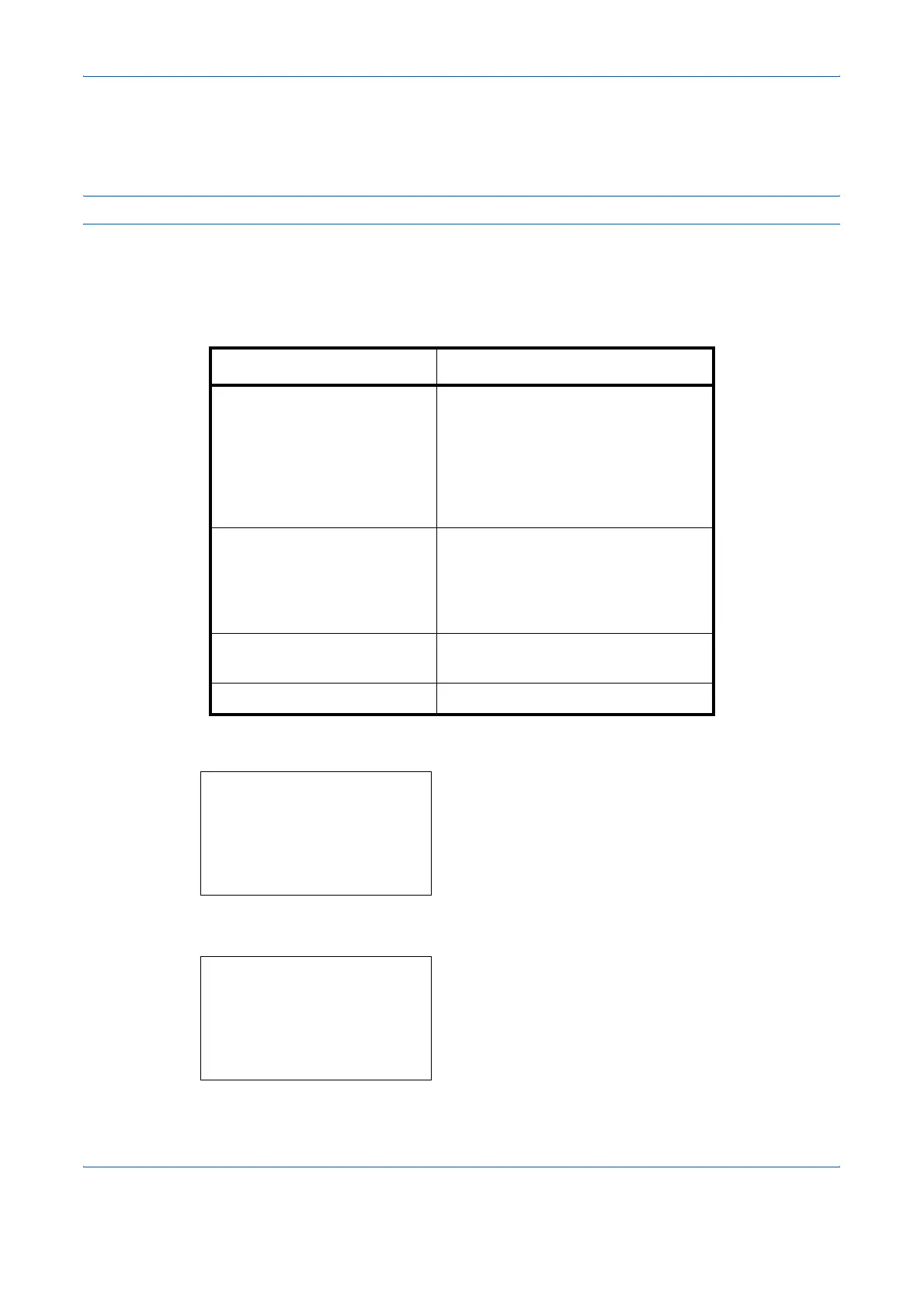
The following job histories are available.
Displaying Print Job Log
1 Press the Status/Job Cancel key. The Status
menu appears.
2 Press the U or V key to select [Print Job Log].
3 Press the OK key. Print Job Log appears. Press the
U or V key to check the print log.
Screen Job histories to be displayed
Print Job • Copy
• Printer
• FAX reception
• E-mail reception
• Job Report / List
• Printing data from removable
memory
Send Job • FAX
• PC (SMB/FTP)
•E-mail
• Application
• Multiple destination
Store Job • Scan
•FAX
Scheduled Job • FAX
Status:
a
b
*********************
2
Send Job Status
3
Store Job Status
[ Pause ]
1
Print Job Status
Print Job Log:
a
b
0006
r
maury’s da.
v
0007
r
tom’s da.
u
0008
r
susan’s da.
u
[ Detail ]







 To Next Page