3-6 Connecting and Printing
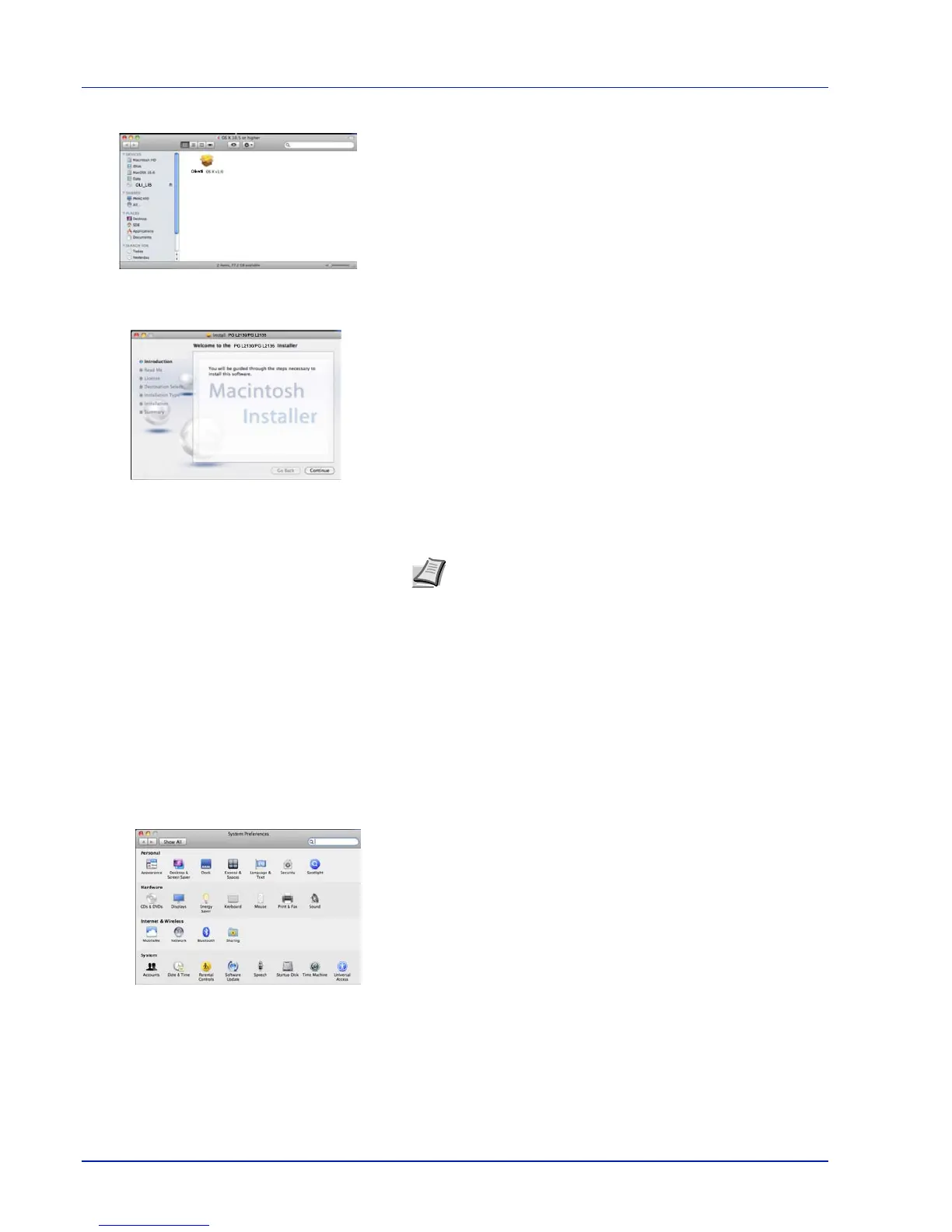
5 Double-click Olivetti OS X x.x.
6 The printer driver installation program starts up.
7 Choose Select Destination, Installation Type and then install the
printer driver as directed by the instructions in the installation
software.
This completes the printer driver installation. Next, specify the print
settings.
If an IP, AppleTalk or Bonjour connection is used, the settings below
are required. If a USB connection is used, the printer is automatically
recognized and connected.
8 Open System Preferences and click Print & Fax.
Note In addition to Easy Install, the Installation Type
options include Custom Install, which allows you to specify
the components to be installed.
IMPORTANT In the Authenticate screen, enter the name and
password used to log in to the operating system.
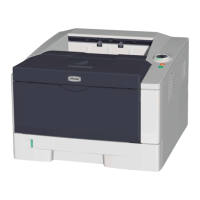
PG L2130/PG L2135
PG L2130/PG L2135
Olivetti
OLI_LIB





 To Next Page