The circle around the XO icon shows Activities that you are currently using on the XO. The
Journal icon is always at the bottom of the circle. You can resume an Activity by clicking
on its icon in the circle. If you leave your Activity without closing it, you can resume your current
Activity by pressing the Activity Key (circle with rectangle) on the keyboard. You can keep
opening new Activities until the ring is full, but when the Activity Circle is full you cannot start
any more Activities until you close some.
Right side of the frame shows your XO buddies (image)
The menu on the right-hand side of the frame contains the XO icons of the people with whom
you are collaborating on XO online projects.
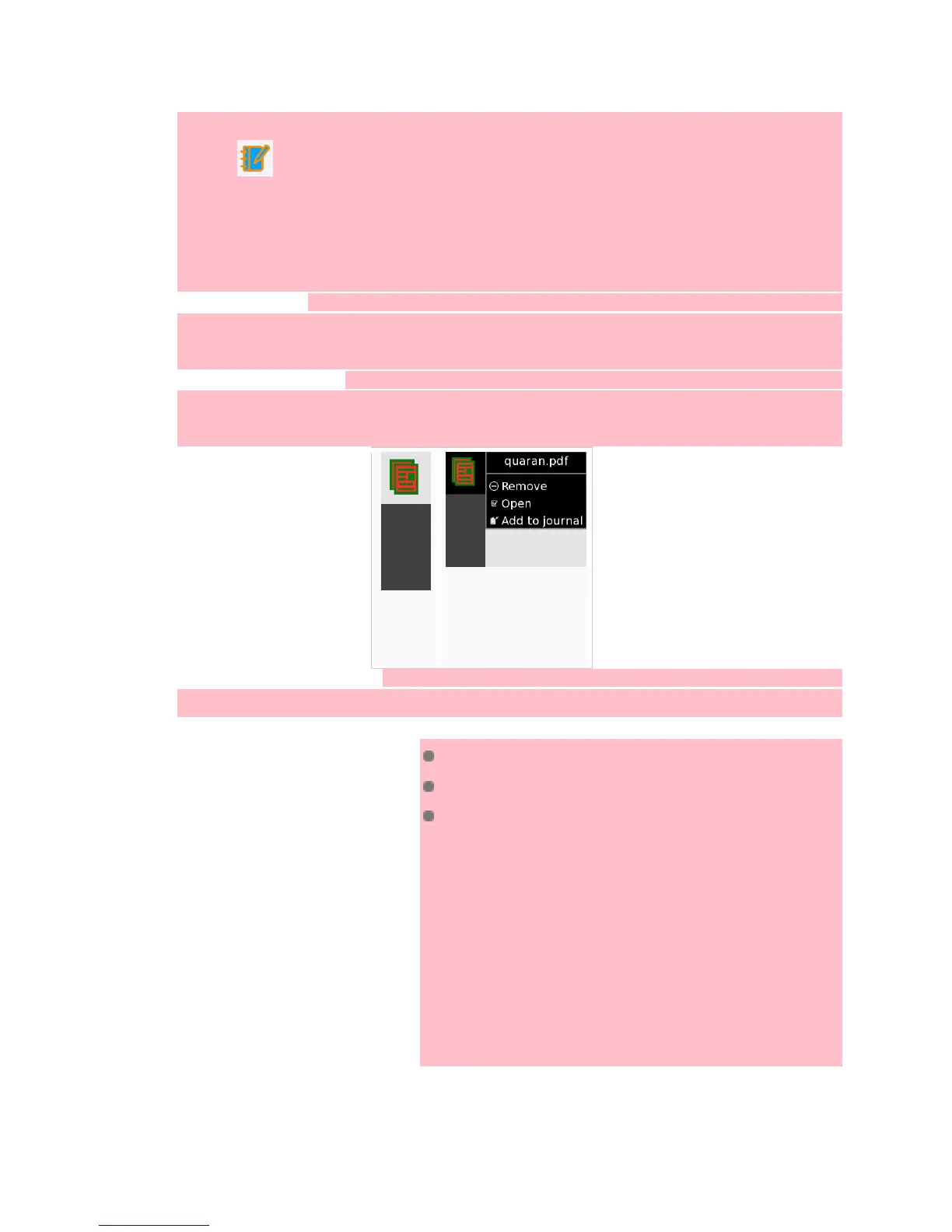
Left side of the frame shows the clipboard
The menu on the left side of the frame contains the icons for the clipboard. You can drag and
drop most Activities on and off of the clipboard.
Neighborhood View
From the Neighborhood View (also called the Mesh View), you can see:
who is currently on the network
which activities and objects are being shared
which networks are available
You can access the Neighborhood View by pressing the
Neighborhood Key on the keyboard (circle with eight dots --
) or by pressing the Neighborhood Icon on the frame.
Your XO icon appears in the center of the screen in the
Neighborhood View. Moving your cursor over another XO
icon brings up a menu that provides additional details (user's
name) and actions you can take (add to list of Friends).
Group View


 To Next Page