EasyManua.ls Logo

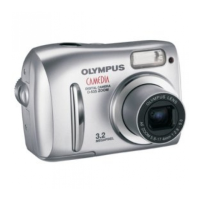
Olympus CAMEDIA D-535 ZOOM - User Manual

Olympus CAMEDIA D-535 ZOOM
144 pages
Print Icon
To Next Page IconTo Next Page
Loading...
Thank you for purchasing an Olympus digital camera. Before you
start to use your new camera, please read these instructions care-
fully to enjoy optimum performance and a longer service life. Keep
this manual in a safe place for future reference.
We recommend that you take test shots to get accustomed to your
camera before taking important photographs.
Screen and camera illustrations shown in this manual may differ
from those of the actual product.
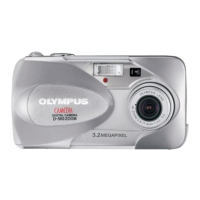
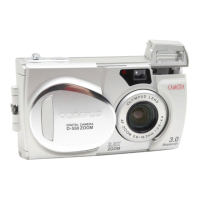
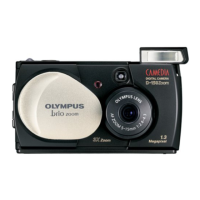
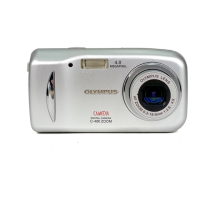
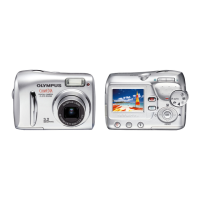
DIGITAL CAMERA
D-535 ZOOM
C-370 ZOOM
X-450
REFERENCE MANUAL

Table of Contents

Questions and Answers

  • K
    Kenneth Garcia DVMAug 14, 2025
    Why my Olympus Digital Camera does not turn on?
    • J
      jackturnerAug 14, 2025
      Your Olympus Digital Camera might not be turning on due to several reasons: the power is off (press the power switch to turn on the camera), the batteries are loaded incorrectly (reload them correctly), the batteries are exhausted (replace them), the batteries are too cold (warm them in your pocket), the camera is in sleep mode (operate the camera with the shutter button), there's condensation inside (wait until it dries), or it's connected to a PC (disconnect it).
  • T
    Timothy HerreraAug 17, 2025
    What to do if Olympus CAMEDIA D-535 ZOOM doesn't take picture when shutter button is pressed?
    • M
      Michael VegaAug 17, 2025
      If your Olympus Digital Camera isn't taking pictures, it could be due to exhausted batteries (replace them), being in playback mode (switch to shooting mode), the power being off (turn on the camera), the flash not being fully charged (wait until it's ready), the memory being full (erase unwanted pictures or insert a new card), the battery ran out of power during shooting (replace the batteries), or a problem with the card. For card issues, refer to the error codes.
  • S
    Sara MillerAug 20, 2025
    Why is my Olympus CAMEDIA D-535 ZOOM picture too dark?
    • A
      Andrew AllenAug 21, 2025
      If your Olympus Digital Camera pictures are too dark, it could be because your finger is blocking the flash, the subject is out of the flash's range, the flash is off, the subject is backlit, or you are shooting bright subjects such as snow. To fix this, hold the camera correctly, shoot within the flash range, select a different flash mode, set the flash to fill-in mode, or adjust the exposure compensation towards (+).
  • S
    smithryanAug 25, 2025
    How to fix overexposed picture on Olympus Digital Camera?
    • L
      Linda MoralesAug 25, 2025
      If your Olympus Digital Camera pictures are too bright, it might be because the flash was set to fill-in mode or the subject was excessively illuminated. Try selecting a different flash mode or adjusting the exposure compensation toward minus (–) or change the camera position.
  • A
    Andrew HolderAug 27, 2025
    What to do if Olympus CAMEDIA D-535 ZOOM is not recognized by PC?
    • E
      Elizabeth CantuAug 27, 2025
      If your PC doesn't recognize your Olympus Digital Camera, try disconnecting and reconnecting the USB cable. If that doesn't work, you may need to uninstall and reinstall the OLYMPUS Master software.
  • L
    leejamesAug 30, 2025
    How to erase protected pictures on Olympus CAMEDIA D-535 ZOOM Digital Camera?
    • N
      Nicholas HarrisonAug 30, 2025
      If you cannot perform single-frame or all-frame erase on your Olympus Digital Camera, the pictures are likely protected. To remove the protection, display the image with the mark and select [OFF] from the [ ] in the menu.
  • B
    bellericSep 3, 2025
    How to fix wrong date on Olympus Digital Camera photos?
    • T
      Tamara StephensSep 3, 2025
      If the date is wrong on your Olympus Digital Camera photos, it's likely because the date/time wasn't set initially, or the camera was left without batteries for too long. To resolve this, set the date/time. Note that the clock adjustment is not factory-preset, and if the camera is left without batteries for about 1 day, the settings will revert to default, requiring you to set the date/time again.
  • E
    Elizabeth ParkerSep 6, 2025
    Why no picture is displayed on TV when Olympus CAMEDIA D-535 ZOOM is connected?
    • C
      Cindy JacksonSep 6, 2025
      If no picture is displayed on the TV when your Olympus Digital Camera is connected, the video output signal might be incorrect. Ensure you set the video output signal according to your region. Also, check that the TV is set to the correct video input mode.
  • P
    pcunninghamSep 10, 2025
    Why Olympus CAMEDIA D-535 ZOOM Digital Camera picture has obscured edge?
    • S
      stephanie43Sep 10, 2025
      If your Olympus Digital Camera pictures have obscured edges, it's likely because your finger or the camera strap is partially blocking the lens. Make sure to hold the camera correctly, keeping your fingers and the strap away from the lens.

Summary

Getting Started

Names of Parts

Identifies and labels the various physical components of the camera.

Monitor Indications

Explains the symbols and indicators displayed on the camera's monitor screen.

How to Use this Manual

Provides guidance on how to navigate and understand the manual's structure and conventions.

Attaching the Strap

Step-by-step instructions for securely attaching the camera's carrying strap.

Loading the Batteries

Detailed procedure for inserting AA batteries into the camera.

Power Sources

Information on using alternative power sources like rechargeable batteries and AC adapters.

Memory Management

Explains the usage and differences between internal memory and optional memory cards.

Inserting a Memory Card

Instructions on how to properly insert an xD-Picture Card into the camera.

Power On;Off

How to turn the camera on and off, and basic power management tips.

Mode Switching

Instructions on how to toggle between taking pictures and viewing them.

Language Settings

Guide on how to change the on-screen display language for the camera.

Date and Time Settings

Procedure for setting the camera's date and time for accurate photo metadata.

About the Menus

How to Use the Menus

Explains how to navigate and operate the camera's menu system effectively.

Shooting Mode Menus

Details the menu items available in shooting mode and their functions.

Playback Mode Menus

Details the menu items available in playback mode and their functions.

Shooting

Shooting Modes Overview

Introduces the camera's different shooting modes and how to select them.

Taking Still Pictures

Step-by-step guide on how to capture still photographs using the camera.

Focusing Techniques

Methods for achieving correct focus and addressing autofocus challenges.

Recording Movies

Instructions on how to record video clips with the camera.

Zoom Functionality

How to use the optical and digital zoom features for framing shots.

Flash Operations

Guide to selecting and using different flash modes for optimal lighting.

Macro Shooting

Instructions for shooting close-up subjects in macro and super macro modes.

Self-Timer Shooting

How to use the self-timer for capturing photos with yourself included.

Record Mode Settings

Choosing the appropriate resolution and compression settings for images and movies.

Exposure Compensation

Adjusting exposure compensation to fine-tune image brightness.

Playback

Viewing Still Pictures

How to view still images stored on the camera's memory or card.

Close-up Playback

Enlarging images to view details during playback.

Picture Rotation

Rotating images to display them in the correct orientation.

Index Display

Showing multiple images at once on the monitor for quick browsing.

Selecting Index Display Frames

Customizing the number of images shown in the index display.

Slideshow Function

Automated playback of stored images as a slideshow.

Playback on TV

Connecting the camera to a TV to view pictures on a larger screen.

Viewing Movies

How to play back recorded movie clips on the camera.

Protecting Pictures

Preventing accidental deletion of important images by marking them as protected.

Erasing Pictures

How to delete single or all recorded pictures from the camera.

Useful Functions

Reset Settings

Restores camera settings to their original factory defaults.

Formatting Memory

Prepares internal memory or card for data storage by erasing all content.

Backup Function

Copies all image data from internal memory to the memory card.

Sleep Mode Settings

Configures the automatic power-saving sleep mode duration.

Pixel Mapping

Checks and adjusts the camera's CCD and image processing functions.

Video Output Settings

Selects the TV video signal type (NTSC or PAL) for video output.

Print Setting (DPOF)

With Print Reservation

Saves printing data with pictures for easy printing at home or shops.

All-Frame Reservation

Sets all stored images for printing with optional date or time.

Single-Frame Reservation

Selects specific pictures and sets the number of copies and print data.

Resetting Print Reservation Data

Clears all stored print reservation data from the memory card.

Direct Printing (PictBridge)

Using the Direct Printing Function

Overview of printing pictures directly from camera to printer without a PC.

Connecting Camera to Printer

Steps to establish a USB connection between the camera and a PictBridge-compatible printer.

Printing Pictures

Selecting print modes (PRINT, PRINT ORDER) and paper settings.

Simple Print Method

The most basic method for printing a single selected picture.

PRINT Mode

Detailed steps for printing selected pictures using the PRINT mode.

PRINT ORDER Mode

Printing pictures based on pre-set print reservation data.

Exiting Direct Printing

Procedure for safely disconnecting the camera after printing is complete.

Error Codes During Printing

Troubleshooting common error messages encountered during direct printing.

Connecting to a Computer

Connection Flow

Overview of steps for connecting the camera to a computer using OLYMPUS Master.

Using OLYMPUS Master

Introduction to the OLYMPUS Master software for image management.

Installing OLYMPUS Master (Windows)

Instructions for installing the OLYMPUS Master software on Windows PCs.

Installing OLYMPUS Master (Macintosh)

Instructions for installing the OLYMPUS Master software on Macintosh computers.

Connecting the Camera to Computer

Step-by-step guide to physically connect the camera to the computer.

Starting up OLYMPUS Master

How to launch the OLYMPUS Master software on both Windows and Macintosh.

Downloading and Saving Images

Transferring pictures from the camera to the computer using the software.

Disconnecting the Camera

Safe procedure for removing the USB cable and disconnecting the camera.

Viewing Still Pictures and Movies

How to view downloaded images and movie clips within OLYMPUS Master.

Viewing Movies

Specific steps for playing back movie files within the software.

Printing Pictures via Computer

Using OLYMPUS Master to select and print images from the computer.

Saving Images Without OLYMPUS Master

Method for transferring images using USB mass storage without the software.

Miscellaneous

Error Codes

List of monitor indications, their causes, and corrective actions for camera errors.

Troubleshooting Guide

Comprehensive guide to resolving common camera issues, including shooting, playback, and connection problems.

Menu & Settings Reference

Tables detailing menu items, settings, and their default configurations.

Feature Availability by Mode

Cross-reference of camera features and their availability across different shooting modes.

Camera Maintenance

Guidelines for cleaning and storing the camera to ensure its longevity.

Specifications Overview

Technical details of the camera's hardware, capabilities, and operating environment.

Glossary of Terms

Definitions of technical terms used throughout the manual.

Index

Alphabetical listing of topics and their corresponding page numbers for quick reference.

Olympus CAMEDIA D-535 ZOOM Specifications

General IconGeneral
BrandOlympus
ModelCAMEDIA D-535 ZOOM
CategoryDigital Camera
LanguageEnglish

Related product manuals